

Wait Actions in Power Automate Desktop
Wait actions delay running the next action in the flow until a certain event occurs. Wait actions sets rules for the flow in Power Automate Desktop to wait before specific events occur.
To add a delay before the next action, we use the Wait action. These actions set the timer and resume the flow when the timer ends.
There are ten Wait actions in Power Automate Desktop
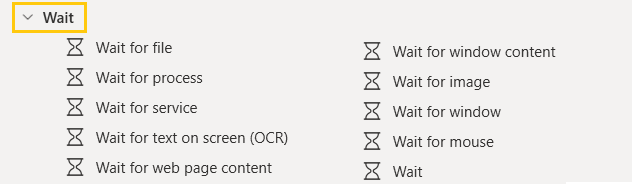
- Wait for file: To add a delay until a specific file is created or appeared, we use the Wait for file action.
- Wait for process: It is used to suspend the execution until a process starts or stops.
- Wait for service: It suspends the execution of the automation until service is running, paused, or stopped.
- Wait for text on screen (OCR): Waits until a specific text appears/disappears on the screen, on the foreground window, or relative to an image on the screen or foreground window using OCR.
- Wait for web page content: Suspend the flow until a specific piece of text or web page element appears or disappears from a web page.
- Wait for window content: Suspends the execution of the automation until a specific piece of text or UI element appears or disappears from a Window.
- Wait for image: This action waits until a specific image appears on the screen or in the foreground window.
- Wait for window: This action suspends the execution or the process until a specific window opens, closes, get, or loses the focus
- Wait for mouse: Suspends the execution of the flow until the mouse pointer changes, usually to or from the 'wait cursor' or hourglass
- Wait: Suspends the execution of the flow for a specified amount of time
FTP Actions in Power Automate Desktop
- Open Power Automate Desktop App.

- Firstly, we need to create a flow. Click on New flow.

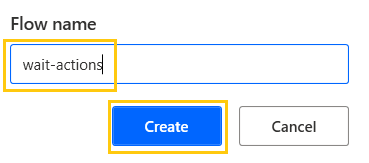
- Create a flow with the name wait-actions.
Wait
Suspends the execution of the flow for a specified amount of time
- From the Actions pane, drag and drop the Wait into the workspace. This action halts or waits for some time duration before the next action. Add time Duration as 20secs. Click on Save.

- Save and Run the flow. After 20secs, the message will be displayed.
Wait for file
To add a delay until a specific file is created or appeared, we use the Wait for file action.
- From the Actions pane, drag and drop Wait for file action into the workspace. We have two options here, file to be created or deleted. This will trigger the wait action.
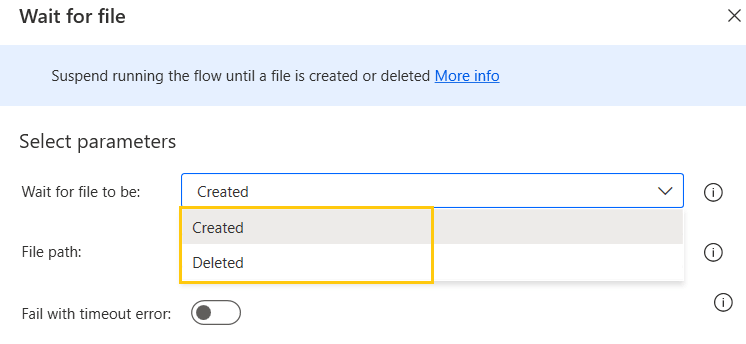
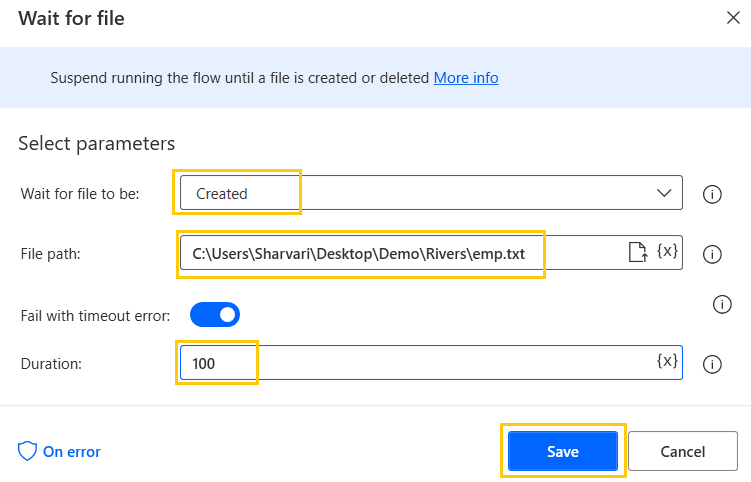
- Select Wait for file to be as Created, add file path, and enable the timer with a duration of 100 secs. Click on Save.
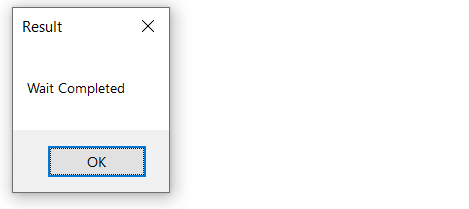
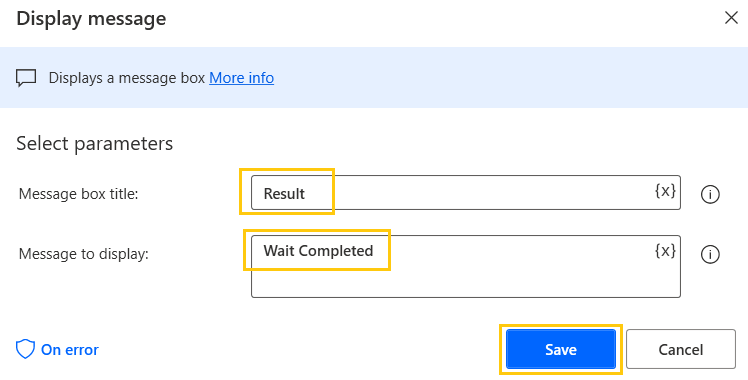
- As to determine the wait action has been completed we use the next action to display the message. From the Actions pane, drag and drop the Display message into the workspace. Add Title as Result and Message to display as "Wait Completed". Click on Save.
- Save and Run the flow. When we create a file in the specified path, a message will be displayed.

Wait for process
It is used to suspend the execution until a process starts or stops.
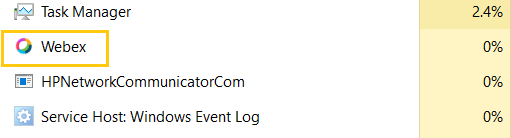
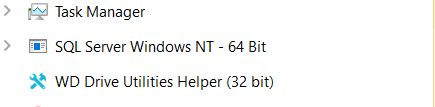
- Here, we have the Webex process running in the task manager.
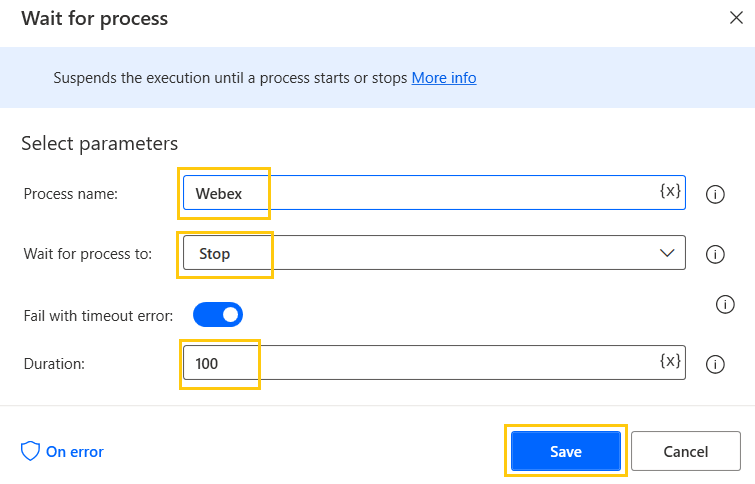
- From the Actions pane, drag and drop Wait for process into the workspace. Add the Process name, Wait for process to stop, and time duration for 100 secs. Click on Save.
- Save and Run the flow. When we stop the process, the message will be displayed.
Wait for text on screen (OCR)
Waits until a specific text appears/disappears on the screen, on the foreground window, or relative to an image on the screen or foreground window using OCR.
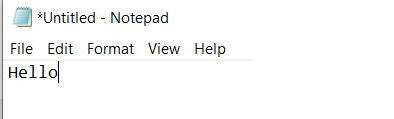
- From the Actions pane, drag and drop Wait for text on screen (OCR) into the workspace. Select wait for text to appear, OCR engine type as Tesseract engine, Text to find as "Hello", Search for text on Entire screen, Search mode as Whole specified source, time duration for 100 secs. Click on Save.

- Save and Run the flow. When we write "Hello" on the screen in the notepad, the message will be displayed.
Wait for window content
Suspends the execution of the automation until a specific piece of text or UI element appears or disappears from a Window.
- From the Actions pane, drag and drop Wait for window content into the workspace. Add Contains UI element, here we have added UI element as Paint's Title Bar, time duration 100secs. Click on Save.

- Save and Run the flow. When we open the Paint window, the message has been displayed.
Wait for image
This action waits until a specific image appears on the screen or in the foreground window.
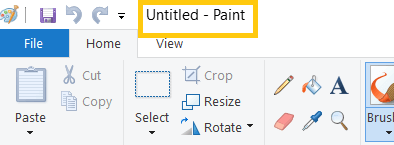
- From the Actions pane, drag and drop Wait for image into the workspace. Wait for the image to Appear, add the image, search for the entire screen, search mode as Search whole screen or foreground window. Time duration as 100 secs and click on Save.

This is the image that we have added.
- Save and Run the flow. When we open the image, the message will be displayed.

Wait for window
This action suspends the execution or the process until a specific window opens, closes, gets, or loses the focus.
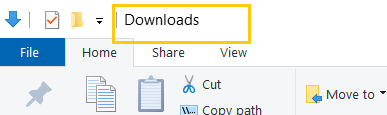
- From the Actions pane, drag and drop the Wait for window into the workspace. Find window by window UI element, UI element as Window Downloads Title Bar, Wait for it to Open, time duration as 100secs. Click on Save.

- Save and Run the flow. When we open the Downloads window, the message will be displayed.
Wait for mouse
Suspends the execution of the flow until the mouse pointer changes, usually to or from the 'wait cursor' or hourglass.
- From the Actions pane, drag and drop the Wait for mouse into the workspace. Wait for mouse to Become, Mouse pointer as IBeam, and time duration as 100secs. Click on Save.
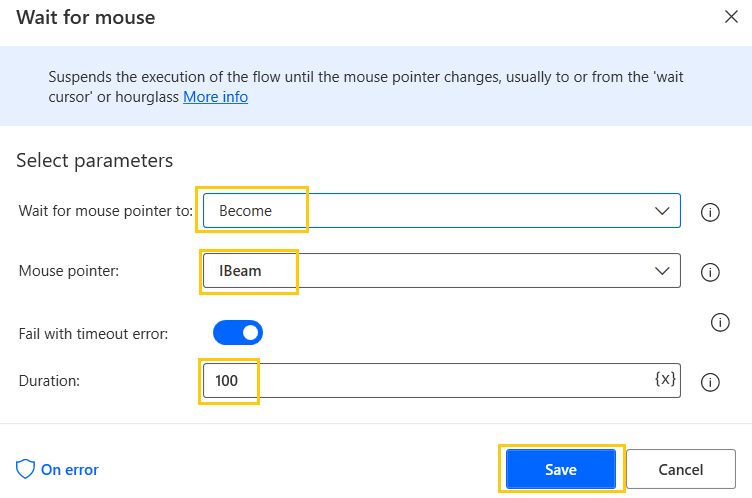
We have options for mouse pointer as, Arrow, App starting, Cross, Hand, Help, IBeam, and Wait cursor.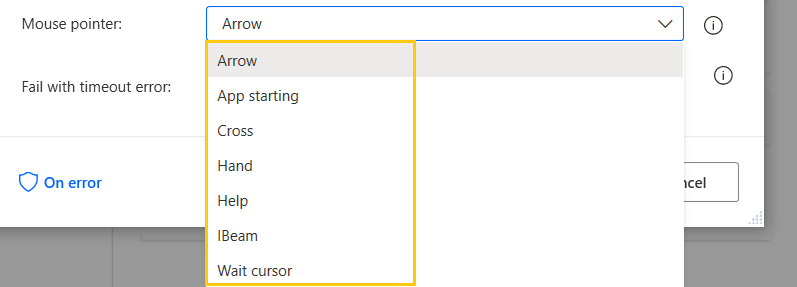
- Save and Run the flow. When the mouse pointer turns IBeam, the message will be displayed.
Recommended Readings
- Mouse and Keyboard in Power Automate Desktop
- Introduction to Power Automate Desktop
- Microsoft Power Automate Desktop Layout
- Interview Questions Power Automate Desktop
- Clipboard Actions in Power Automate Desktop
- Date and Time Actions in Power Automate Desktop
- OCR Actions in Power Automate Desktop
- CMD actions in Power Automate Desktop
I am Sharvari Raut, having sound knowledge and experience in technical writing. Currently, pursuing my B.Tech in Computer Science and Engineering.
