

List Variable Actions in Power Automate Desktop
A list variable holds a collection of values or a list of general values which are accessible by the index. There are various actions performed on the list such as the Merge list, Shuffle list, Clear list, Reverse list, etc.
Creating a flow with List variable actions
- Open Power Automate Desktop App.

- Firstly, we need to create a flow. Click on New flow.

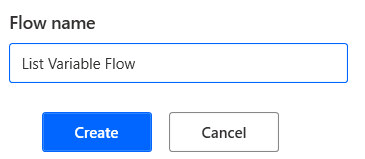
- Give some name to the flow and click on Create. Here, we are creating a flow with the name "List Variable Flow".
- On the left-hand side Actions pane, you can see different types of list variable actions present.


CMD actions in Power Automate Desktop
Create new list
To create a list in power automate desktop we use the Create new list action. This action will create a new list where we can store our elements. For example, we have created a list named "Students":
Students = ["John",10]- To create a list, drag and drop the Create new list variable action into the workspace. Name the list as Students and click on Save.

- Now, to add items to the list, drag and drop the Add item to list variable action into the workspace. Add item name John into Students list and click on Save.

- Again, drag and drop the Add item to list variable action into the workspace. Add item 10 into the Students list and click on Save.

- Save and Run the flow. In the Flow variables, you can see our list name Students with our values as elements in it.


Here, the list is accepting generic values irrespective of its data type. So, the list can include strings as well as integers.
Email Automation in Power Automate Desktop
Remove item from the list
The Remove item from list action helps us to remove any item from the list we use with the help of index or by value.
For example, we have a "Students" list created and we want to remove the value "John".
Students = ["John",10]After using this action we get:
Students = [10]- Drag and drop the Remove item from list action into the workspace. There are two methods to remove items, we can either remove items from the list by Index or by Value.

- Here, we are selecting Remove item by Value. We are removing the item "John" from the Students list. Remove all item occurrences will remove all the items named "John". Click on Save.

- Save and Run the flow. In the Flow variables, you can see our list name Students where item "John" has been removed.


PDF Automation in Power Automate Desktop
Clear list
To clear all the elements from the list we use the Clear list action. For example, we have our "Students" list.
Students = ["John",10]After using a Clear list action we get:
Students = []- Drag and drop action to the workspace. Add the name of the list to clear. Click on Save.

- Save and Run the flow. In the Flow variables, you can see our list name Students where there is no item present inside it, the list is empty.

- This is how the flow looks after performing all the operations on the list.

- Now, clear all actions from the workspace except the Create new list.

- Now, add multiple items to the list "Students" by using Add item to list action, just like we did in earlier steps.

- Drag and drop Display message action from Actions pane to the workspace. Add message title as Result. Add our list in Message to display. Click on Save.

- Save and Run the flow. This is our list.


Clipboard Actions in Power Automate Desktop
Reverse list
To reverse the order of elements in a list we use a Reverse list action. For example, if we have a list:
Students = ["John", "Tracy", "Shay", "Alison"]After using this action we get the list in the reversed order:
Students = ["Alison", "Shay" ,"Tracy","John"]- Now, to reverse the list we use the Reverse list action. Drag and drop Reverse list action from Actions pane to the workspace. Add our list to reverse it and click on Save.

- Save and Run the flow. This is our list in the reversed order.


Text Actions in Power Automate Desktop
Shuffle list
To randomize the elements in our list we use the Shuffle list action. For example, if we have a list:
Students = ["John", "Tracy", "Shay", "Alison"]After using the Shuffle list action we get:
Students = ["Alison", "Tracy", "John", "Shay"]- Drag and drop Shuffle list action from Actions pane to the workspace. Add our list to shuffle and click on Save.

- Save and Run the flow. This is our shuffled list.


Variables in Power Automate Desktop
Merge list
In the Merge list action, the data in the first list will get merged into the second list and the output will be a single merged list.
In the first list, named Fruits we have:
Fruits=["Apple", "Banana", "Cherry"]In the second list, named Flowers we have:
Flowers=["Rose", "Lily", "Jasmine"]After using the Merge list action we get:
Merged List=["Apple", "Banana", "Cherry", "Rose", "Lily", "Jasmine"]- Clear all actions from the flow.
- Create two lists named "Fruits" and "Flowers", with items in them. Add the display message to display all the lists.
Here, is how the flow will look:
- In the Display message, add Tile as Results and lists in the message to display box. Click on Save.

- If you Save and Run the flow, you'll get the output as:

- To merge these two lists we use, Merge list action. Drag and drop the Merge list action from the Actions pane to the workspace. Add our lists to merge them, add an output list and click on Save.

- In the Display message, select the OutputList to display. Click on Save.

- Save and Run the flow. Here, is our Merged list as output.


Folder Actions in Power Automate Desktop
Subtract List
In the Subtract list action, the common data in the first list and the second list will get eliminated and output will be the data from the first list.
In the first list, named Fruits we have:
Fruits=["Apple", "Banana", "Cherry"]In the second list, of the name Flowers we have:
Flowers=["Rose", "Lily", "Jasmine", "Cherry"]After using the Subtract list by subtracting Flowers[...] - Fruits[...] action we get:
Difference List=["Rose", "Lily", "Jasmine"]- Delete the Merge list action from the flow.
- Add one common element to one of the lists to use this action.

- Now, add the Subtract list action to the flow. Add the Flowers list as First and Fruits list as Second. The output will be in ListDifference and click on Save.

- In the Display message, add Tile as Results and lists in the message to display box. Click on Save.

- The output list is a Difference List where the common element has been removed and the first list of elements are been displayed.


OCR Actions in Power Automate Desktop
Find Common List item
In the Find Common List item action, the common data in the first list and the second list will get displayed in the output list.
In the first list, named Fruits we have:
Fruits=["Apple", "Banana", "Cherry"]In the second list, of the name Flowers we have:
Flowers=["Rose", "Lily", "Jasmine", "Cherry"]After using the Find Common List item action we get:
Intersection List =["Cherry"]- Delete the Subtract list action from the flow.
- Now, add the Find common list items action to the flow. Add the Flowers list as First and Fruits list as Second. The output will be in IntersectionList and click on Save.

- In the Display message, add Tile as Results and lists in the message to display box. Click on Save.

- The output list is an Intersection List where the common elements from both lists have been displayed.


Recommended Readings
- If Else Conditions in Power Automate Desktop
- Switch Case in Power Automate Desktop
- Loop Actions in Power Automate Desktop
- Excel Automation in Power Automate Desktop
- Interview Questions Power Automate Desktop
- Microsoft Power Automate Desktop Layout
- Introduction to Power Automate Desktop
- Mouse and Keyboard in Power Automate Desktop
I am Sharvari Raut, having sound knowledge and experience in technical writing. Currently, pursuing my B.Tech in Computer Science and Engineering.
