

Get current date and time
This action retrieves the current date and time.
- From the Actions panel, drag and drop the Get current date and time action into the workspace. Add Current date and time from Retrieve and time zone as system time zone. The output will be stored in the CurrentDateTime variable. Click on Save.

- We can also select a Specific time zone and then specify which time zone we want.

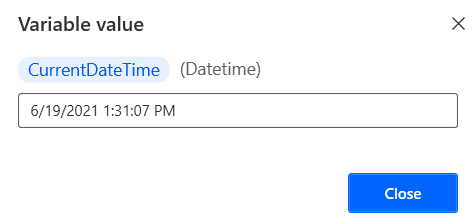
- Save and Run the flow. We get the current date and time.
Add to datetime
This action adds a specific number of hours, days, minutes, and seconds.
- From the Actions panel, drag and drop the Add to datetime action into the workspace. Add CurrentDateTime add 1 to increase the hours. Click on Save.

- We have options in Time Unit as Seconds, Minutes, Hours, Days, Months, and Years.

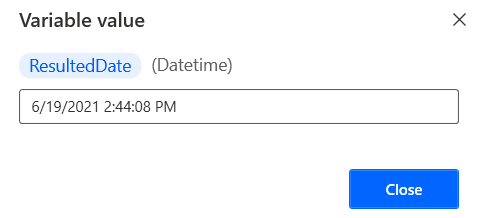
- Save and Run the flow. We get the current date and time increased by 1 hour.
Subtract dates
Finds the difference between the two dates in hours, minutes, seconds, and days.
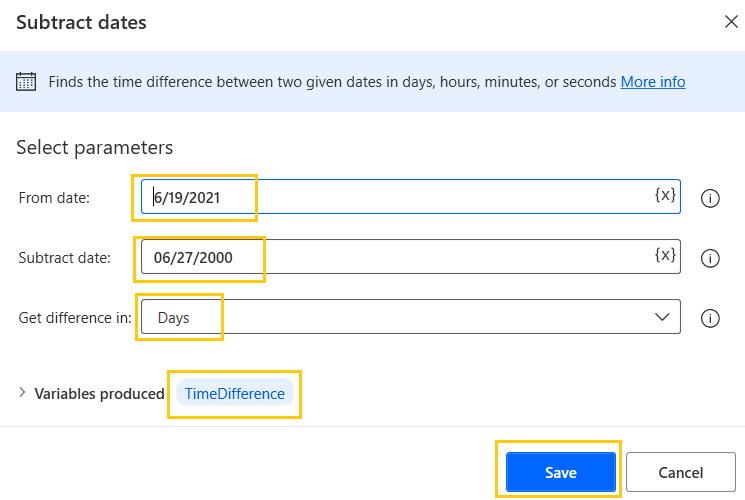
- From the Actions panel, drag and drop the Subtract dates action into the workspace. Add From date and Subtract date. Get difference in Days and click on Save.
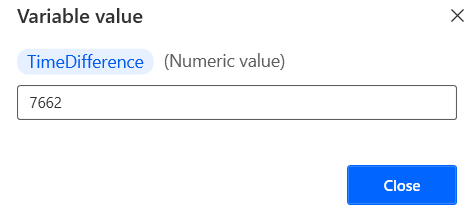
- Save and Run the flow. We get the difference between the specified two dates in days.
Date and Numbers Text Actions in Power Automate Desktop
Date and Numbers text actions are used to manipulate numbers, dates, and time in the power automate desktop. It can be used to change the format of numbers and dates. For example, we can change the number representation of numeric value to the text value.
Creating a flow with the folder actions
- Open Power Automate Desktop App.

- Firstly, we need to create a flow. Click on New flow.

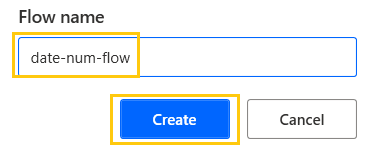
- Create a flow name date-num-flow in Power Automate Desktop.
Convert text to number
This action will convert any text value or a text representation of a number into a variable that contains a numeric value.
- We have here, excel file on our PC wherein column "C" has numeric values from the 2nd row. Firstly, we need to convert the text value.

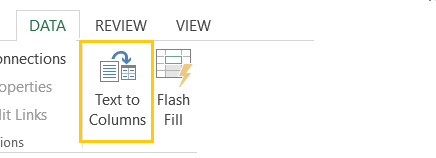
- Todo so, select column C and in toolbar go to DATA tab. In the DATA tab we have the Text to Columns option, click on that.
- Select Text and click Finish.
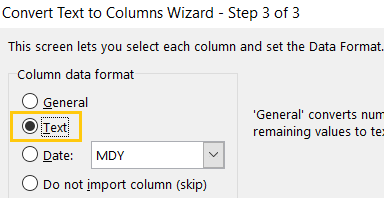
- Now, our column C values are converted into text values.

- Go to Power Automate Desktop.
- From the Actions panel, drag and drop the Launch Excel action into the workspace. Launch Excel and open the following document. Add the Document path. The output will be in the ExcelInstance variable and click on Save.

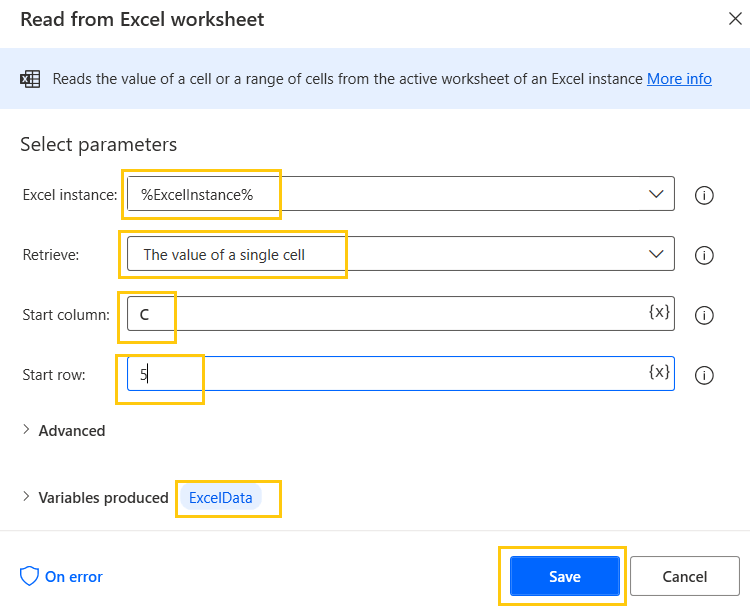
- From the Actions panel, drag and drop the Read from Excel worksheet action into the workspace. Add ExcelInstance variable retrieve from The value of a single cell from Start column C and start row 5.
- The output will be in the ExcelData variable and click on Save.
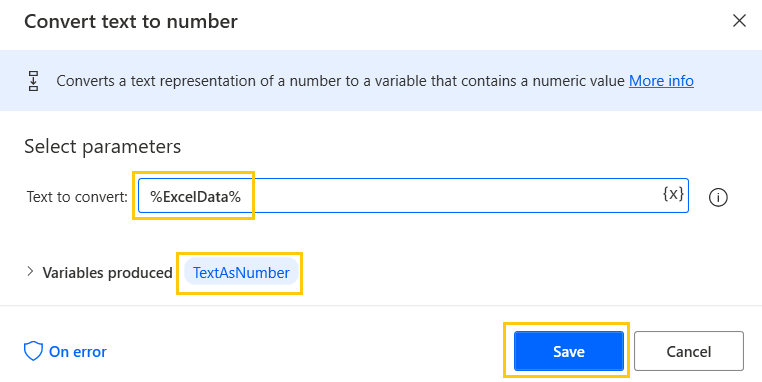
- From the Actions panel, drag and drop the Convert text to number action into the workspace. To Text to convert add ExcelData. The output will be in the TextAsNumber variable and click on Save.
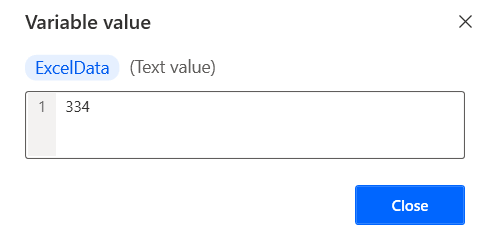
- Save and Run the flow. ExcelData as a Text value, 334.
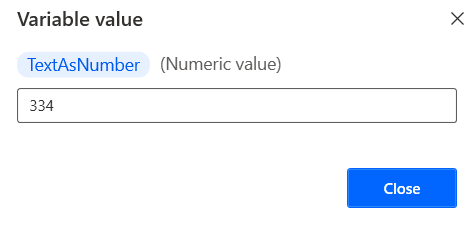
- And in TextAsNumber as a Numeric value as 334.
Convert number to text
This action will convert any numeric value or a numerical representation of a text into a variable that contains a text value.
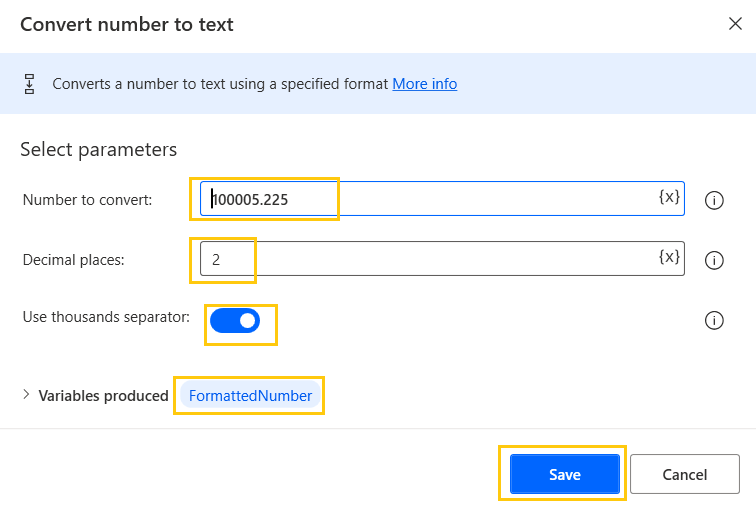
- From the Actions panel, drag and drop the Convert number to text action into the workspace. To Number to convert add 100005.225 up to 2 decimal places. If you enable the thousands separator it will add a comma in number.
- The output will be in the FormattedNumber variable and click on Save.
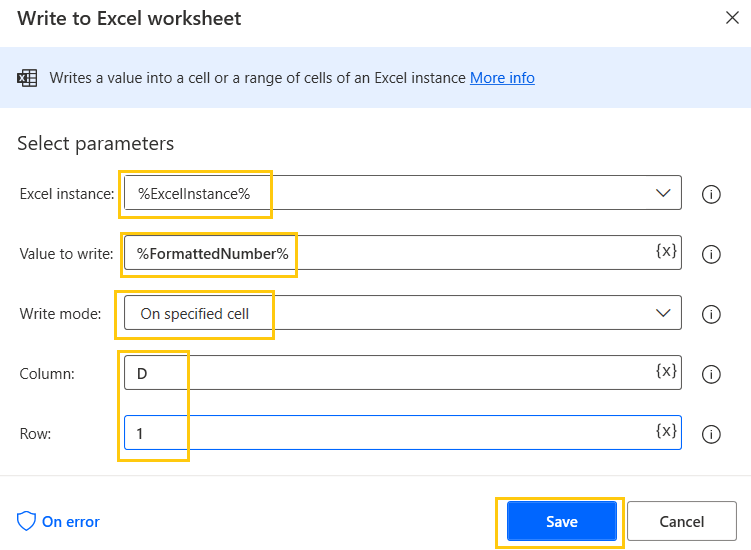
- From the Actions panel, drag and drop the Write to Excel worksheet action into the workspace. Add ExcelInstance variable and value to write as FormattedNumber. Write on specified cell D1. Click on Save.
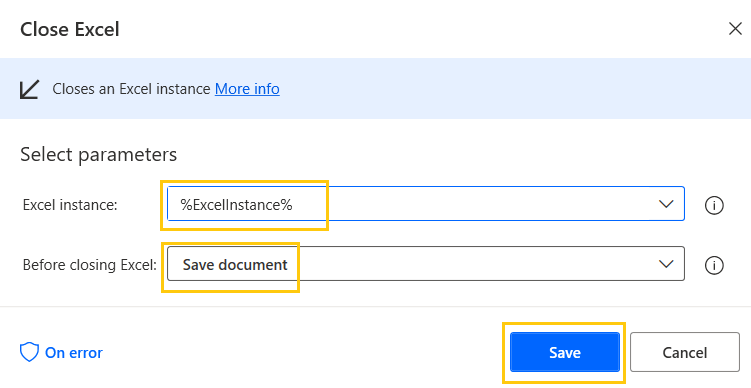
- From the Actions panel, drag and drop the Close Excel action into the workspace. Add ExcelInstance variable and Save the document. Click on Save.
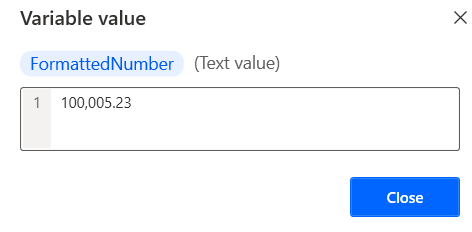
- Save and Run the flow. We get FormattedNumber as a Text value, 100,005.23.

Convert text to DateTime action
Converts a text representation of a date and/or time value to a DateTime value
- We have a date in E1 the format of dd/MM/yyyy.

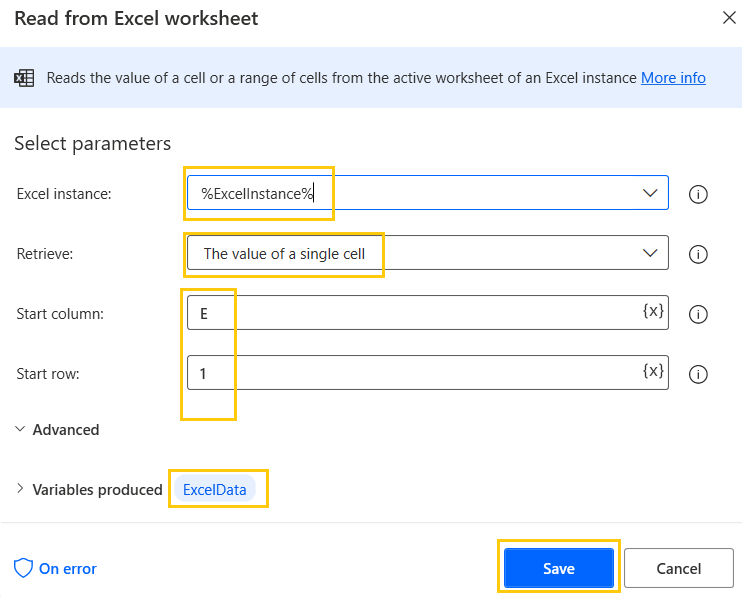
- From the Actions panel, drag and drop the Read from Excel worksheet action into the workspace. Add ExcelInstance variable retrieve from The value of a single cell from Start column E and start row 1.
- The output will be in the ExcelData variable and click on Save.
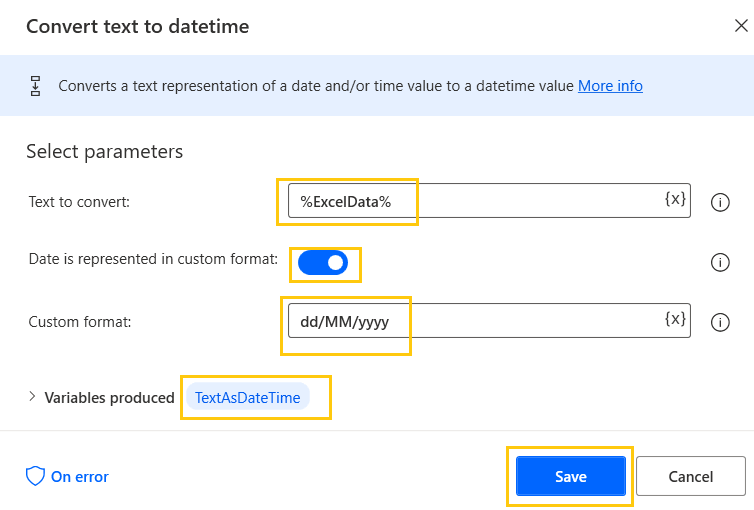
- From the Actions panel, drag and drop the Convert text to datetime action into the workspace. Add ExcelData variable to Text to convert and represent in the custom format of dd/MM/yyyy. The output will be in the TextAsDateTime variable and click on Save.
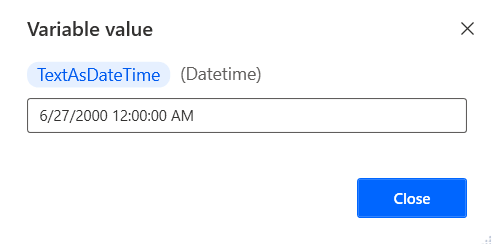
- Save and Run the flow. We get TextAsDateTime in mm/dd/yyyy format and with time.
Convert DateTime to Text action
Converts Date or time value to text representation format.
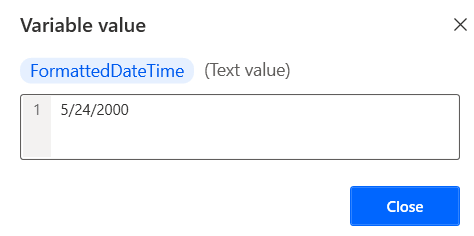
- From the Actions panel, drag and drop the Convert datetime to text action into the workspace. Add the date use format as Standard and Short date. The output will be in the FormattedDateTime variable and click on Save.

- From the Actions panel, drag and drop the Write to Excel worksheet action into the workspace. Add ExcelInstance variable and value to write as FormattedNumber. Write on specified cell D2. Click on Save.

- Save and Run the flow. We get FormattedDateTime in mm/dd/yyyy as default format as a text value (as mentioned in image).

Recommended Readings
- Clipboard Actions in Power Automate Desktop
- FTP Actions in Power Automate Desktop
- Wait in Power Automate Desktop
- Mouse and Keyboard in Power Automate Desktop
- CMD actions in Power Automate Desktop
- UI Automation in Power Automate Desktop
- Database Actions in Power Automate Desktop
- Outlook Automation in Power Automate Desktop
I am Sharvari Raut, having sound knowledge and experience in technical writing. Currently, pursuing my B.Tech in Computer Science and Engineering.
