

Variables in Power Automate Desktop
In this article, we'll see what are variables and how to perform variable actions in the power automate desktop.
Variables are the data values that are used to store the values. The values will be stored in variables and whenever we require we can use them in our flow later. For example, Username, Email, Contact, Contact, etc.
Data types present in power automate desktop
Whenever a variable is created in the flow, it converts them into a specific data type according to their content. Power Automate Desktop provides data types like Text value, Numeric value, List, Datarow, Datatable, and Custom object.
- Text value : Value contains string or text, from a single input string to the text contents of a .txt file everything is considered as a text value. (eg: Hello, Microsoft)
- Numeric value - This is the data type is for numbers. These values are used for mathematical operations. (eg: 4,2.999,8)
- Boolean value - The value can be either True or False.
- List - These are the collections of items. (eg: [John, Sarah, James])
- Datarow - A data row contains the values of a single row of a data table from the database.
- Datatable - It contains data in a tabular form that has rows and columns.
- Custom object – It contains pairs of properties and values, which can be easily converted to JSON format. (myJSON = '{"name":"John", "age": 31, "city":"New York"}')
Database Actions in Power Automate Desktop
Creating a flow with variable actions
- Open Power Automate Desktop App.

- Firstly, we need to create a flow. Click on New flow.

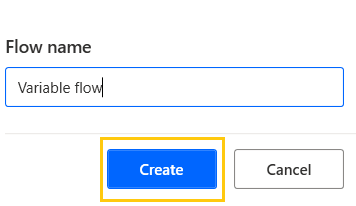
- Give some name to the flow and click on Create. Here, we are creating a flow with the name "Variable Flow".
- On the left-hand side in the Actions pane, we have variable actions. These include truncate numbers, merge lists, increase variables, decrease variables, clear list, etc.
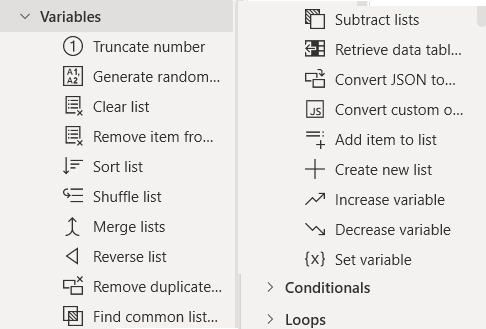
- Drag and drop Set Variable action from Actions pane to the workspace. We have our NewVar as a variable change the name to Username. Add value to the variable and click on Save.
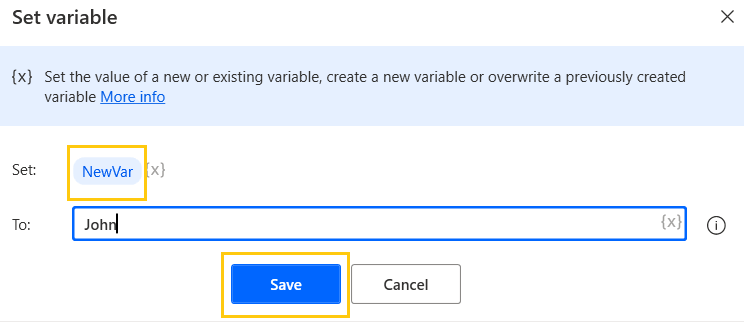

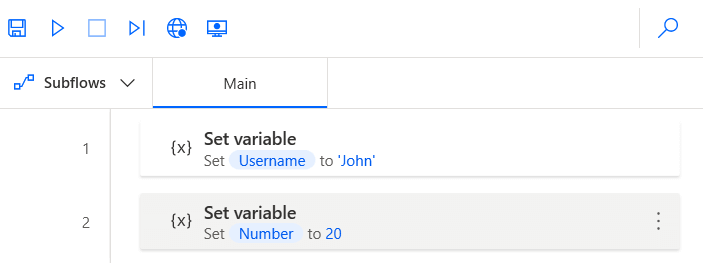
- Again, drag and drop Set Variable action from the Actions pane to the workspace. Change the variable name to a Number and add a numeric value to it. Click on Save.

This Set variable action in Power Automate Desktop internally takes the data type for any value assigned to it. If you see in the right-hand side in the Variables pane in Flow variables. We have a Number as a numeric value and a Username as a Text value.
If you click on the variable you can see its data type.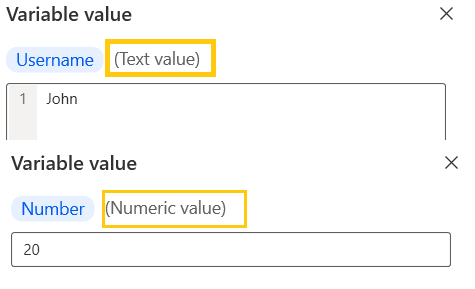
- Now, we have two Set variable actions in our flow.
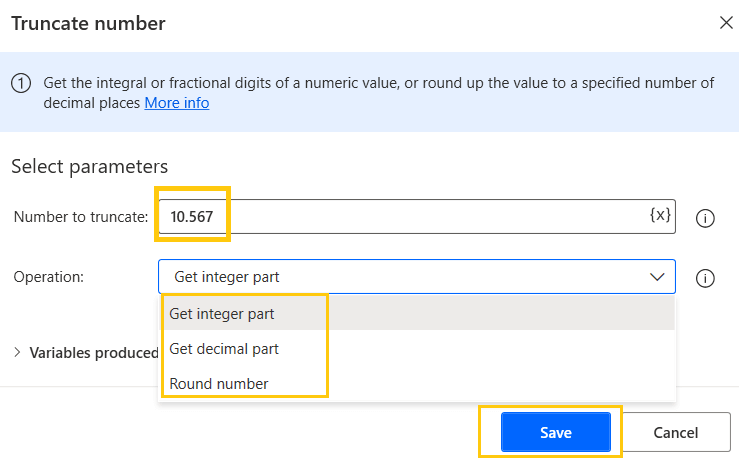
- Drag and drop Truncate number action from Actions pane to the workspace. This variable action gets the numeric value or fractional digits of a numeric value, or round up the value to a specified number of decimal places.
We have to use Get decimal part to get the value after the decimal point. The Round number to get the rounded-up value up to 2 decimal places. And Get integer part to get the value before the decimal point.
- Here, we are selecting the Get integer part and adding value to it as 10.567. Click on Save.
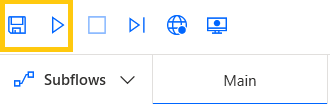
- Now, Save and Run the flow.
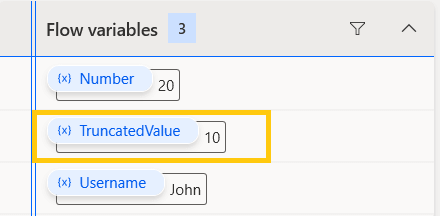
- Now, in the results, you can see we have the integer part 10 of the value 10.567.
- Drag and drop Display message action from Actions pane to the workspace. Add message title as Result. Add variables to Message to display. Click on Save.

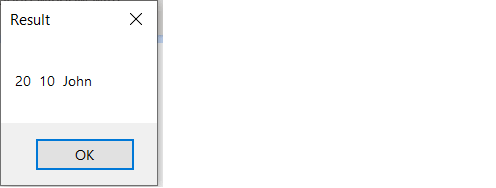
- Now, Save and Run the flow. A box with the result will pop up on the screen. Here, we have output from our variables.
Excel Automation in Power Automate Desktop
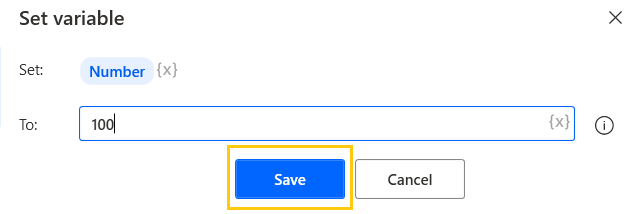
- Drag and drop Set Variable action from Actions pane to the workspace. Name it as Number and add value as 100. Click on Save.
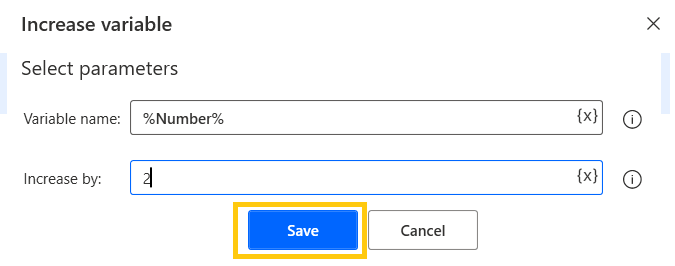
- Drag and drop Increase variable action from Actions pane to the workspace. Enter the variable name and add the value as 2. Here, we are incrementing our variable by 2. Click on Save.
- Drag and drop Display message action from Actions pane to the workspace. Add message title as Result. Add the variable to Message to display. Click on Save.
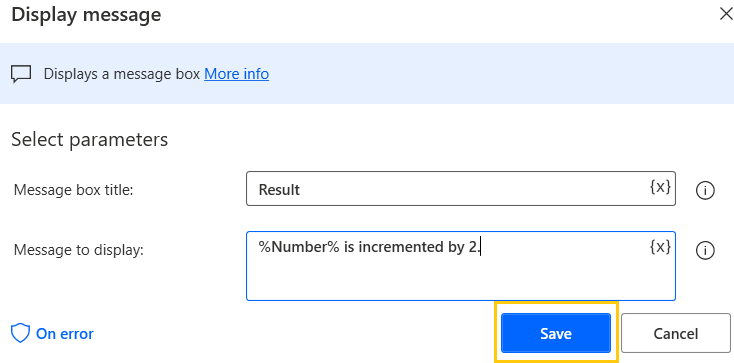
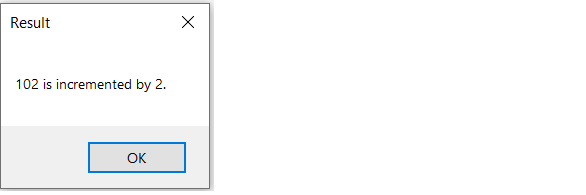
- We get the result as 102 which is incremented by 2.
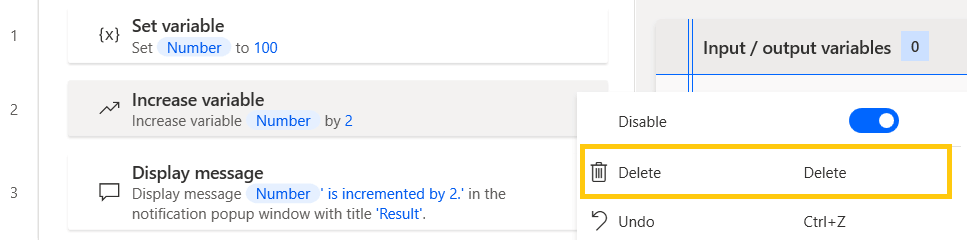
- Now, similarly, we will do for decrementing the value. Go back to the flow. And delete the increase variable action.
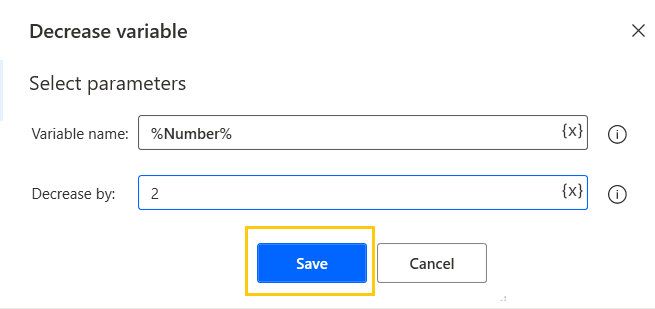
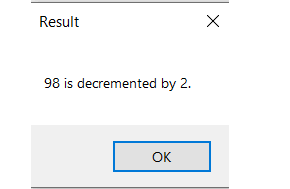
- Drag and drop Decrease variable action from Actions pane to the workspace. Enter the variable name and add the value as 2. Here, we are decrementing our variable by 2. Click on Save.
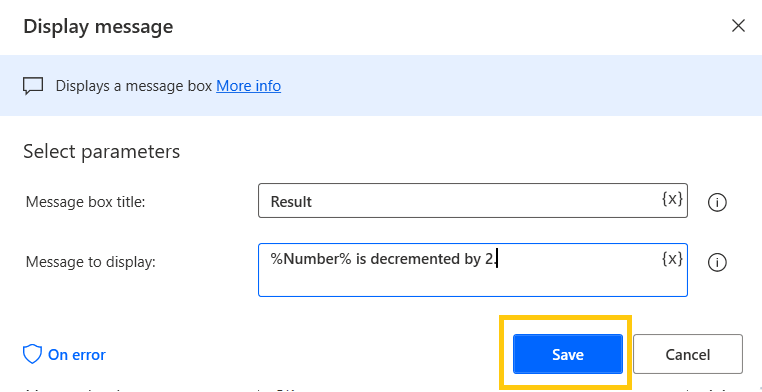
- Now, edit the Display message action.

- Rewrite the message to display. Click on Save.
- Now, Save and Run the flow. A box with the result will pop up on the screen. Here, we have output as 98 which is decremented by 2.
Recommended Readings
- List Variable in Power Automate Desktop
- If Else Conditions in Power Automate Desktop
- Switch Case in Power Automate Desktop
- Loop Actions in Power Automate Desktop
- Microsoft Power Automate Desktop Layout
- Introduction to Power Automate Desktop
- Mouse and Keyboard in Power Automate Desktop
- Wait in Power Automate Desktop
I am Sharvari Raut, having sound knowledge and experience in technical writing. Currently, pursuing my B.Tech in Computer Science and Engineering.
