

Email Automation in Power Automate Desktop
Automating emails allows organizations to send personalized emails to customers or employees effectively. Power Automate Desktop allows various actions that enable email automation for webmail services, Microsoft Outlook, and Exchange servers.
Using email actions in power automate desktop, you can automate any webmail service, like Outlook, that supports the Internet Message Access Protocol (IMAP) and Simple Mail Transfer Protocol (SMTP) protocols.
Power Automate Desktop supports several e-mail services and several ways of sending mail activities like:
- SMTP: It stands for Simple Mail Transfer Protocol. Used to transfer messages from source to destination. It has the ability to queue up messages at the receiving end on this matter, all these very limited.
- POP3: It stands for Post Office Protocol and it is the world, but still supported by many emails server and provides the ability to download emails locally into machines.
- IMAP: It stands for Internet Method Access Protocol. It supports multiple device access and provides quick turnaround for operations like changing labels, marketing, email, etc.
- Exchange: It is the Microsoft e-mail server platform catering to large-scale business needs, such as scheduling meetings, contact list maintenance, etc.
- Outlook: It is the e-mail client used by businesses on the top of the Microsoft Exchange server.
Most of the webmail services support IMAP and SMTP and usually require their activation through the settings. In Gmail, you need to make changes in IMAP and POP3.
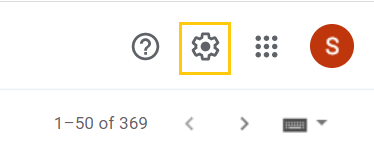
- Go to your Gmail account. Click on the Settings icon.
- On the settings page, click on Forwarding and POP/IMAP tab.

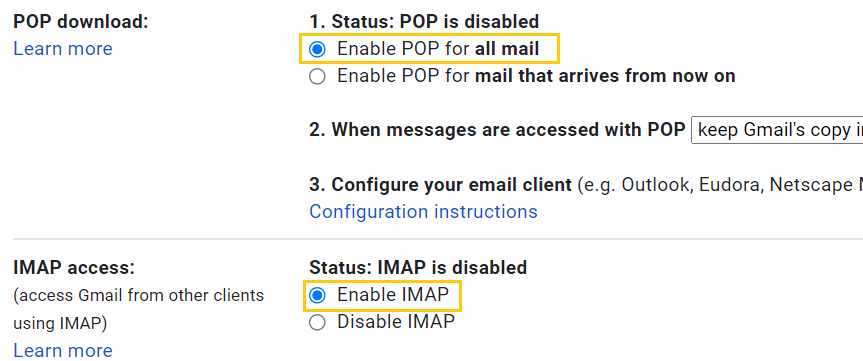
- In POP download, click on Enable POP for all mail. And in IMAP access click on Enable IMAP.
- Next, click on Configure instructions.

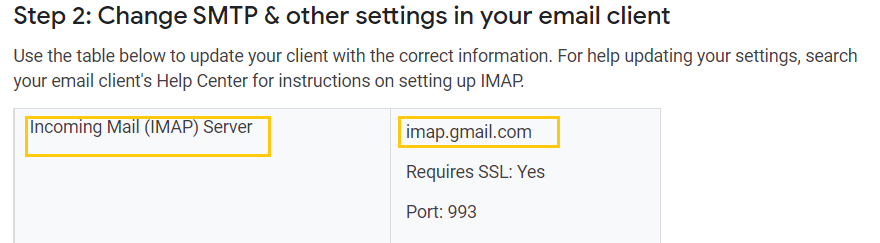
- This is our IMAP server information. Copy the imap.gmail.com we will be needing it in the flow actions.
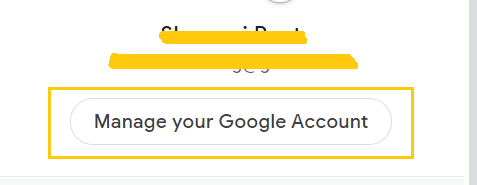
- Now, go to Profile, click on Manage your Google Account.
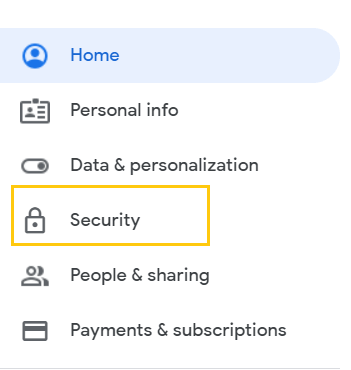
- Click on Security.
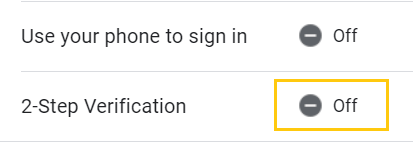
- Turn Off the 2-Step Verification.
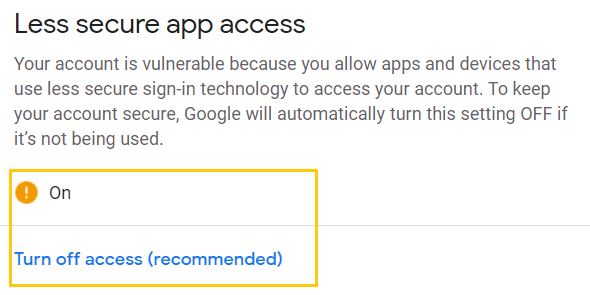
- And Turn On the Less secure app access.
Now, we are done with the changes, get back to Power Automate Dekstop to create a flow.
Creating a flow for Email Automation
- Open Power Automate Desktop App.

- Firstly, we need to create a flow. Click on New flow.

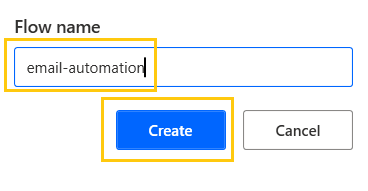
- Create a flow name email-automation in Power Automate Desktop.
Retrieve Emails in Power Automate Desktop
This action retrieves the emails from the IMAP server.
- From the Actions panel, drag and drop the Retrieve email messages action into the workspace. In, IMAP server field paste the server address. Port 993 and SSL will be automatically set and enabled. Add your Gmail address with a password. The output will be saved in the RetrivedEmails variable.

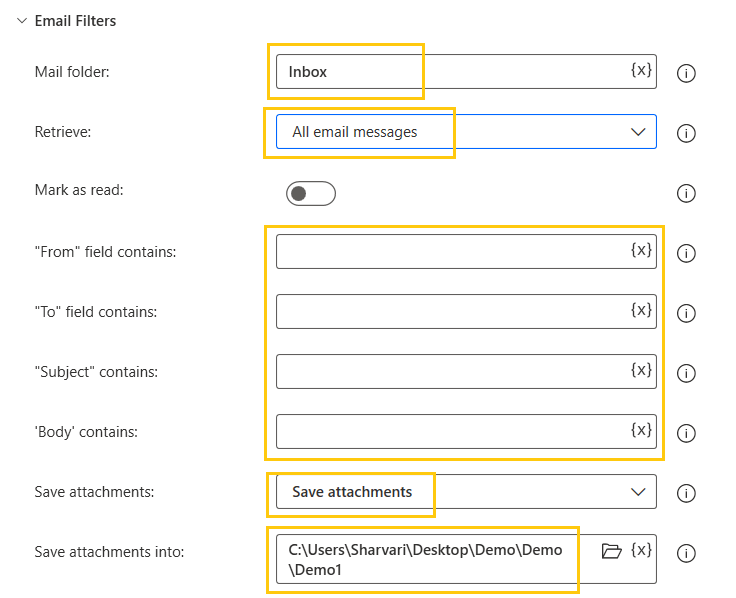
- Expand the Email Filters. In the Retrieve parameter we have three options like retrieve All email messages, Unread email messages only, and Read email messages only. Select All email messages.

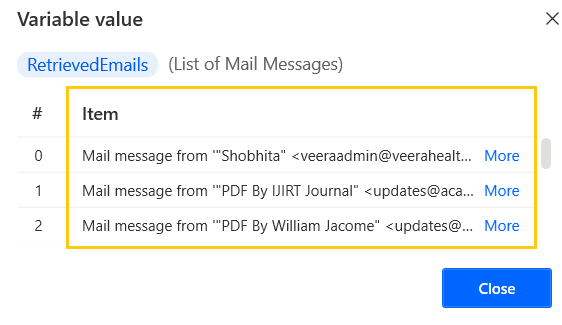
- Save and Run the flow. We get all the list of email messages present in the inbox.
- Now, if you want to Save attachments from the mailbox. Select Save attachments and add the folder path to save attachments in the Demo1 folder.
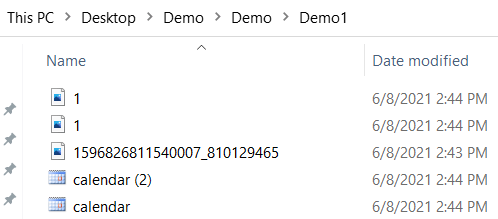
- Save and Run the flow. We get all the attachments downloaded in our specified folder.
Process Email in Power Automate Desktop
To delete, move, and mark as unread emails we use process email action.
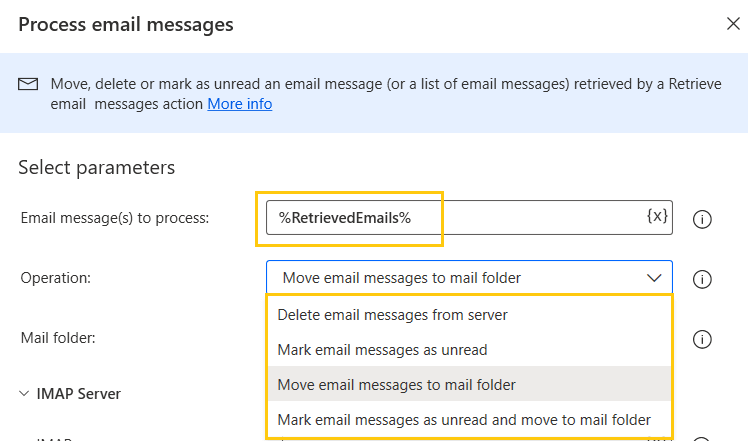
- From the Actions panel, drag and drop the Process email messages action into the workspace. Add RetrievedEmails variable to Email message process. In Operation we have four options, Delete email from server, Mark email messages as unread, Move email messages to mail folder, and Mark email messages as unread and move to mail folder.
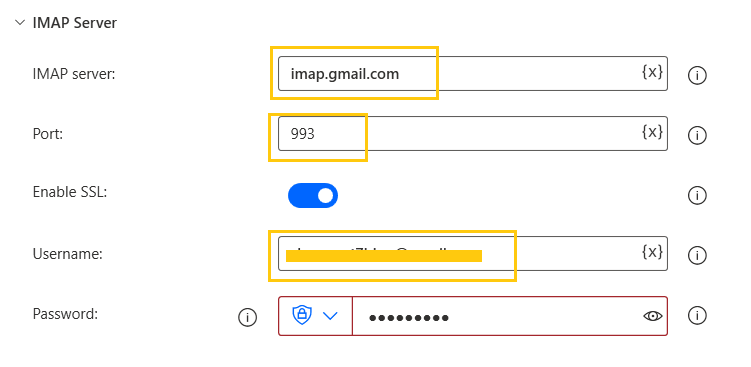
- Same as we did earlier add IMAP Server details.
- We are selecting here as Mark email messages as unread and move to mail. To the mail folder Demo.

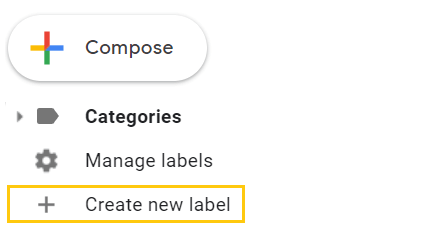
- To create a folder on your Gmail account. Click on Create new label.
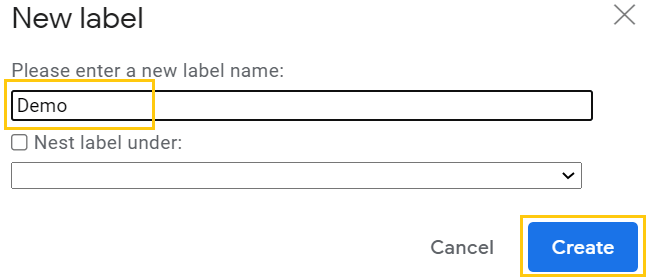
- Add the name as Demo and click on Create.
- Save and Run the flow. We get emails that are marked as unread and moved to the Demo folder.
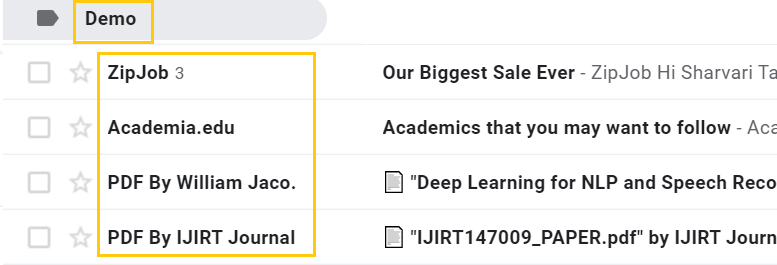
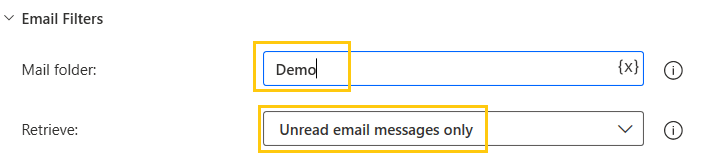
- Now, to delete emails. Go to Retrieve email messages action. Here, we choose to delete Unread email messages only from the Demo folder.
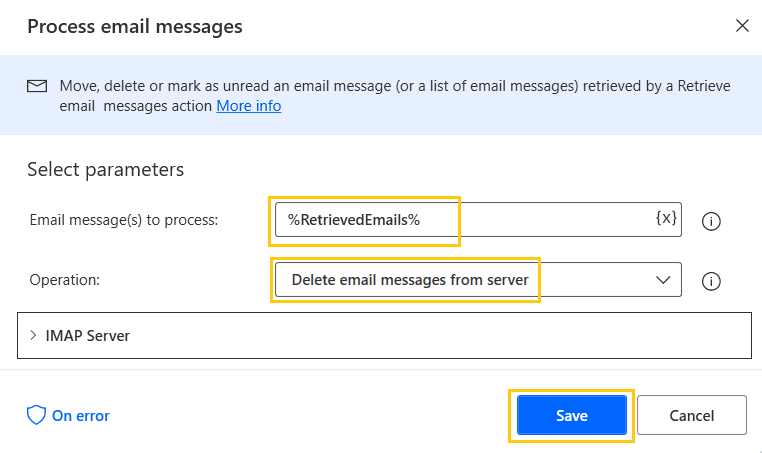
- Select Delete email messages from server and click on Save.
- Save and Run the flow. The mails from the Demo folder are deleted.

Send Email in Power Automate Desktop
This action creates and send new email messages.
- Again go to Gmail settings, in Forwarding and POP/IMAP tab, and click on Configure instructions.
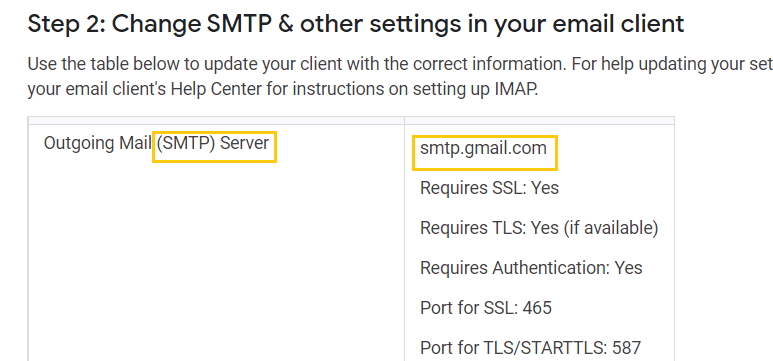
- This is our SMTP server information. Copy the smtp.gmail.com we will be needing it in this action.
- Go back to power automate desktop.
- From the Actions panel, drag and drop the Send email action into the workspace. Similiar to as we write an email to someone here, also add From as senders email and To as receivers email. Add Display Name, Subject, and Body.
- If you want to send any attachments then it even allows you to add attachments with the mail.
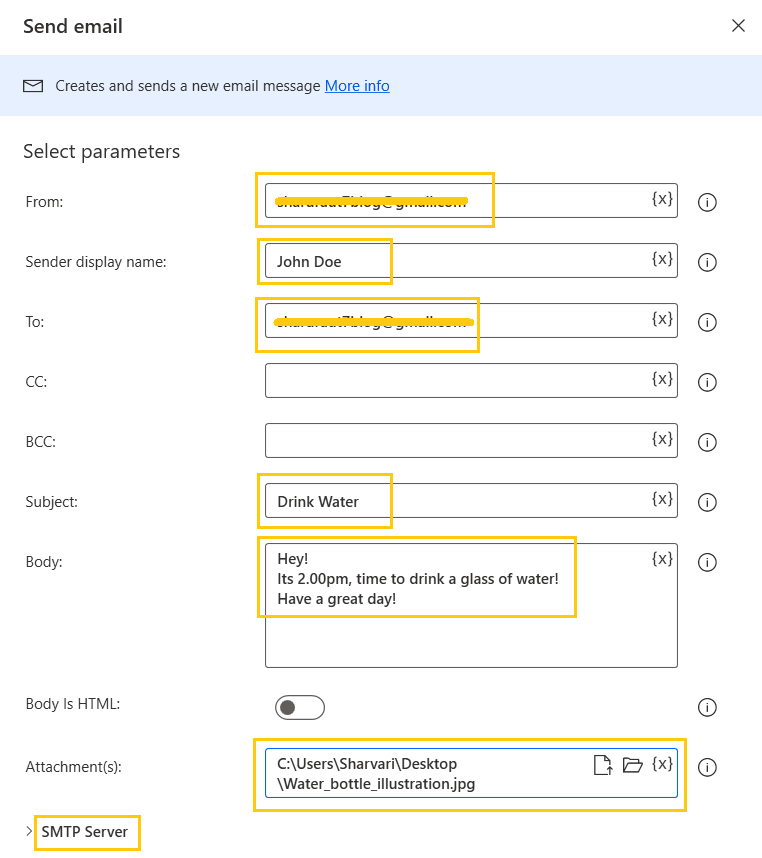
- Expand the SMTP Server section. Add SMTP server address, Port number, Enable SSL and authentication from above SMTP server information. Add the email and password.

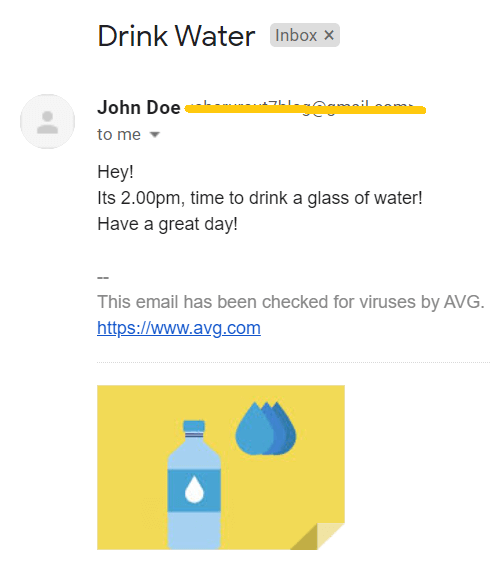
- Save and Run the flow. We get an email as a reminder to drink water.
Recommended Readings
- PDF Automation in Power Automate Desktop
- XML Automation in Power Automate Desktop
- Outlook Automation in Power Automate Desktop
- Database Actions in Power Automate Desktop
- Text Actions in Power Automate Desktop
- Folder Actions in Power Automate Desktop
- File Actions in Power Automate Desktop
- Excel Automation in Power Automate Desktop
I am Sharvari Raut, having sound knowledge and experience in technical writing. Currently, pursuing my B.Tech in Computer Science and Engineering.
