

Loop Actions in Power Automate Desktop
To execute some actions or block of statements repeatedly we use Loops. In most of the cases using If and Switch Case conditions for doing complex repetitive tasks won't be efficient. In Power Automate Dekstop, we can design flows with the help of loops to simplify some complex tasks.
Power Automate Desktop provides different kinds of loops that work on various factors:
- Simple loops - This loop will execute for a set number of times
- Loops condition - This loop will keep executing as long as a condition is valid
- For each loop - This loop will execute through a list
For example, if we want to print odd numbers from 1 to 100 we can create a loop where i=1, loop will keep executing unit the condition i<100 is true and it will increment it by 2. It will print all odd numbers from 1 to 100 as output.
Simple loops
The idea behind the loop is to make the desktop flow repeat one or more actions over and over again. Power Automate Desktop uses a simple type of loops for Loop action.
This loop repeats the actions between Loop and End actions the specified number of times. Loop index variation is automatically adjusted to track the current iteration number.
The simple loop is ready for use in two situations:
- The exact number of times the action block should be executed should be known.
- The loop index should be applied somewhere within the loop.
Creating a flow with Simple loops
- Create a New flow in power automate desktop. Name the flow as.
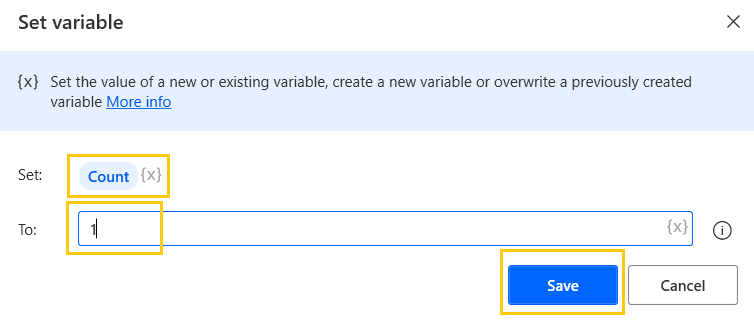
- Drag and drop Set Variable action from Actions pane to the workspace. Name the variable as Count and set the value as 1. Click on Save.
- Drag and drop Loop action from Actions pane to the workspace. Start from Count variable and End to 5 with incrementing it by 1. Click on Save.

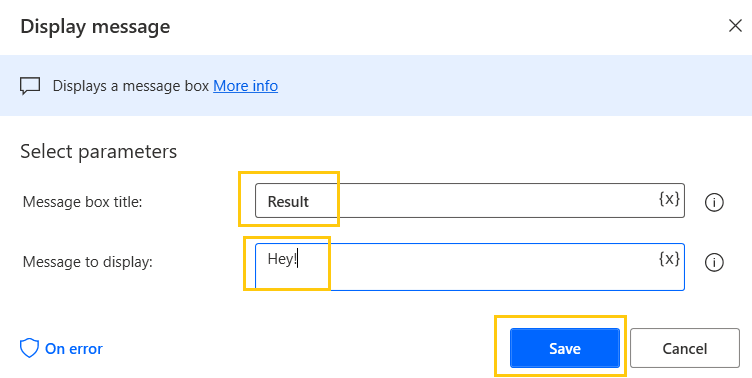
- Drag and drop Display message action from Actions pane to the workspace inside the loop scope. Add message title as Result. Add text to Message to display. Click on Save.
- This is how our flow looks now. We have our loop which will display the text for 5 times.

- Save and Run the flow. It will display the message 5 times.

Loop Condition
The Loop condition makes a desktop flow execute one or more actions as long as a condition is satisfied. If the condition is always satisfied, the loop will never stop. This situation is called an endless loop.
The condition action consists of two operands and an operator. It supports some logical operations, such as equal, not equal, and greater than.
In case you need to exit the loop before the specified loop is completed, use the Exit loop action. To skip the current iteration, use the Next loop action.
Creating a flow with Loop Conditions
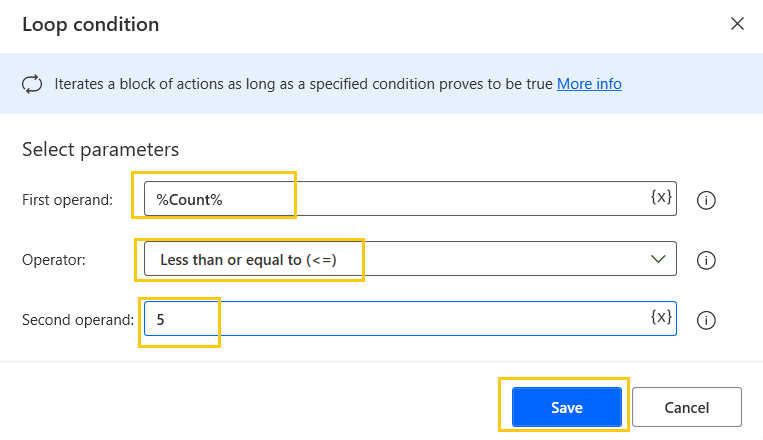
- Drag and drop Loop condition action from Actions pane to the workspace. Add the First operand as Count variable and the Second operand as 5. Select operator as Less than or equal to (<=) Click on Save.
- Drag and drop Display message action from Actions pane to the workspace inside the loop condition scope. Add message title as Message. Add text to Message to display. Click on Save.

- Drag and drop Set Variable action from Actions pane to the workspace. Name the variable as Count and set the value as 1. Click on Save.

- This is how our flow looks now. We have our loop condition which will display the text until the condition satisfies.

- Drag and drop If action from Actions pane to the workspace inside loop condition scope. Add the first operand as our variable Count. Add Operator as Equal to (=) and second operand as 2 and click on Save.

- Add Set Variable action to increment the count by 1. Add Next loop action to skip the flow at Count = 2 inside the If scope.
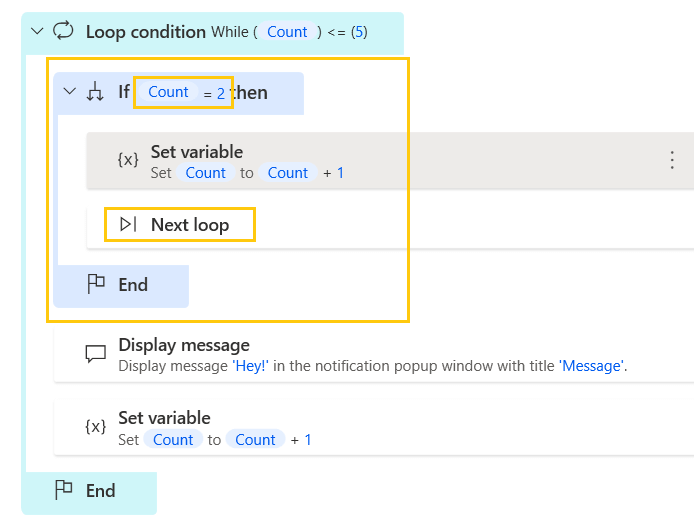
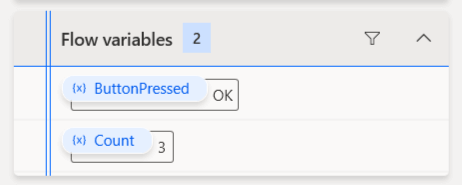
- Save and Run the flow. We get the Count value as 6 as it has skipped the loop at Count = 2.

- Now, Delete the Next loop action.
- Add Exit loop action to terminate the flow at Count = 2 inside the If scope.

- Save and Run the flow. We get the Count value as 3.
For each loop
For Each loop runs in a list and keeps the current item flexible. Its main purpose is to find each item in the list (or the data table row) and use it in other actions.
You can use this type of loop to search for specific words, content, or attributes in all list types. For example, you can narrow down a list of extracted files to find a file with a specific name.
Creating a flow with For each loop
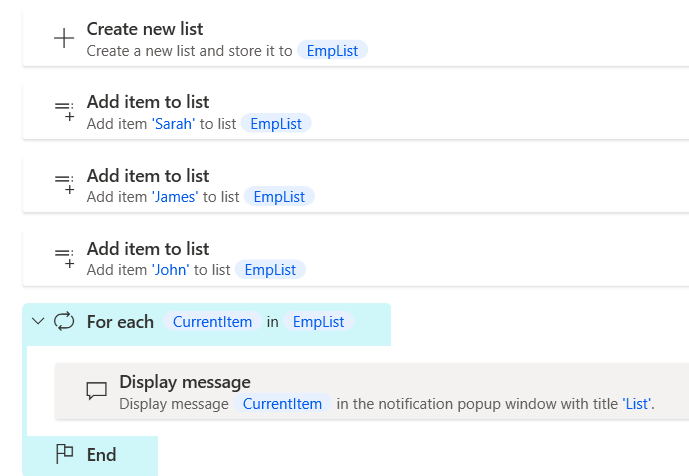
- Create a new list name EmpList. Add items to the EmpList.

- Drag and drop For each action in the workspace. Add the Emplist in value to iterate box. The output variable would be Currentitem. Click on Save.

- Drag and drop Display message action from Actions pane to the workspace inside the For each scope. Add message title as List. Add variable Currentitem to Message to display. Click on Save.

- This is how our flow looks now. We have our loop which will traverse the complete list.
- Save and Run the flow. We have the Currentitem from the list displayed.

- In Flow variables, we have EmpList which contains items, and the Currentitem variable holding the value of the item to which the currently loop is at.

The difference between Simple loops and For Each loop is that in Simple loops we need to initialize the value, the end value needs to be specified and we need to increment the value. Whereas in For Each we will traverse through all the values without initializing or incrementing them.
Recommended Readings
- Excel Automation in Power Automate Desktop
- File Actions in Power Automate Desktop
- Folder Actions in Power Automate Desktop
- Text Actions in Power Automate Desktop
- If Else Conditions in Power Automate Desktop
- List Variable in Power Automate Desktop
- Variables in Power Automate Desktop
- Interview Questions Power Automate Desktop
I am Sharvari Raut, having sound knowledge and experience in technical writing. Currently, pursuing my B.Tech in Computer Science and Engineering.
