

Switch Case in Power Automate Desktop
In Switch Case, unlike if-else statements, a switch block can deal with a number of possible alternatives. A switch case action statement is a control method that allows for expression or variable to change the flow's behavior. Switch case has multiple cases which include different actions or block of statements.
The switch block contains three main components:
- Switch action indicating the start of the switch block. Each switch is accompanied by an end action indicating the end of the switch block.
- Within the switch block, each Case marks a block of actions to be taken if the appropriate condition is satisfied or is true.
- In the event that all conditions are invalid, the flow will perform an action in the Default case block, if any.
For example, we have a flow in which, a particular case is executed if it satisfies the condition of that case.
- Case1: If the value variable is less than equal to 200 then it will print Grade D.
- Case2: If the value variable is less than equal to 500 then it will print Grade C.
- Case3: If the value variable is less than equal to 700 then it will print Grade B.
- Default Case: If the value variable is doesn't satisfy any case then it will print Congratulations! You have secured a Grade A.
The Switch action will only execute one case. It will stop executing the flow after one Case is executed.
XML Automation in Power Automate Desktop
Creating a flow with Switch Case
- Open Power Automate Desktop App.

- Firstly, we need to create a flow. Click on New flow.

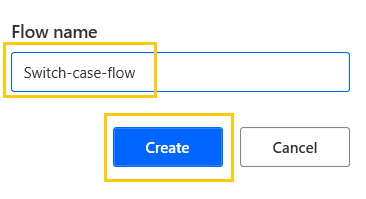
- Give some name to the flow and click on Create. Here, we are creating a flow with the name "Switch-case-flow".
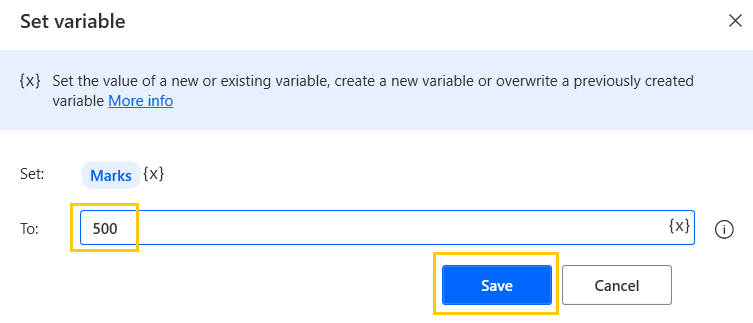
- Drag and drop Set Variable action from Actions pane to the workspace. Name the variable as Marks. Add value to the variable as 500 and click on Save.
- Drag and drop Switch action from Actions pane to the workspace. Add Marks as Value to check. Click on Save.

Loop Actions in Power Automate Desktop
First Case
- Drag and drop Case action from Actions pane to the workspace inside the Switch scope. Add operator as Less than or equal to (<=) and add value to compare as 200. Click on Save.

Add Display message to this Case with Message box title as Grade and Message to display as D. Click on Save.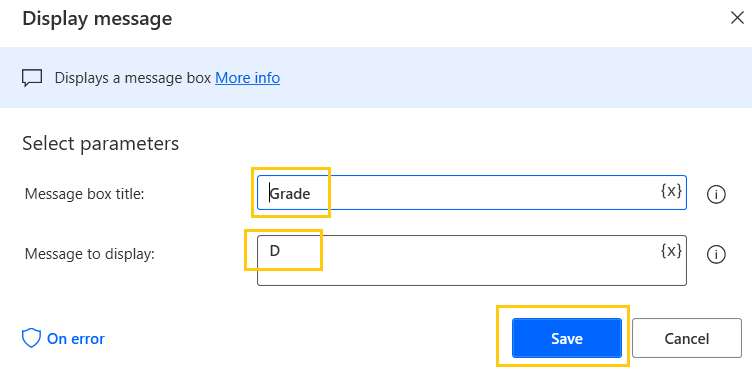
PDF Automation in Power Automate Desktop
Second Case
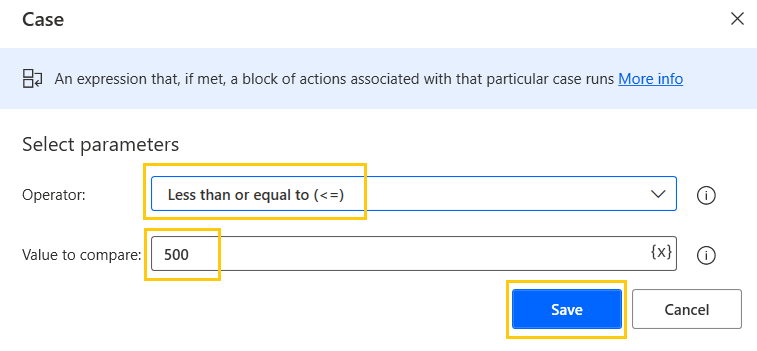
- Similarly, now add for the second case. Drag and drop Case action from Actions pane to the workspace inside the Switch scope. Add operator as Less than or equal to (<=) and add value to compare as 500. Click on Save.
Add Display message to this Case with Message box title as Grade and Message to display as C. Click on Save.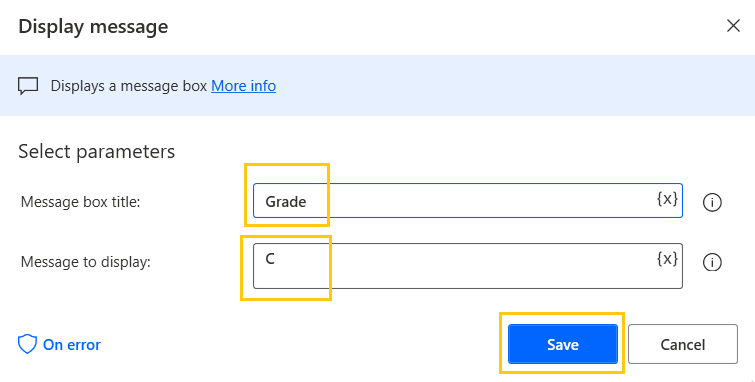
Switch Case in Power Automate Desktop
Third Case
- For the third case, drag and drop Case action from the Actions pane to the workspace inside the Switch scope. Add operator as Less than or equal to (<=) and add value to compare as 700. Click on Save.

Add Display message to this Case with Message box title as Grade and Message to display as B. Click on Save.
Default Case
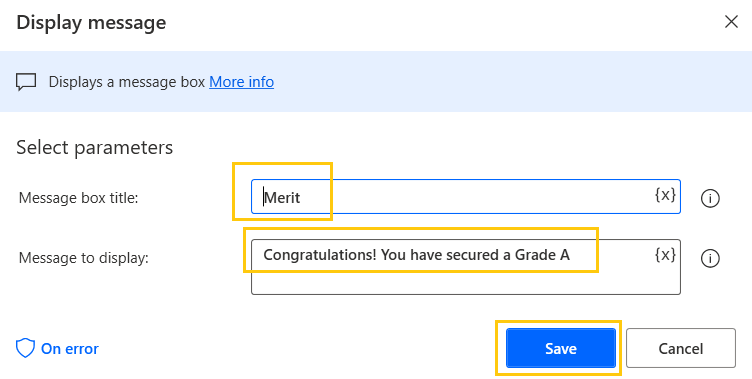
- For, default case we don't need to put a case. Drag and drop Default Case action from Actions pane to the workspace inside the Switch scope. Add Display message to this Default Case with Message box title as Merit and Message to display as Congratulations! You have secured a Grade A. Click on Save.
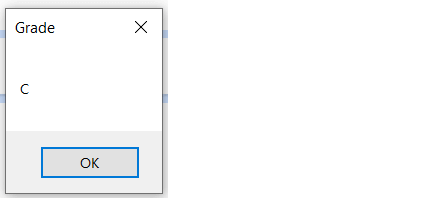
- Save and Run the flow. We get output as Grade C as the value is 500.
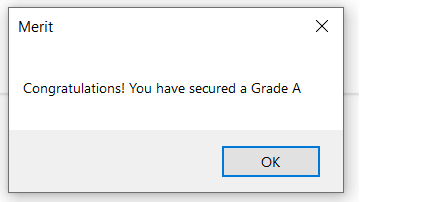
- Now, set the value of the Marks variable as 900 and run the flow. The default case gets executed and we have output as Congratulations! You have secured a Grade A.
Recommended Readings
- Loop Actions in Power Automate Desktop
- Excel Automation in Power Automate Desktop
- File Actions in Power Automate Desktop
- Folder Actions in Power Automate Desktop
- List Variable in Power Automate Desktop
- Variables in Power Automate Desktop
- Interview Questions Power Automate Desktop
- Microsoft Power Automate Desktop Layout
I am Sharvari Raut, having sound knowledge and experience in technical writing. Currently, pursuing my B.Tech in Computer Science and Engineering.
