

If Else Conditions in Power Automate Desktop
Conditions allow you to run action blocks only if a given situation meets. If the situation is false, the action block will be skipped.
The If statement is one of the most widely used conditions in the development of the flow. Power Automate Desktop provides the If action check to see if the given statement is valid. If the situation is true, the logic between If and End is made.
The platform supports the most important logical functions, such as equal, not equal, and greater than. The Else action defines the logic to be executed when the If condition is false.
List Variable in Power Automate Desktop
Power Automate Desktop provides some additional conditional actions:
- If file exists: Determines whether a file exists or not before executing any action or block of actions.
- If folder exists: Determines whether a folder exists or not before executing any action or block of actions.
- If service: Runs any action or block of actions if a specific service is running, is paused, or is stopped.
- If process: Runs any action or block of actions if a specific Windows process is running, or not.
- If window: Runs any action or block of actions if a specific window is open, or not.
- If window contains: Runs any action or block of actions whether a specific text or UI element exists in a window, or not.
- If image: Runs any action or block of actions whether a specific image is found on the screen, or not.
- If web page contains: Runs any action or block of actions if a web page contains a specific element or some text, or not.
- If text on screen (OCR): Determines whether a given text is found on the screen or not, with the help of an OCR Engine.
For example, we have a flow in which, if the value of ExamAttended is True then it checks the next condition if marks are greater than equals 300 or not. If yes, then it displays the message as,' Pass' else, it displays the message as,' Fail'.

Introduction to Power Automate Desktop
Creating a flow with If-Else Condition
- Open Power Automate Desktop App.

- Firstly, we need to create a flow. Click on New flow.

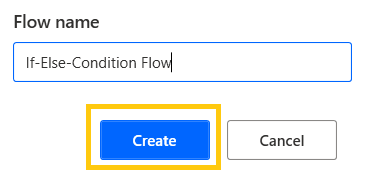
- Give some name to the flow and click on Create. Here, we are creating a flow with the name "If-Else-Condition Flow".
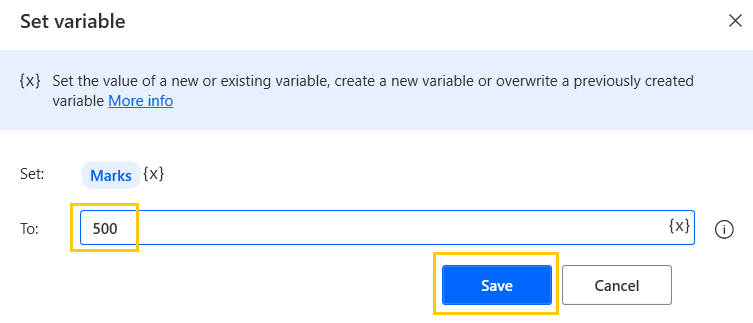
- Drag and drop Set Variable action from Actions pane to the workspace. Name the variable as Marks. Add value to the variable as 500 and click on Save.
- Again, drag and drop Set Variable action from the Actions pane to the workspace. Name the variable as ExamAttended. Add value to the variable as True and click on Save.

- Drag and drop If action from Actions pane to the workspace. Add the first operand as our variable ExamAttended. Add Operator as Equal to (=) and second operand as True and click on Save.

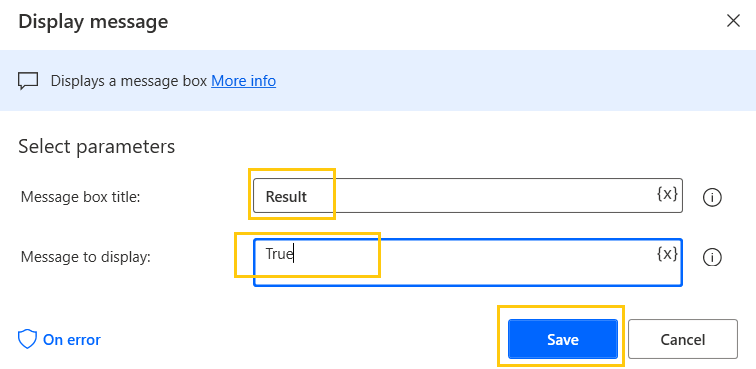
- Drag and drop Display message action from Actions pane to the workspace. Add message title as Result. Add value as True in Message to display. Click on Save.
- Here, this is how our flow should look now. Make sure that you add the Display message inside the If scope.

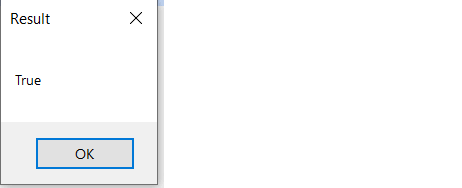
- Here, we get the output as True as it satisfies the condition.
- Drag and drop If action from Actions pane to the workspace. Add the first operand as our variable Marks. Add Operator as Greater than or Equal to (>=) and second operand as 300 and click on Save.

- Drag and drop Display message action from Actions pane to the workspace in the If scope. Add message title as Result. Add value as Pass in Message to display. Click on Save.
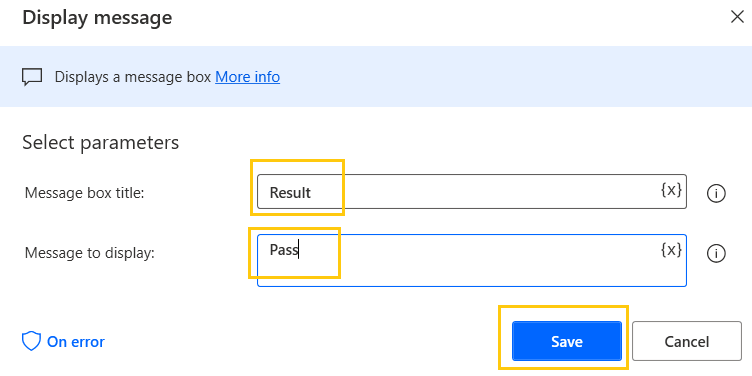
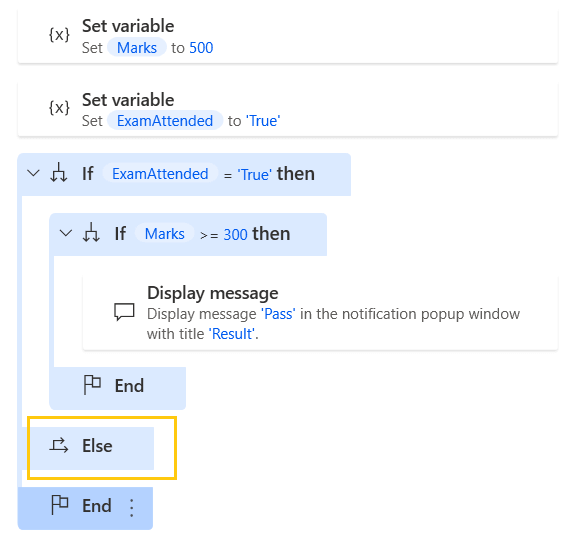
- Drag and drop Else action from Actions pane to the workspace.
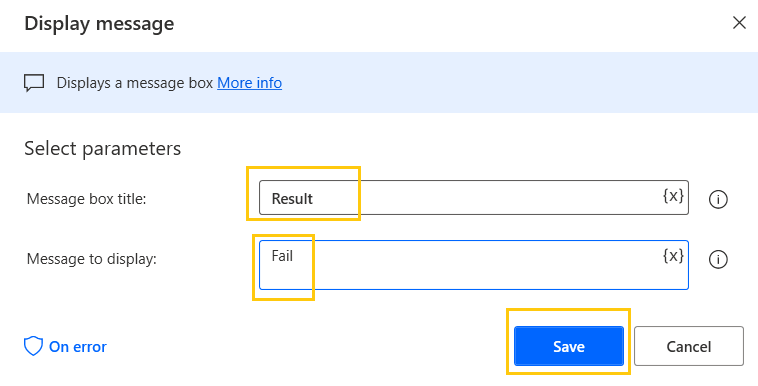
- Drag and drop Display message action from Actions pane to the workspace in the Else scope. Add message title as Result. Add value as Fail in Message to display. Click on Save.
- Here, this is how our flow should look now. Make sure that you add the Display message inside the If scope as well as in Else scope. Move the Else into the If scope.

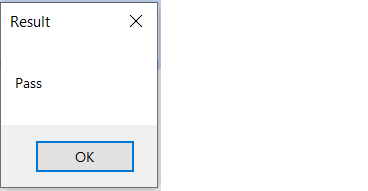
- Save and Run the flow. We get the output as Pass as we have set the variable value as 500.
- Now, if change the value of Marks variable as 250 and Run the flow. We get the output as Fail.

Advanced Conditional Actions In Power Automate Desktop
In the previous articles, we have seen If-Else and Switch conditional actions. Now, we will learn about the advanced conditional actions which include If process, If folder exists, and If file exists. These actions majorly focus on automating simple desktop-related tasks.
- If process: Checks the conditional block of statements depending on whether a process is running or not.
- If folder exists: Checks the conditional block of statements depending on whether a folder exists or not.
- If file exists: Checks the conditional block of statements depending on whether a file exists or not.
- Open Power Automate Desktop App.
- Firstly, we need to create a flow. Click on New flow.

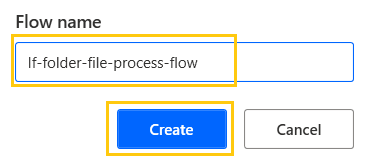
- Give some name to the flow and click on Create. Here, we are creating a flow with the name "If-folder-file-process-flow".
If folder exists
This action checks whether the folder is present in the given location or not. For example, if we want to generate a report in a particular folder. In that case, firstly you will check if the folder name exists or not in the particular location.
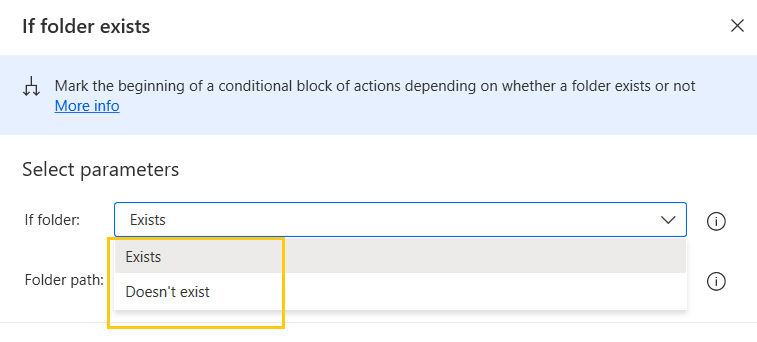
- Drag and drop If folder exists conditional action from Actions pane to the workspace. We have two parameters in the action that are Exists and Doesn't exist.
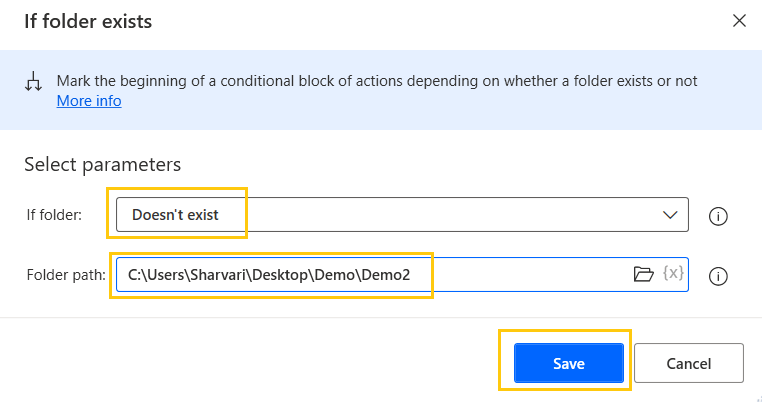
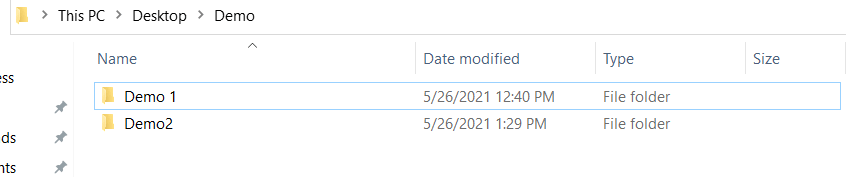
- We have a Demo 1 named folder. Now, add an action to create a new folder, if the folder Demo2 is not present in the main folder.

- Add the Folder path. If the folder Doesn't exist in the main folder then execute the condition. Click on Save.
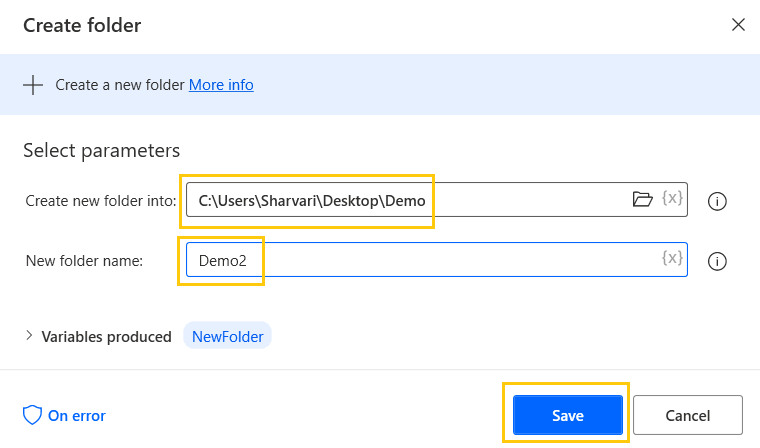
- In the If folder exists scope add Create folder action. Name the folder as Demo2. Click on Save.
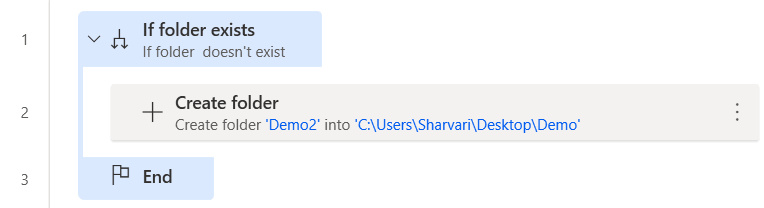
- This is our flow, when the folder is not found it will satisfy the condition and a new folder named Demo2 will be created.
- Save and Run the flow. We get output as a new folder name Demo2 created in our main folder.
If file exists
This action checks whether the file is present in the given location or not. For example, if we want to create a document in a particular folder. In that case, firstly, you will check if the file name exists or not in the particular location.
- Clear the workspace.
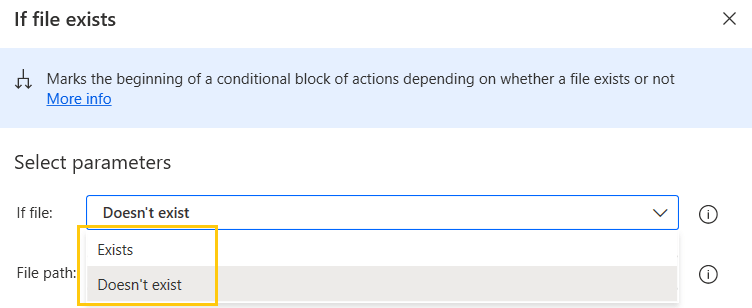
- Drag and drop If file exists conditional action from Actions pane to the workspace. Here, also we have two parameters in the action that are Exists and Doesn't exist.
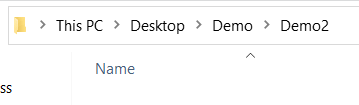
- We have a Demo2 named folder that is empty. Now, add an action to create a new file, if the file Report.txt is not found.
- Add the File path. If the file Doesn't exist in the Demo2 folder then execute the condition. Click on Save.

- In the If file exists scope add Write text to file action. Add the File path and some Text to write in the file. Click on Save.
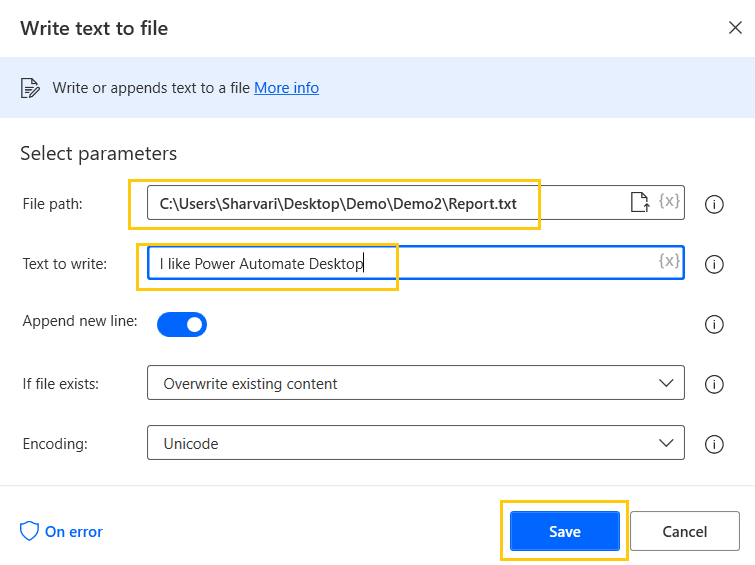
- This is our flow, when the file is not found it will satisfy the condition and a new file named Report.txt will be created.
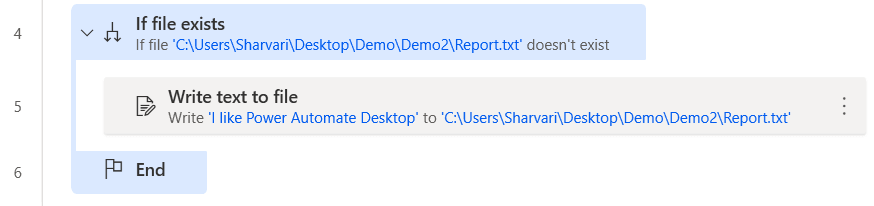
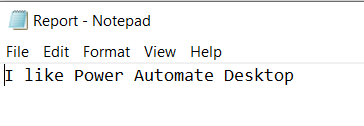
- Save and Run the flow. We get output as a new file name Report.txt created in our Demo2 folder.

- We have our Report.txt file created also, we have our text written in the file.
If process
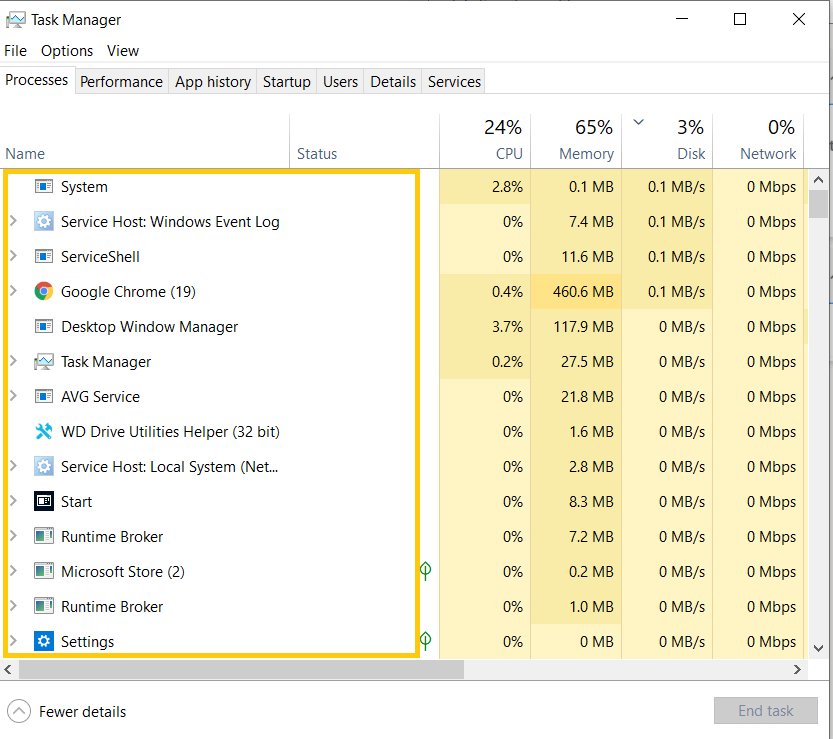
This conditional action will check whether the process is running or not. For example, if you go to Task manager you can see many processes are running on your computer. These are the process that you can find out whether they are running or not.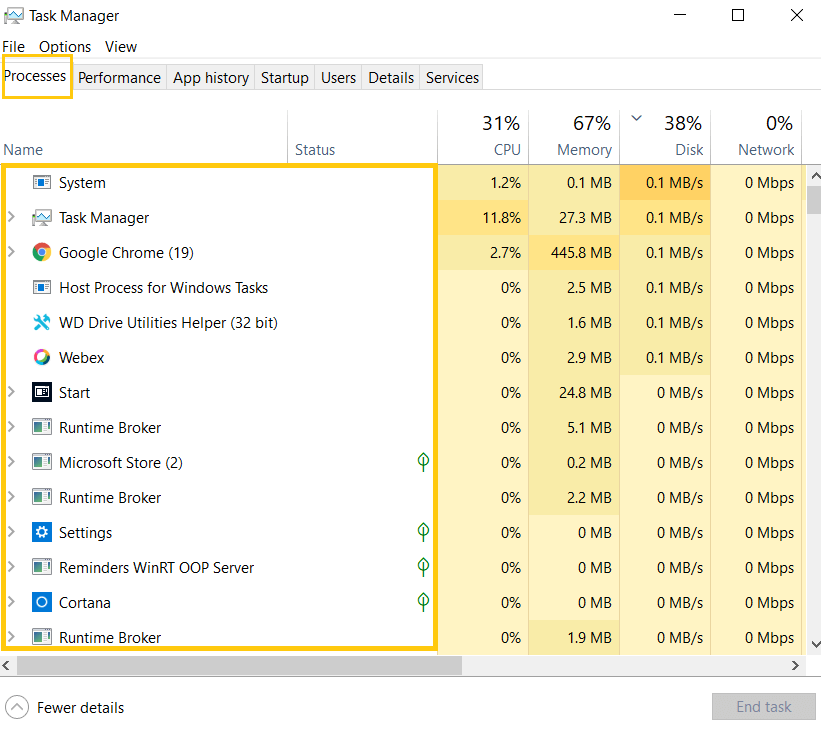
- To check select any process, right-click on the process and go to Properties.
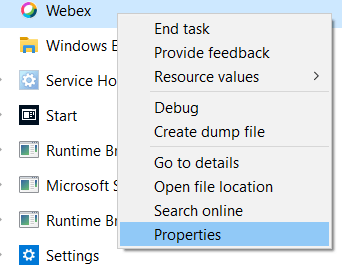
- Copy the name of the process.

- Drag and drop If process conditional action from Actions pane to the workspace. Here, also we have two parameters in the If process that are Is running and Isn't running.
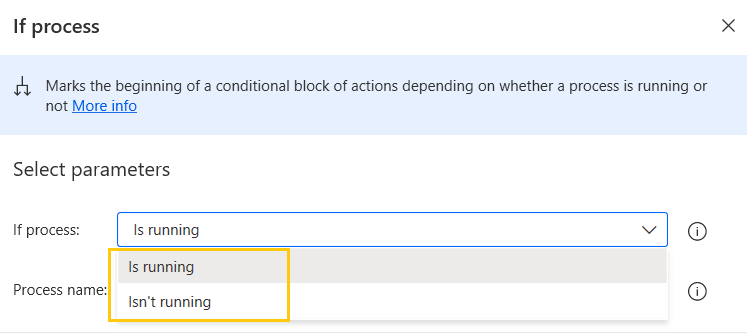
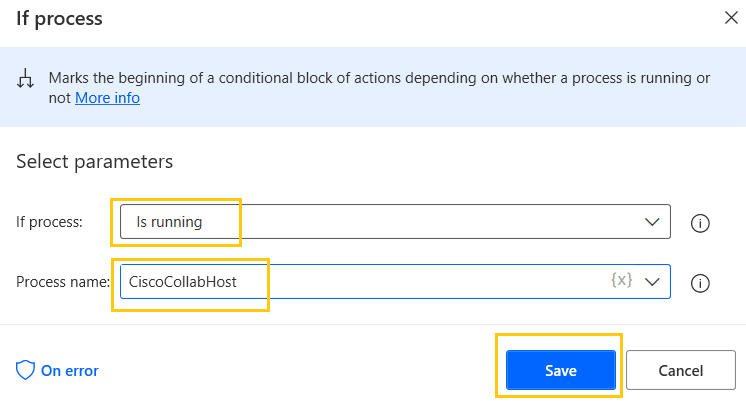
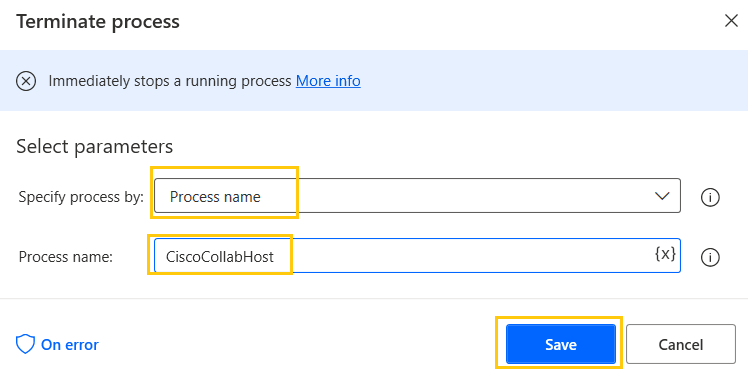
- Here, if the process is running state then execute the condition. Add the Process name. Here, it is CiscoCollabHost. Click on Save.
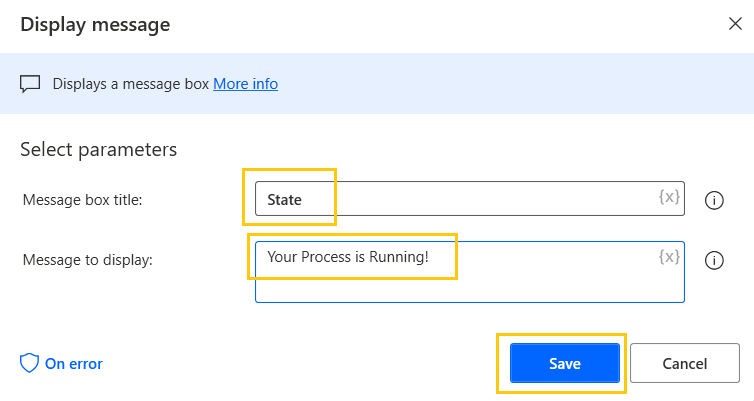
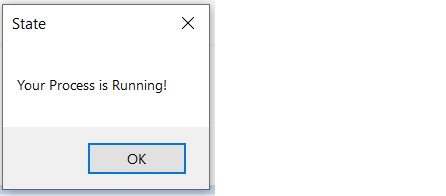
- Drag and drop Display message action from Actions pane to the workspace inside the If process scope. Add a message to display as "Your Process is Running!" and Click on Save.
- This is our flow, if the process is in the running state it will display the message.

- Save and Run the flow. We get output with display the message as "Your Process is Running!".
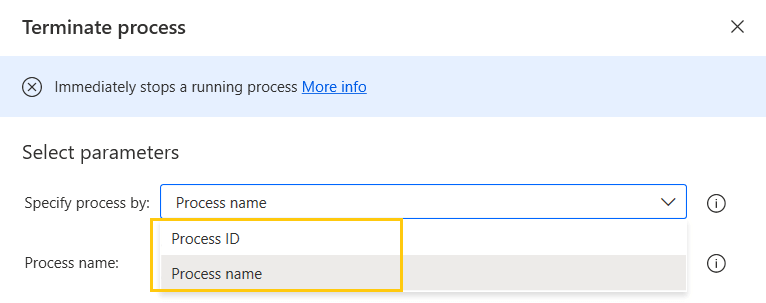
- To terminate the process we use the Terminate process action. Drag and drop the action into the workspace inside the If process scope. Here, also we have two parameters in the Terminate process action that are Process name and Process ID which can be found in the Details tab of the Task Manager.
- Add the Process name which you want to terminate and click on Save.
- Save and Run the flow. As we can see the process has been terminated by the action.
Recommended Readings
- Switch Case in Power Automate Desktop
- Loop Actions in Power Automate Desktop
- Excel Automation in Power Automate Desktop
- File Actions in Power Automate Desktop
- Variables in Power Automate Desktop
- Interview Questions Power Automate Desktop
- Microsoft Power Automate Desktop Layout
- Introduction to Power Automate Desktop
I am Sharvari Raut, having sound knowledge and experience in technical writing. Currently, pursuing my B.Tech in Computer Science and Engineering.
