

- Outlook Automation in Power Automate Desktop
- Launch and Close Outlook actions in Power Automate Desktop
- Retrieve email messages action in Power Automate Desktop
- Retrieve mails from specific sender
- Send email messages in Power Automate Desktop
- Save Outlook Emails in Power Automate Desktop
- Process email action in Power Automate Desktop
- Respond to Outlook emails in Power Automate Desktop
Outlook Automation in Power Automate Desktop
Outlook is an email client used by the business on the top of the Microsoft Exchange Server. It allows you to send and receive email messages, manage your calendar stores names and numbers in your contacts.

Outlook actions are used to automate sending, receiving, and managing emails of an Outlook account. There are a total of 7 actions under Outlook in Power Automate Desktop.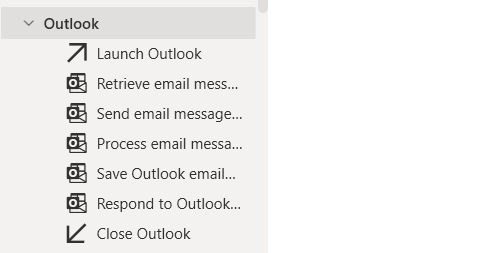
- Launch Outlook: This action creates a new instance of Outlook and launches the Outlook
- Retrieve email messages: This action retrieves email messages from an Outlook account.
- Send email message: This action sends creates and sends new emails through outlook.
- Process email messages: This action is used for moving or deleting emails or a list of email messages.
- Save Outlook emails: This action is used to save Outlook email messages from an outlook account.
- Respond to Outlook mails: This action is used for responding to an Outlook message, by replying, replying to all, or forwarding it.
- Close Outlook: This action is used to close the Outlook instance.
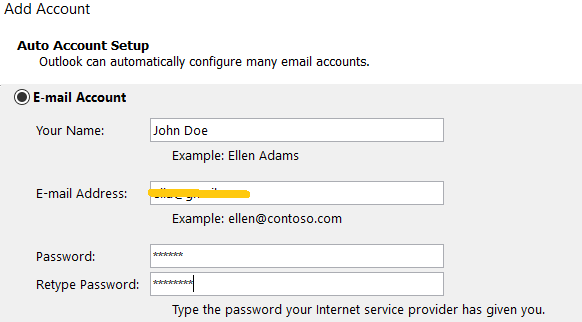
To perform outlook actions you need to login into the Microsoft Outlook Desktop application.
- Add Your Name, E-mail Address, and Password associated with that account.
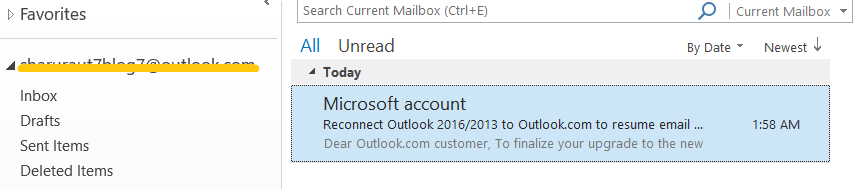
- Once, you log into your account you are ready to automate outlook.
UI Automation in Power Automate Desktop
- Open Power Automate Desktop App.

- Firstly, we need to create a flow. Click on New flow.

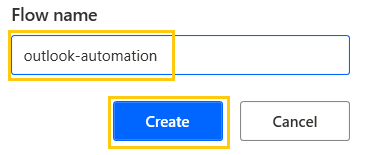
- Create a flow name outlook-automation in Power Automate Desktop.
Launch and Close Outlook actions in Power Automate Desktop
These actions are related to the Outlook instance. Launch Outlook action creates a new instance of Outlook and launches the Outlook and Close Outlook action is used to close the Outlook instance.
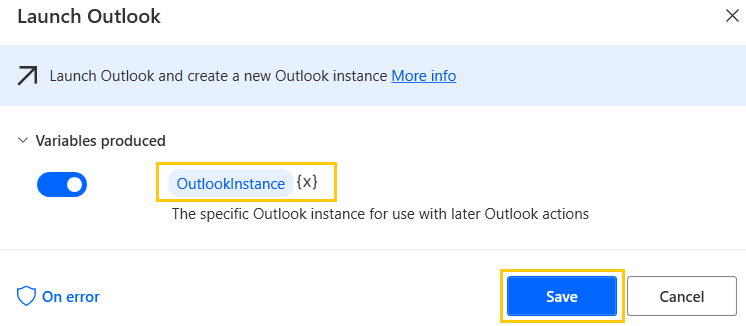
- From the Actions panel, drag and drop the Launch Outlook action into the workspace. The variable OutlookInstance will be produced. Click on Save.
- From the Actions panel, drag and drop the Close Outlook actions into the workspace. Add the Outlook instance in the Close Outlook action. Click on Save.

Retrieve email messages action in Power Automate Desktop
This action retrieves email messages from an Outlook account.
- From the Actions panel, drag and drop the Retrieve email messages from Outlook actions into the workspace. Add the Outlook Instance, add the email address, Mail folder as Inbox, and Retrieve all email messages. The variables will be produced in RetrievedEmails and click on Save.

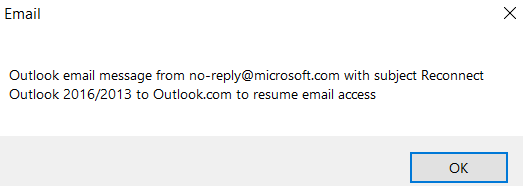
- From the Actions panel, drag and drop the Display message actions into the workspace. Add Title as Email and Message to display as RetrivedEmails variable. Click on Save.

- Save and Run the flow. We get the mail retrieved from Outlook's Inbox.
Retrieve mails from specific sender
If you want to retrieve emails from a particular person then you can add the specific contains. For example, if I want to retrieve all emails from [email protected]. I will add the email in From contains and click on Save.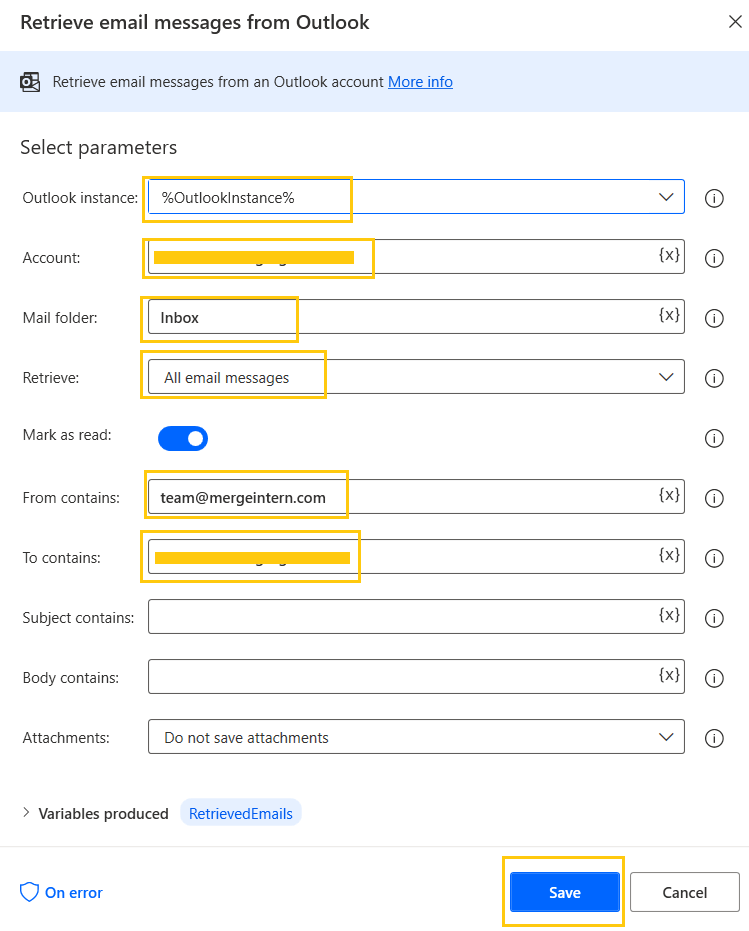
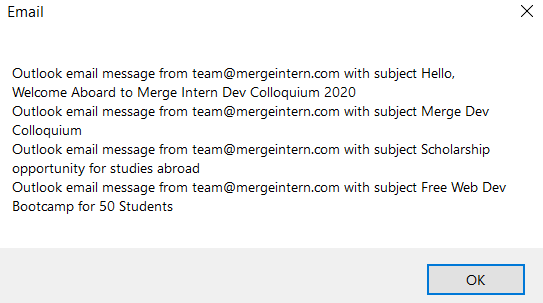
- Save and Run the flow. We get the emails retrieved from a specified email id.
Send email messages in Power Automate Desktop
This action sends creates and sends new emails through outlook.
- From the Actions panel, drag and drop the Send email message through Outlook actions into the workspace. Add Outlook instance, Add email address to Account from which you want to send mail and To whom you want to send.
- Add Subject, Body, and Attachment. Click on Save.

- Save and Run the flow. We get the mail sent from Outlook's outbox.

Save Outlook Emails in Power Automate Desktop
This action is used to save Outlook email messages from an outlook account.
- From the Actions panel, drag and drop the Save Outlook email messages actions into the workspace. Add the Outlook instance, add the Account from which you want to save the mail. Emails to save as RetrievedEmails.
- We have options for Save formats like .txt, .oft, .msg, .msg (Unicode), .HTML and .mht.

- Select save format at .txt and add the name and path where you want to save the file.

- Save and Run the flow. We get the mail saved as an email_saved.txt file as well as an outlook item.

Process email action in Power Automate Desktop
This action is used for moving or deleting emails or a list of email messages.
- From the Actions panel, drag and drop the Process email messages in Outlook actions into the workspace. Add the Outlook instance, Account, Emails to processed and select operation as Move email messages to a mail folder.
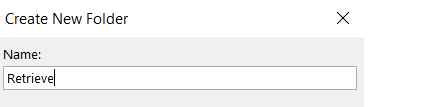
- Name the Mail folder as Retrieve and click on Save.

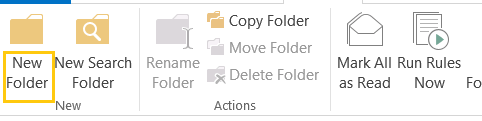
- To create a folder. Go to Outlook in Folders click on New Folder.
- Give the name to the folder as Retrieve.
- Now, Save and Run the flow. We get the mails moved from the Inbox folder to the Retrieve folder in outlook.

- From the Actions panel, drag and drop the Process email messages in Outlook actions into the workspace. Add the Outlook instance, Account, select Operation as Delete email messages. Click on Save.

- Now, Save and Run the flow. We get the mail deleted and present in the Deleted Items folder.

Respond to Outlook emails in Power Automate Desktop
This action is used for responding to an Outlook message, by replying, replying to all, or forwarding it.
- To perform this action we need to iterate through all emails one by one. Todo so, we use For each action. Add RetrievedEmails in Value to iterate. The output will be produced in the Currentitem variable. Click on Save.

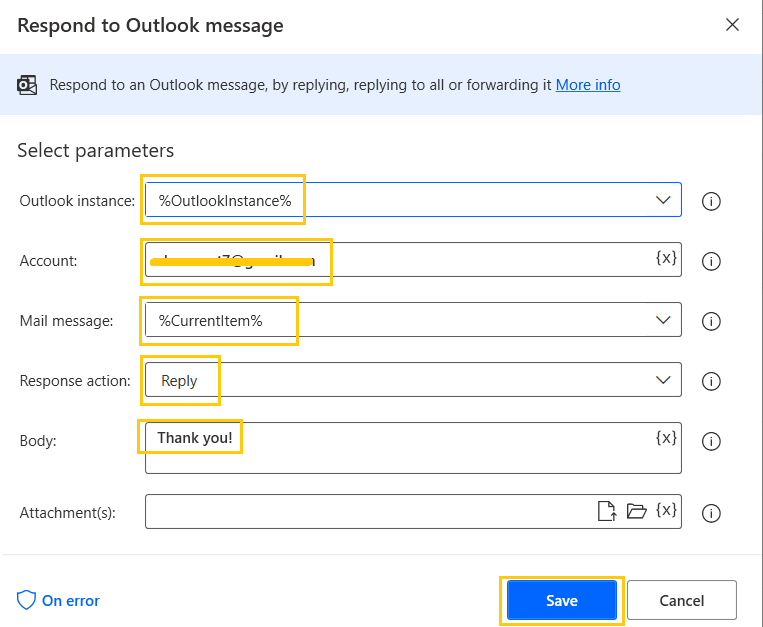
- From the Actions panel, drag and drop the Respond to Outlook email actions into the workspace inside For each action. Add the Outlook instance, Account, Mail message as CurrentItem. We have Response actions as Reply, Reply all, and Forward.

- Here, we select Response action as Forward to forward mails. Click on Save.

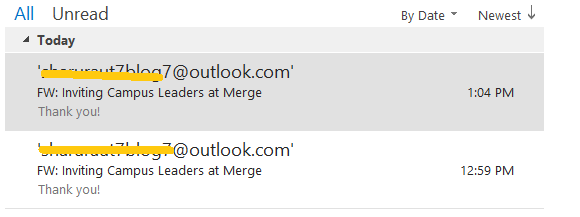
- Now, Save and Run the flow. We get email messages forwarded to another person.
- Now, to reply to emails you need to change the Response action to Reply. Click on Save.
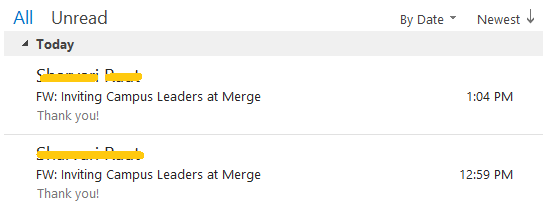
- Now, Save and Run the flow. We get replies sent to the emails to the people through our Outlook account.
Recommended Readings
- Database Actions in Power Automate Desktop
- UI Automation in Power Automate Desktop
- CMD actions in Power Automate Desktop
- OCR Actions in Power Automate Desktop
- PDF Automation in Power Automate Desktop
- Email Automation in Power Automate Desktop
- Compression Action in Power Automate Desktop
- Text Actions in Power Automate Desktop
I am Sharvari Raut, having sound knowledge and experience in technical writing. Currently, pursuing my B.Tech in Computer Science and Engineering.
