

Clipboard Actions in Power Automate Desktop
A clipboard is a place where the copied content is present temporarily till we use a copy command again. Clipboard content will be erased once the system is turned off.
Clipboard actions are used to set or get data from the clipboard in power automate desktop.

There are three clipboard actions in power automate desktop.
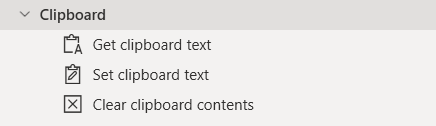
- Get clipboard text: This action gets the contents from clipboard text
- Set clipboard text: This action sets the text in the clipboard
- Clear clipboard contents: This action clears the clipboard contents
Text Actions in Power Automate Desktop
- Open Power Automate Desktop App.

- Firstly, we need to create a flow. Click on New flow.

- Create a flow with the name clipboard-actions.
SET and GET clipboard text actions
These actions are used to set or write contents in the clipboard and then retrieve the written text from the clipboard.
- From the Actions panel, drag and drop the Set clipboard text action into the workspace. Add text in Clipboard text. Click on Save.

- From the Actions panel, drag and drop the Get clipboard text action into the workspace. It will automatically retrieve text from the clipboard. The output will be stored in the ClipboardText variable. Click o Save.

- From the Actions panel, drag and drop the Display message action into the workspace. Add Message box title as clips and Message to display as the ClipboardText variable. Click on Save.
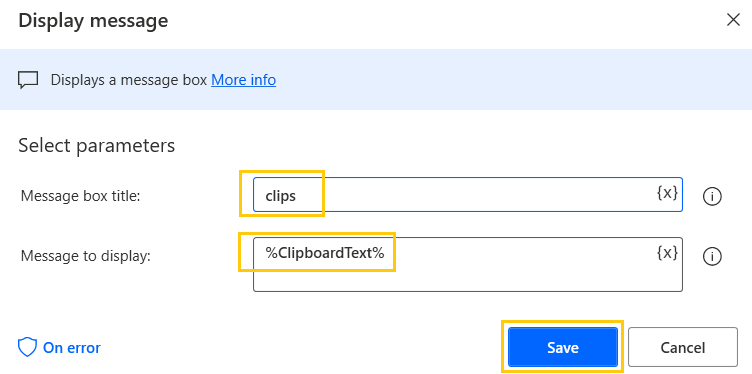
- This is how our flow looks now

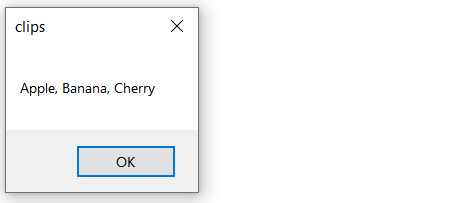
- Save and Run the flow. We get the output as the text saved in the clipboard.
Clear clipboard contents
This action is used to clear the clipboard. It doesn't take any input or show any output.
- From the Actions panel, drag and drop the Clear clipboard contents action into the workspace. Click on Save.
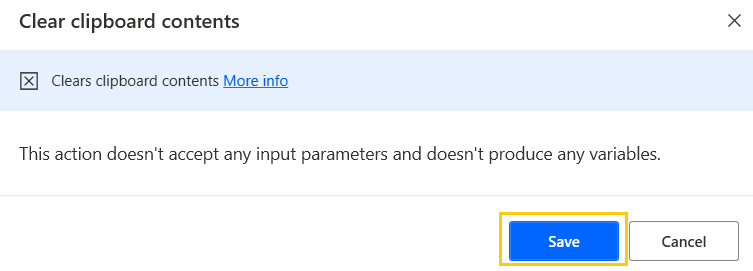
- This how our flow looks now. Make sure that you put the action in between the Set and Get clipboard text actions.
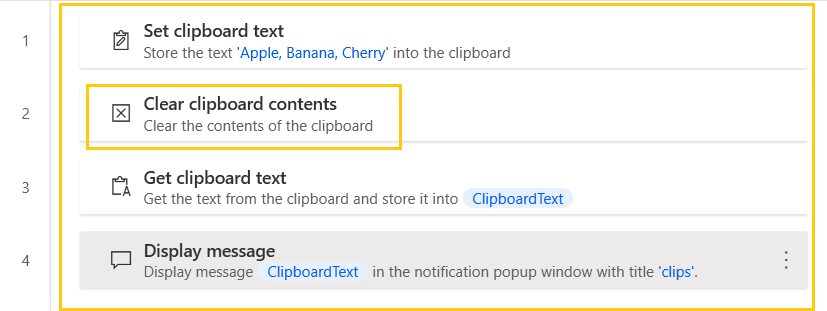
- Save and Run the flow. The contents are cleared from the clipboard so, we don't get any text in the output.

Recommended Readings
- FTP Actions in Power Automate Desktop
- Wait in Power Automate Desktop
- Mouse and Keyboard in Power Automate Desktop
- Introduction to Power Automate Desktop
- OCR Actions in Power Automate Desktop
- CMD actions in Power Automate Desktop
- UI Automation in Power Automate Desktop
- Database Actions in Power Automate Desktop
About Author :
I am Sharvari Raut, having sound knowledge and experience in technical writing. Currently, pursuing my B.Tech in Computer Science and Engineering.
Comment / Suggestion Section
Point our Mistakes and Post Your Suggestions
