

PDF Automation in Power Automate Desktop

PDF stands for Portable Document Format. It's a useful electronic document in the industry today that contains images, videos, text, etc. In Power Automate Desktop we can automate the PDFs by using PDF actions. PDF actions are used for extracting images, texts, pdf pages, and merge pdfs.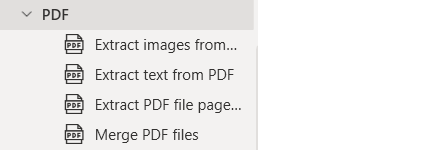
Creating a flow with PDF actions
- Open Power Automate Desktop App.

- Firstly, we need to create a flow. Click on New flow.

- Create a flow name pdf-automation in Power Automate Desktop.


Extract images from PDF in Power Automate Desktop
This action is used to extract images from PDF files.
- From the Actions panel, drag and drop the Extract images from PDF action into the workspace. Add PDF file path in PDF file parameter. In Pages to extract, we have All, Single, and Range options.

- Add Images name and path to Save images. Click on Save.

- Save and Run the flow. We get images extracted from the PDF file to our folder.


Extract Text from PDF in Power Automate Desktop
This action is used to extract text from PDF files.
- From the Actions panel, drag and drop the Extract text from PDF action into the workspace. Add PDF file path, Pages to extract as Single, and page number as 4. Click on Save.

- From the Actions panel, drag and drop the Write text to file action into the workspace. Add File path to write the text in the file. In Text to write add ExtractedPDFText variable. If the file exists Append content. Click on Save.

- Save and Run the flow. We get text extracted in the Text_Extracted.txt file.


Extract PDF file pages in Power Automate Desktop
This action is used to extract pages from PDF files and create a new PDF file.
- From the Actions panel, drag and drop the Extract PDF files pages to new PDF file action into the workspace. Add PDF file path, Page selection as from 4-6, Add the Extracted PDF file path where you want your PDF file. Click on Save.

- Save and Run the flow. We get pages extracted in the Extracted_Page.pdf file.


Merge PDF files in Power Automate Desktop
This action is used to merge PDFs and form one new single PDF.
- From the Actions panel, drag and drop the Merge PDF files action into the workspace. Add paths for PDF files and also add the Merged PDF path. If file exists Overwrite. Click on Save.

- Save and Run the flow. We get PDF files merged in the Merged_Page.pdf.


Recommended Readings
- XML Automation in Power Automate Desktop
- Outlook Automation in Power Automate Desktop
- Database Actions in Power Automate Desktop
- UI Automation in Power Automate Desktop
- Compression Action in Power Automate Desktop
- Text Actions in Power Automate Desktop
- Folder Actions in Power Automate Desktop
- File Actions in Power Automate Desktop
About Author :
I am Sharvari Raut, having sound knowledge and experience in technical writing. Currently, pursuing my B.Tech in Computer Science and Engineering.
Comment / Suggestion Section
Point our Mistakes and Post Your Suggestions
