

- UI Automation in Power Automate Desktop
- Focus text field in window
- Populate text field in window
- Select radio button and checkbox in window
- Press button in window
- Get Details of the window
- Get Details of UI Element in Windows
- Get selected Radio Button and Checkbox Button in Windows
- Extract Data from Window
UI Automation in Power Automate Desktop
UI flows brings robotic process automation (RPA) capabilities to power automate. You can use this to automate repetitive tasks in windows and as well as web applications. UI flows having record and playback user interface actions such as clicks, keyboard input, etc.

You can automate both web as well as desktop applications by creating flows to perform tedious, repetitive, and manual tasks by interacting using machine learning applications like UI elements, images, or coordinates.
By definition, Microsoft UI automation is a framework that enables you to access, identify and manipulate UI elements of any application by providing programmatic access to these user interfaces.
Actions under the UI automation group are made in such a way to directly interact with windows and applications, we can call them Desktop UI Flows. To achieve this output without resorting to image recognition, Power Automate Desktop utilizes UI elements to identify windows and their elements.
By creating desktop workflows we can easily integrate automation across the organization using these flows in power automate desktop. Desktop UI flows supports a variety of applications like Word, Excel, Outlook as well as third-party or custom applications.
Desktop UI flows use the UI automation framework which is included in Windows. Some windows applications are not accessible and are not currently supported by desktop UI flows.
Outlook Automation in Power Automate Desktop
Similar to Web Automation actions we have actions in UI automation.

Form filling
- Focus text field in windows : Set the focus on the input textbox element from the window.
- Populate text field in windows : Fill a text field in the window with the specified text.
- Set checkbox state in windows : Check or Uncheck the checkbox in the window.
- Select radio button in windows : Select the radio button in the window.
- Set drop-down list value in windows : Set or clear the set option.
- Press button in windows : Used to press a button in the window.
Data extraction
- Extract data from window: Extract data from a specific part of the window in the form of single values, rows, tables, etc.
- Get details of window: Get the property of the window such as their title and source text.
- Get details of UI element in windows: Get the value of the element's attribute from the window.
- Get selected checkboxes in window: Gets the names of the selected checkboxes or the state of a specific checkbox.
- Get selected radio button in window: Gets the name of the selected radio button or the state of a specific radio button.
Windows
- Use Desktop: Does desktop and taskbar-related operations.
- Select tab in window: Selects a tab from the window from a group of tabs.
- Click UI element in window: Clicks on any UI element of a window.
- Select menu option in window: Selects an option in a menu of a window.
- Drag and drop UI element in window: Drags and drops a UI element of a window.
- Expand/collapse tree node in window: Expands or collapses a node of a tree view residing in a window.
Email Automation in Power Automate Desktop
- Open Power Automate Desktop App.

- Firstly, we need to create a flow. Click on New flow.

- Create a flow with the name UI-automation.

- We are going to auto-fill this below form with the help of UI actions in Power Automate Desktop.
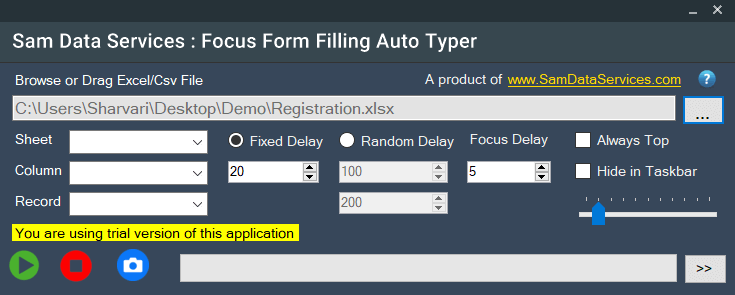
- Click on the right-hand sidebar below the variables pane. UI elements pane will be opened. Click on Add UI element.

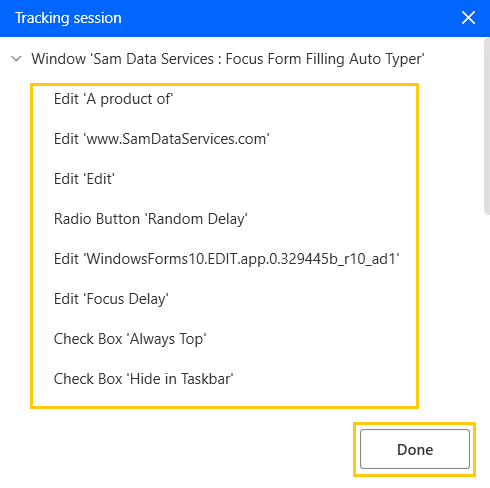
- A window for the Tracking session will be opened.
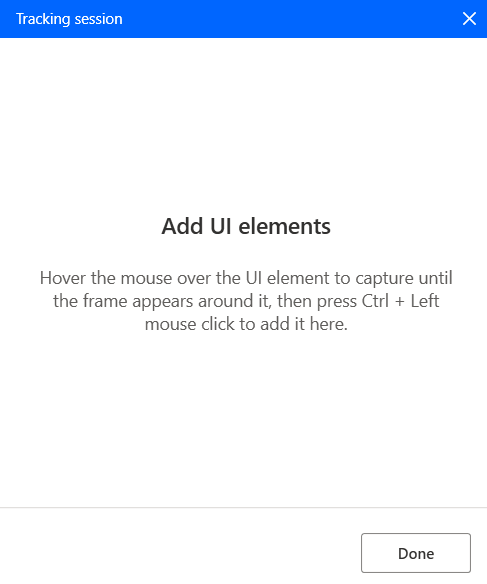
- Now, hover the mouse over the element present in the form. A red-colored highlighted box will appear on whichever element you hover on. Press Ctrl + Left mouse click to add element in the UI elements window.
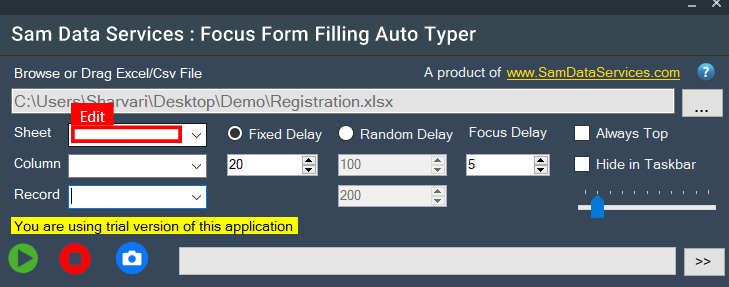
- The element will appear in the window.
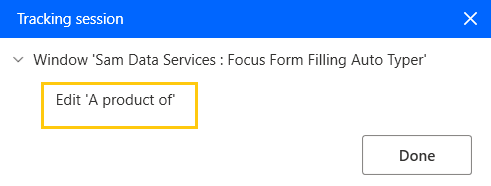
- Similarly, do for all the elements present in the form. Click on Done.
Focus text field in window
Set the focus on the input textbox element from the window.
- From the Actions panel, drag and drop the Focus text field in window actions into the workspace. Add the UI element associated with Textbox.
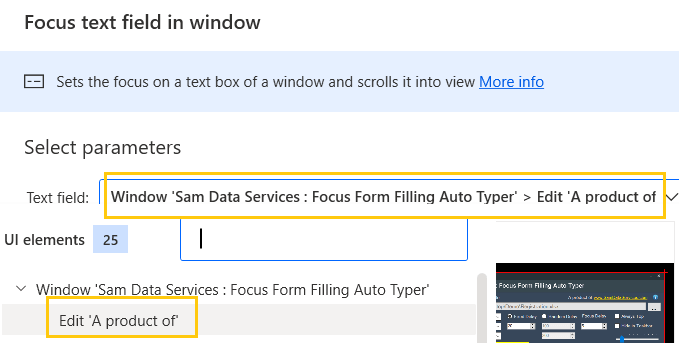
- Click on Save.
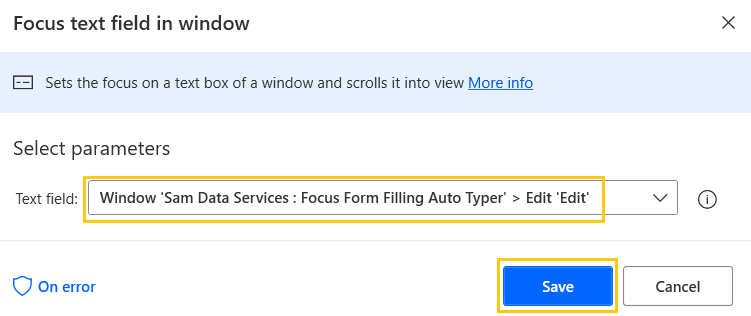
Similarly, we are going to add UI elements for other actions as well.
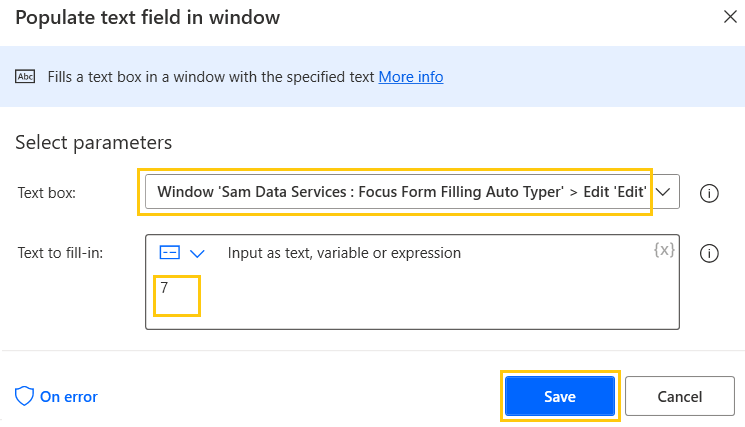
Populate text field in window
Fills the textbox in a window with specified text.
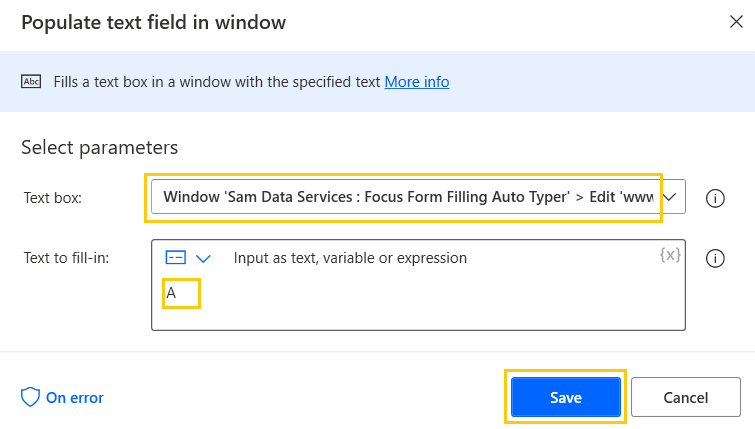
- From the Actions panel, drag and drop the Populate text field in window actions into the workspace. In Textbox add the UI element associated with the text box from the form. Add text to fill as 3 and click on Save.

- Similarly, do for another textbox as well.
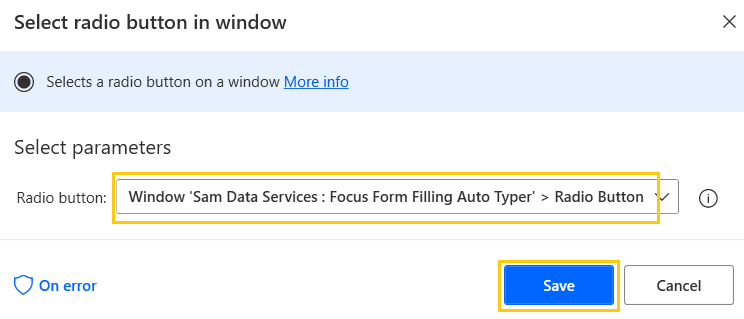
Select radio button and checkbox in window
Selects the radio button in the window.
- From the Actions panel, drag and drop the Select radio button in window actions into the workspace. Add the UI element associated with the radio button from the form and click on Save.
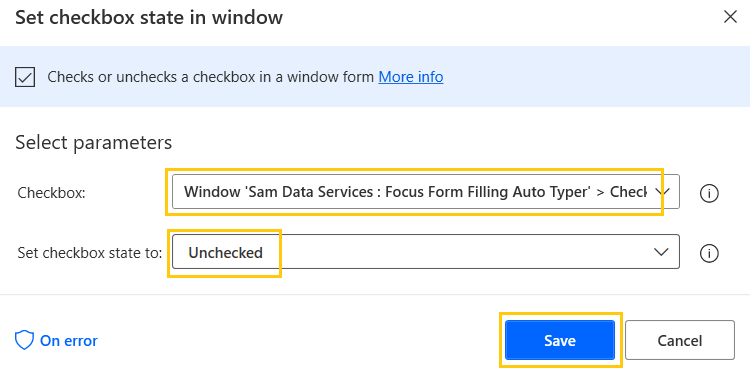
Set checkbox state in window
This action is used to Check or Uncheck the checkbox in the window.
- From the Actions panel, drag and drop the Select checkbox state in window actions into the workspace. Add the UI element associated with the checkbox button from the form. Select checkbox state as Checked. Click on Save.

- Similarly, add the UI element associated with the checkbox button from the form. Select checkbox state as Unchecked. Click on Save.
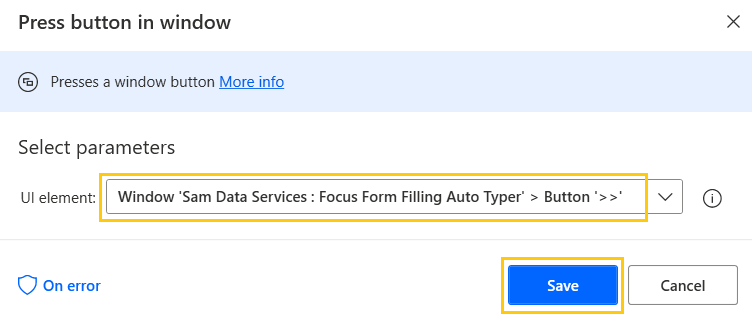
Press button in window
This action is used to click a button in the window.
- From the Actions panel, drag and drop the Press button in window actions into the workspace. Add UI element associated with a button from the form. Click on Save.
- Our flow looks like this now:
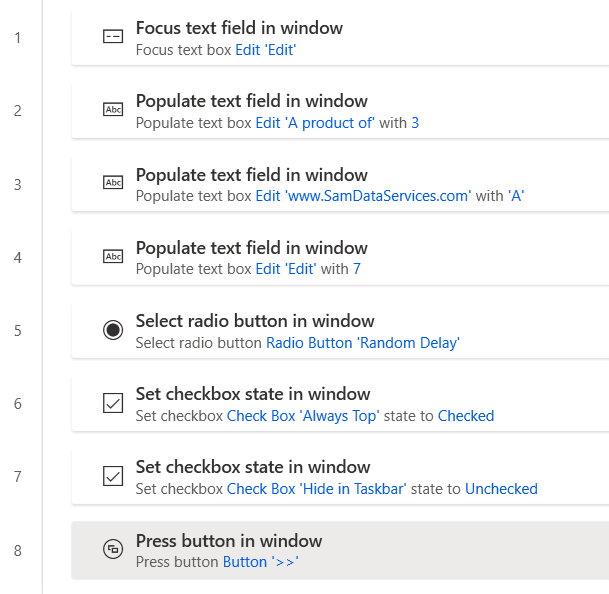
- Save and Run the flow. We get output as a form filled with specified values.

Get Details of the window
Gets the property of the window such as their title and source text.
- From the Actions panel, drag and drop the Get details of window actions into the workspace. Add the UI element associated with Window from the form. We have four options in Window property, Get window title, Get window text, Get window location and size, and Get process name.
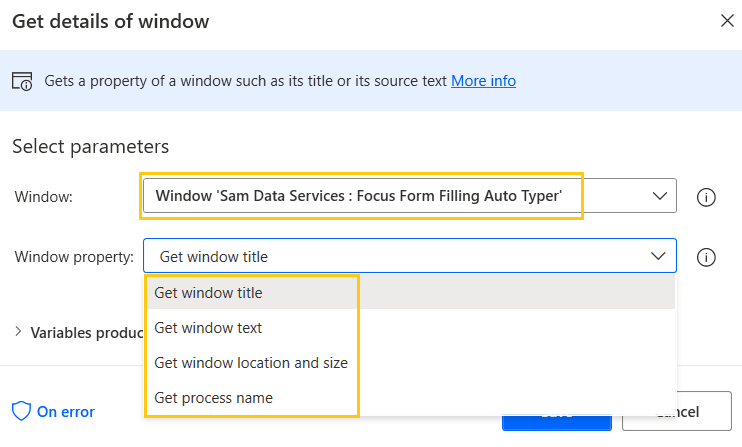
- Select Get window text. Click on Save.
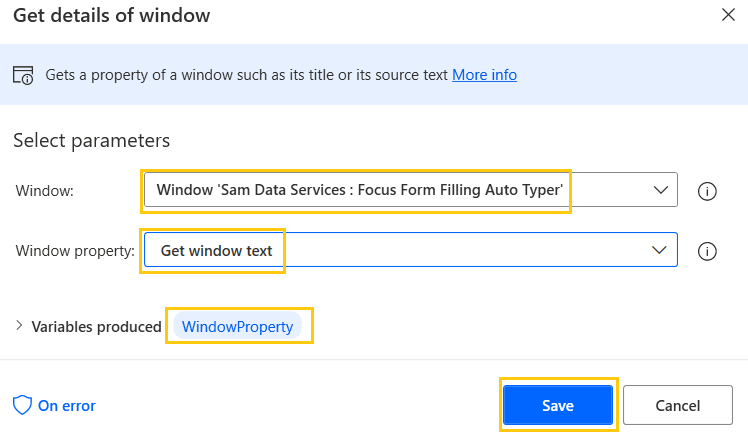
- Save and Run the flow. We get the details of the window.
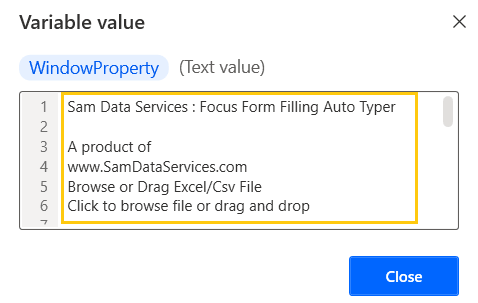
Get Details of UI Element in Windows
Get the value of the element's attribute from the window.
- From the Actions panel, drag and drop the Get details of UI element in window actions into the workspace. Add UI elements from the form in which you want to get value.
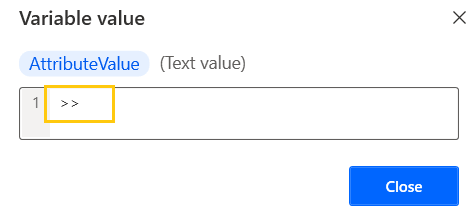
- The output will be produced in the AttributedValue variable. Click on Save.

- Save and Run the flow. We get the details of the element from the window.
Get selected Radio Button and Checkbox Button in Windows
Gets the name of the selected radio button or the state of a specific radio button.
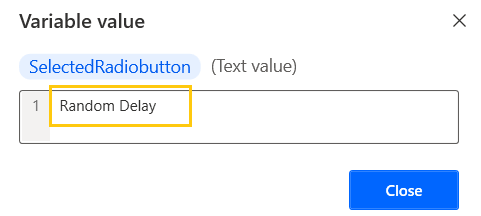
- From the Actions panel, drag and drop the Get selected radio button in window actions into the workspace. Add UI elements associated with the radio button from the form in which you want to get value. It gets the selected radio button name in the group. Click on Save.

- Save and Run the flow. We get the details of the radio button from the window.
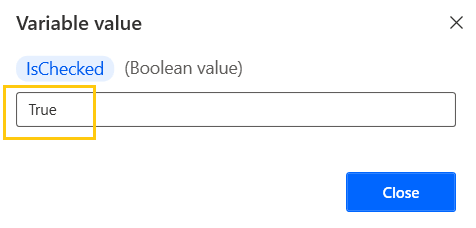
- From the Actions panel, drag and drop the Get selected checkboxes in window actions into the workspace. Add UI elements associated with the checkbox button from the form in which you want to get value. It gets the checkbox state. Click on Save.
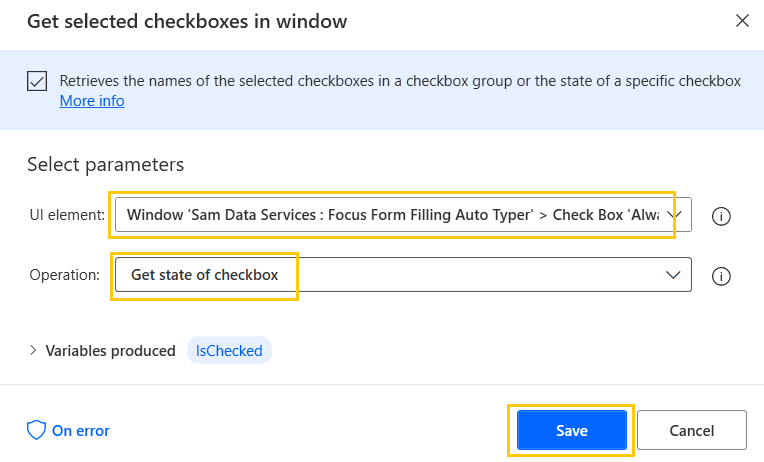
- Save and Run the flow. We get the details of the checkbox from the window.
Extract Data from Window
Extract data from a specific part of the window in the form of single values, rows, tables, etc.
- From the Actions panel, drag and drop the Extract data from window actions into the workspace. Add UI element of the window from form and store it in a variable. Click on Save.

- Save and Run the flow. We get the data extracted from the window.

I am Sharvari Raut, having sound knowledge and experience in technical writing. Currently, pursuing my B.Tech in Computer Science and Engineering.