

File Actions in Power Automate Desktop
Managing files and folders is an important part of many business processes. Managing a large collection of files and folders is a time-consuming, tedious task. By automating these file and folder-related tasks, an organization can increase its productivity and reduce operating hours spent on repetitive processes.
For example, IT departments can improve the processes of backing up or moving files and folders to multiple computers without the need for continuous personal monitoring.
In this article, we will see some of the most common uses of file actions on the Microsoft Power Automate Desktop.
Creating a flow with the file actions
- Create a flow name file-automation.

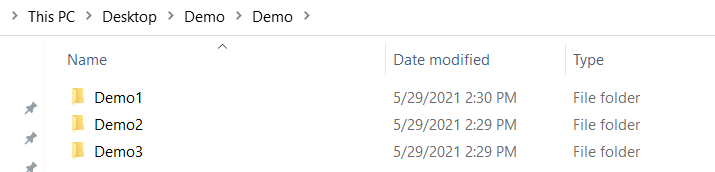
- We have three folders created named Demo1, Demo2, and Demo3 folder. In, Demo1 folder we have two excel files and the other two folders are empty.
Copy file action
- This action is used to copy any files from the folder. We are copying contents from the Demo1 folder to the Demo2 folder.
- Drag and drop the Copy file(s) action into the workspace. Add File path to copy, you can also add multiple files path. Add the path for the Destination folder and click on Save.

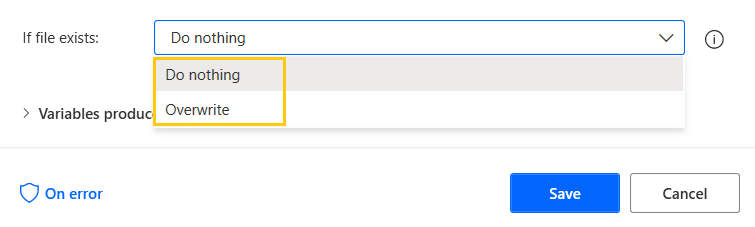
- We have two options here for if a file exists then do nothing or overwrite it. We are choosing Do nothing.
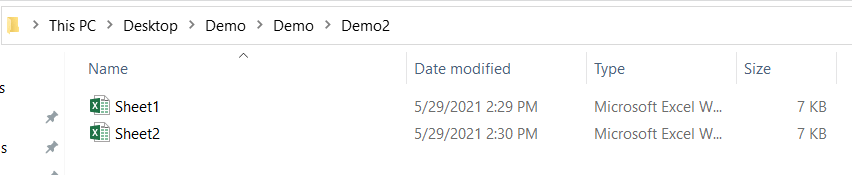
- Save and Run the flow. We have all files copied to the Demo2 folder.
Move file action
- This action is used to move any files from the folder. We are moving contents from the Demo1 folder to the Demo3 folder.
- Drag and drop the Move file(s) action into the workspace. Add File path to move, you can also add multiple files path. Add the path for the destination folder and click on Save.

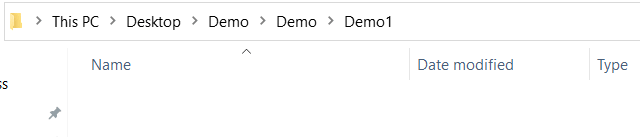
- Save and Run the flow. We have all files moved to the Demo3 folder. Demo1 folder is empty now as we have moved its contents to Demo3.

Rename file action
- This action is used to rename any files from the folder. We are renaming file Sheet1 to Excel_Sheet1 from the Demo3 folder.
- Add file path to rename. Add new file name. Click on Save.

- In Rename scheme, we have other ways to use this action like for example, if we want to add more text we can use Add text option. If we want to change the extension we can use the Change extension option.

- Save and Run the flow. We have the name of the file changed to Excel_Sheet1.

Delete file action
- This action is used to delete any files from the folder. We are deleting file Excel_Sheet1 from the Demo3 folder.
- Add file path to delete the file and click on Save.

- Save and Run the flow. We have our file Excel_Sheet1 deleted from the Demo3 folder.

Read text from file
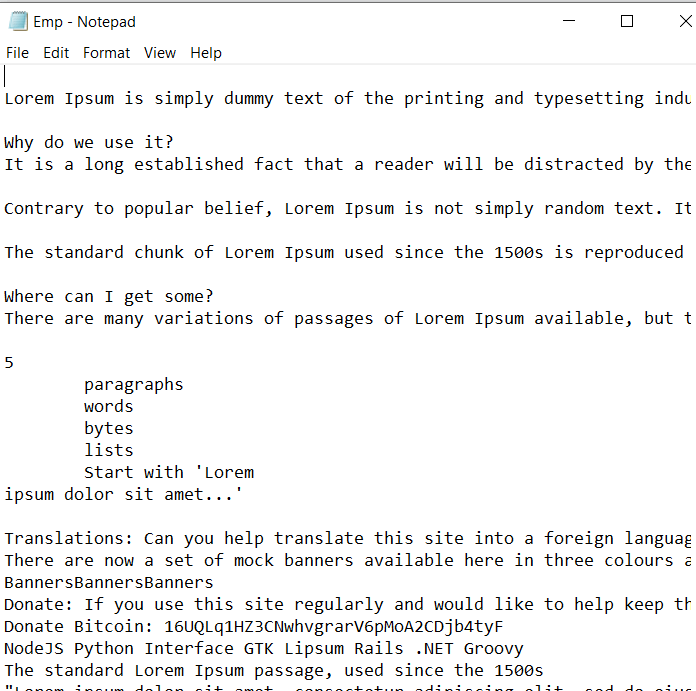
- This action is used to read any text files from the folder. We are reading text from the Emp.txt file. Empty List.txt has no text.

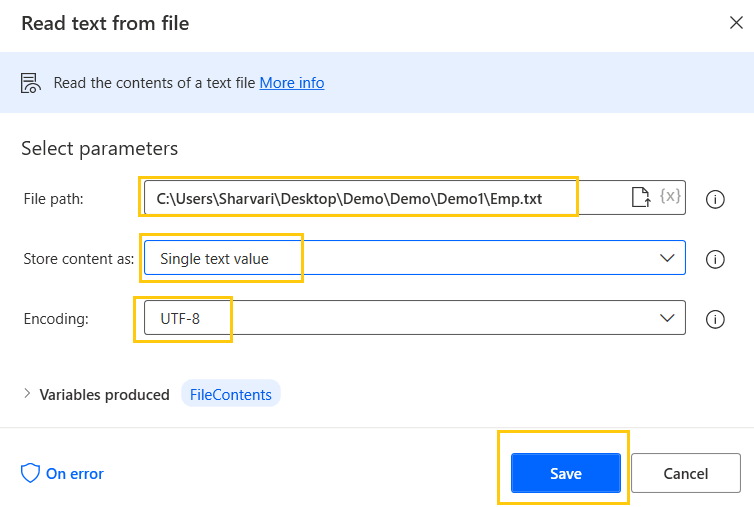
- Drag and drop the Read text from file action into the workspace. Add the File path store content as a Single text value. This will be stored in the FileContents variable. Click on Save.
Write text file
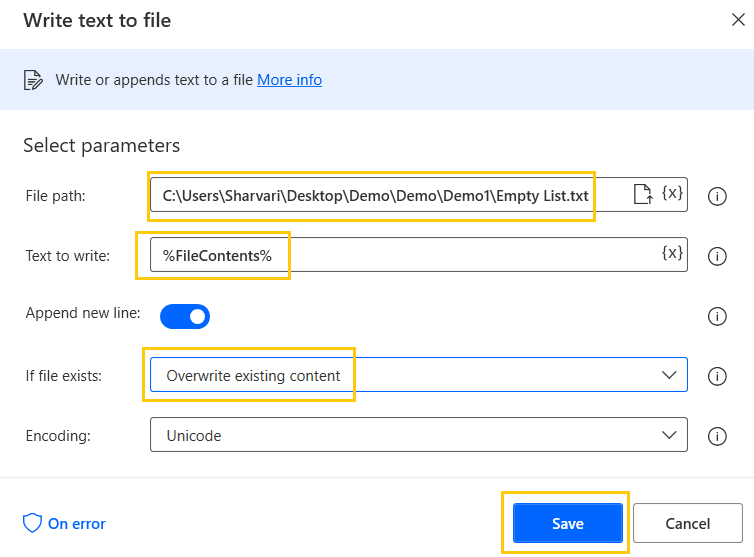
- This action is used to write any text files from the folder. We are reading text from the Emp.txt file and writing it into Empty List.txt.
- Add the File path and Text to write as FileContents. We have our file so, choose Overwriting existing content in If file exists. Click on Save.
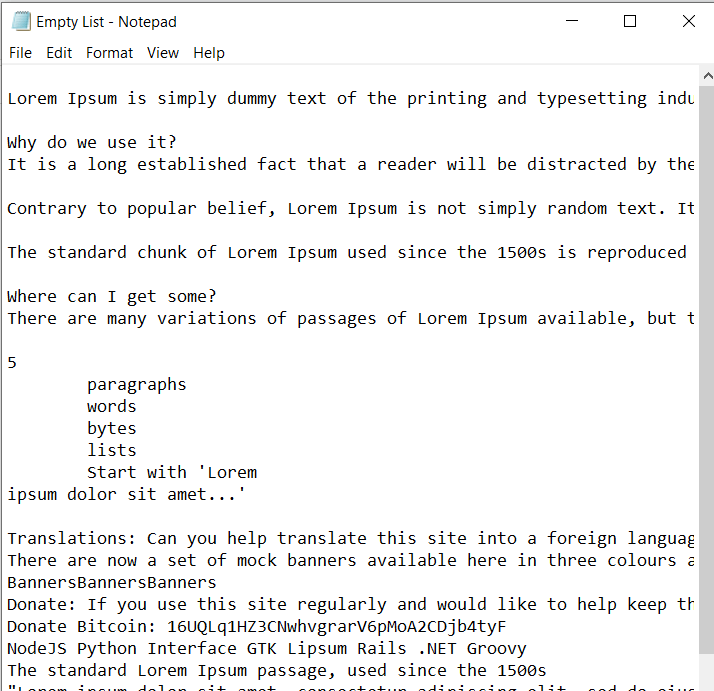
- Save and Run the flow. We have our text output in the Empty List.txt.
Read CSV
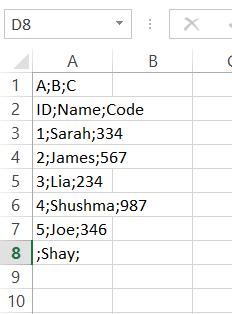
- This action is used to read any CSV files from the folder. We are reading text from the NewEmp.csv file.

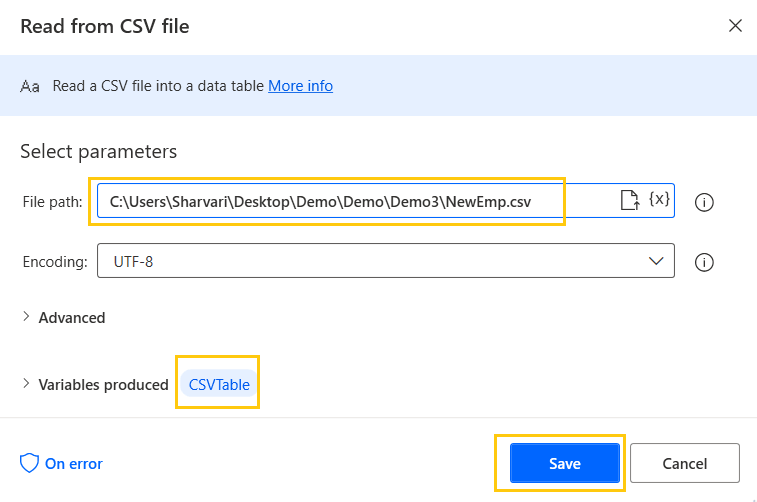
- Drag and drop the Read from CSV file action into the workspace. Add the File path. This will be stored in the CSVTable variable. Click on Save.
Write CSV
- This action is used to write any CSV files from the folder. We are reading CSV from the NewEmp.txt file and writing it into a new Sheet2.csv file. Click on Save.

- Save and Run the flow. We have our text output in the Sheet2.csv.

Get file part
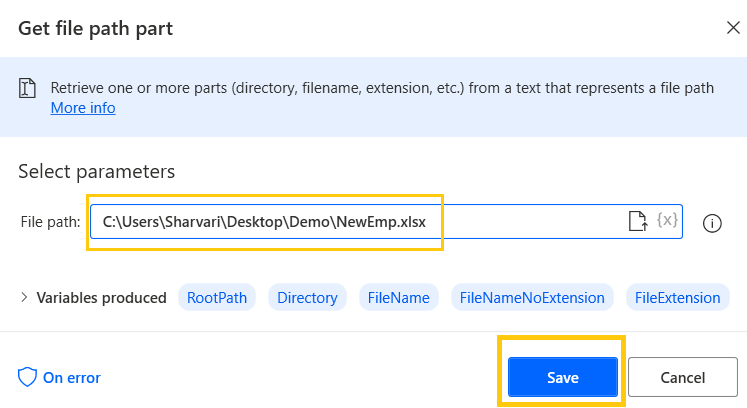
- This action is used to separate the file's parts into different variables using its location path.
- Add the File Path and click on Save.
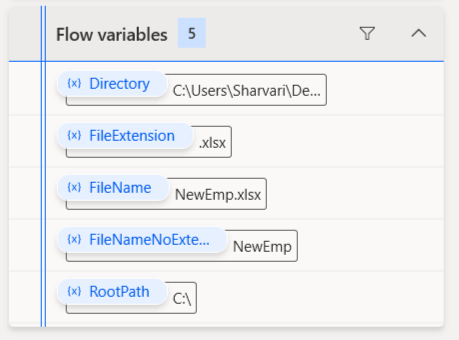
- Save and Run the flow. In flow variables, you can see the file parts separated into different variables.
Recommended Readings
- Folder Actions in Power Automate Desktop
- Text Actions in Power Automate Desktop
- Compression Action in Power Automate Desktop
- Email Automation in Power Automate Desktop
- Loop Actions in Power Automate Desktop
- Switch Case in Power Automate Desktop
- If Else Conditions in Power Automate Desktop
- List Variable in Power Automate Desktop
I am Sharvari Raut, having sound knowledge and experience in technical writing. Currently, pursuing my B.Tech in Computer Science and Engineering.
