

FTP Actions in Power Automate Desktop
File Transfer Protocol is a standard communication protocol used for transferring computer files from a server to a client on a computer network. FTP is built on the design of the client-server model using separate controls and data connections between client and server.
To manage files and folders on the FTP server we use FTP actions in Power Automate Desktop. We use the FTP action in Power Automate Desktop to upload and download files and manipulate directories on FTP servers.
There are fifteen FTP actions in Power Automate Desktop:
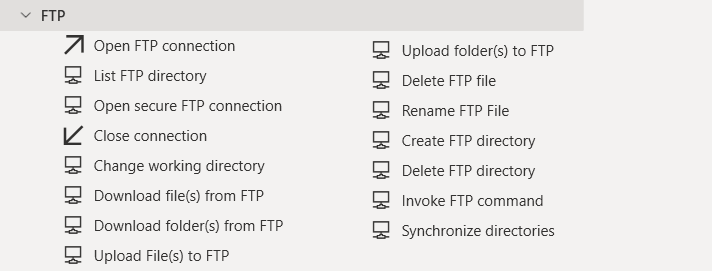
- Open FTP connection: This action establishes a specific connection to a remote FTP server, and stores that connection as a variable for later use.
- Open secure FTP connection: This action establishes a specific secure connection to a remote FTP server, and stores that connection as a variable for later use
- Close connection: This action closes an open FTP connection
- Download file(s) from FTP: Downloads one or more files from an FTP server
- Download folder(s) from FTP: Downloads one or more folders from an FTP server
- Upload File(s) to FTP: Uploads one or more files to an FTP server
- Upload folder(s) to FTP: Uploads one or more folders to an FTP server
- Delete FTP file: Deletes one or more files from an FTP server
- Rename FTP File: Renames a file that resides on an FTP server
- Create FTP directory: Creates a directory on an FTP server
- Delete FTP directory: Deletes a directory from an FTP server
- Invoke FTP command: Invokes the given literal FTP command on the server
- Synchronize directories: Synchronize the files and subdirectories of a given Folder with a given remote FTP directory
- List FTP directory: This returns the subdirectories and files contained in the current directory of the FTP connection
- Change working directory: This action sets the current working directory of the FTP connection
PDF Automation in Power Automate Desktop
- Open Power Automate Desktop App.

- Firstly, we need to create a flow. Click on New flow.

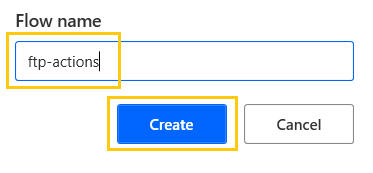
- Create a flow with the name ftp-actions.
Open/Close FTP Connection
Open FTP Connection action establishes a specific connection to a remote FTP server, and stores that connection as a variable for later use.
- From the Actions panel, drag and drop the Open FTP connection action into the workspace. Add Host IP address, Port as 21, Username, and Password. Timeout is set to 100 secs here. The output will be stored in the FTPConnection variable. Click on Save.

Open secure FTP connection
- From the Actions panel, drag and drop the Open secure FTP connection action into the workspace. Add Host IP address, Port as 22, Username, and Password. Timeout is set to 100 secs here. The output will be stored in the SftpConnection variable. Click on Save.

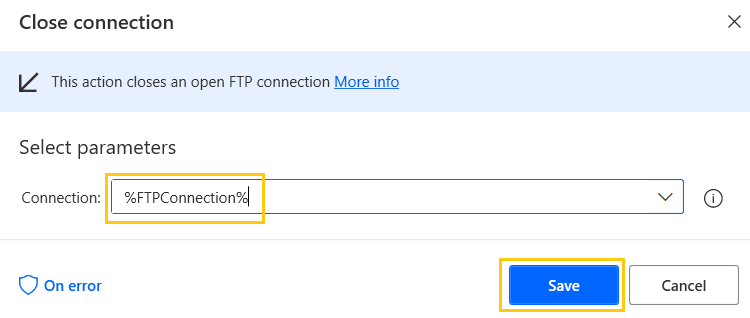
Close Connection action in power automate desktop closes an open FTP connection
- From the Actions panel, drag and drop the Change working directory action into the workspace. Add the connection and click on Save.
Upload files and folder
Upload File(s) to FTP action is used to upload one or more files and folders to an FTP server
- From the Actions panel, drag and drop the Upload File(s) to FTP action into the workspace. Add FTP connection, Files to upload, Remote location as "." to upload in the root directory. Click on Save.

- To upload a folder, Add FTP connection, Folders to upload, Remote location as "." to upload in the root directory. Click on Save.

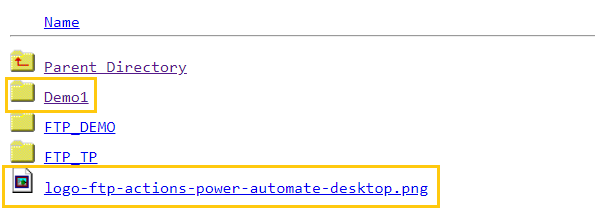
- Save and Run the flow. You can see File and Folder have been uploaded on the FTP server.
List FTP directory
List FTP directory in power automate desktop returns the subdirectories and files contained in the current directory of the FTP connection
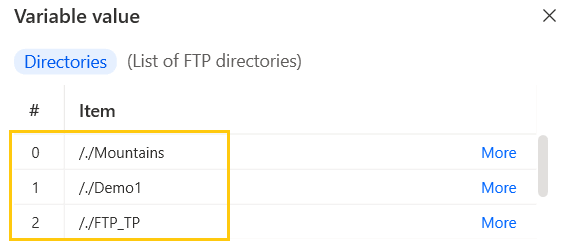
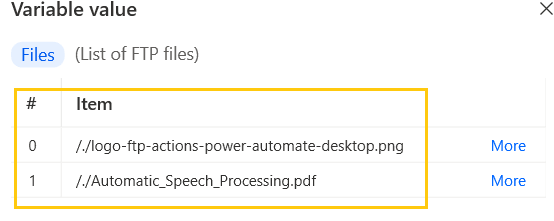
- From the Actions panel, drag and drop the List FTP directory action into the workspace. Add Connection and Path as ".". The output will be in the Directories and Files variable. Click on Save.

- Save and Run the flow. We get directories and files listed.
Download files and folders
Download file(s) from FTP action is used to upload one or more files and folders from an FTP server
- From the Actions panel, drag and drop the Download file(s) from FTP action into the workspace. Add the FTP connection, the path of download into a folder, Files to download as Files variable. Click on Save.
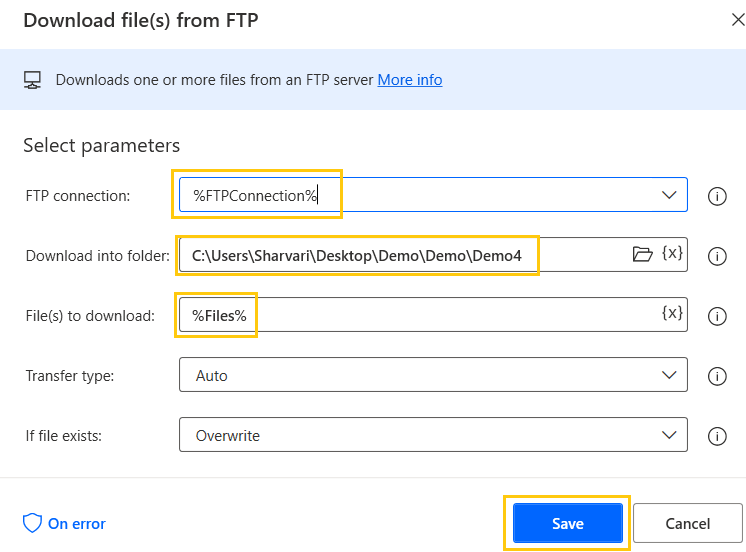
- From the Actions panel, drag and drop the Download folder(s) from FTP action into the workspace. Add the FTP connection, the path of download into the local folder, Folders to download as FTP_TP folder. Click on Save.

Create FTP directory
This action is used to create a directory on the FTP server
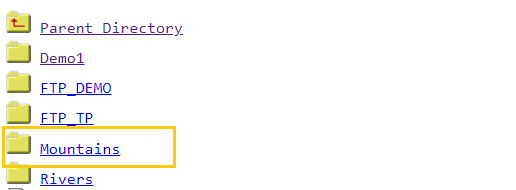
- From the Actions panel, drag and drop the Create FTP directory action into the workspace. Add the FTP connection, New directory as Mountains, and click on Save.
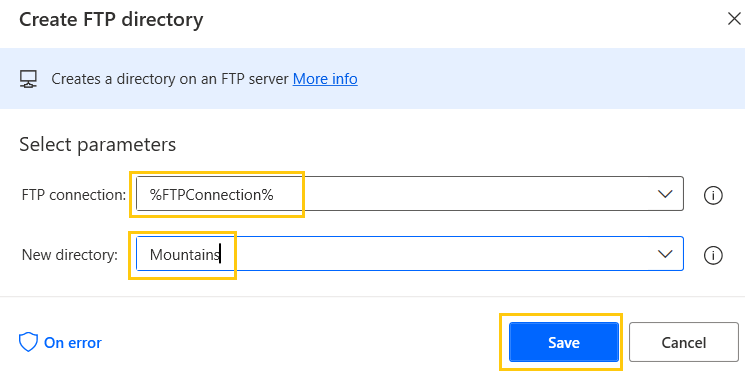
- Save and Run the flow. We have our directory created as Mountains directory on our FTP server.
Change working directory
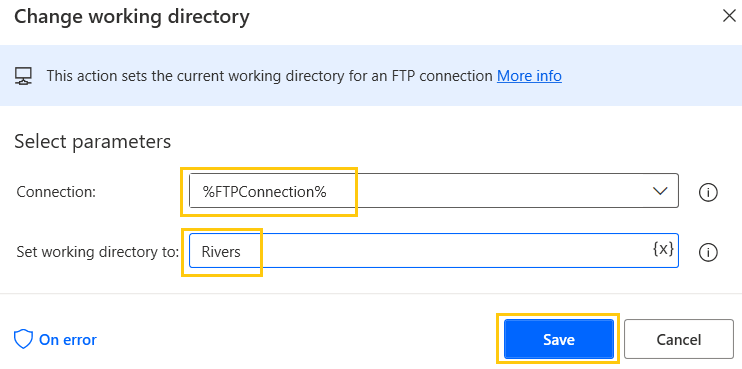
This action sets the current working directory of the FTP connection
- From the Actions panel, drag and drop the Change working directory action into the workspace. Add Connection and set the working directory to Rivers. Click on Save.
Rename FTP file
This action is used to rename a file that is on an FTP server
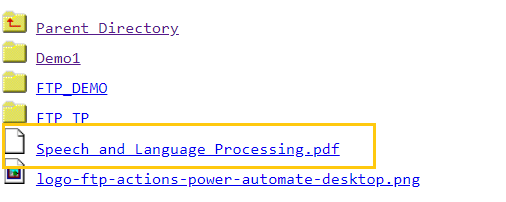
- We have here a file name Speech and Language Processing on our FTP server.
- From the Actions panel, drag and drop the Rename FTP File action into the workspace. Add the FTP connection, add the file to rename, and new file name. Click on Save.
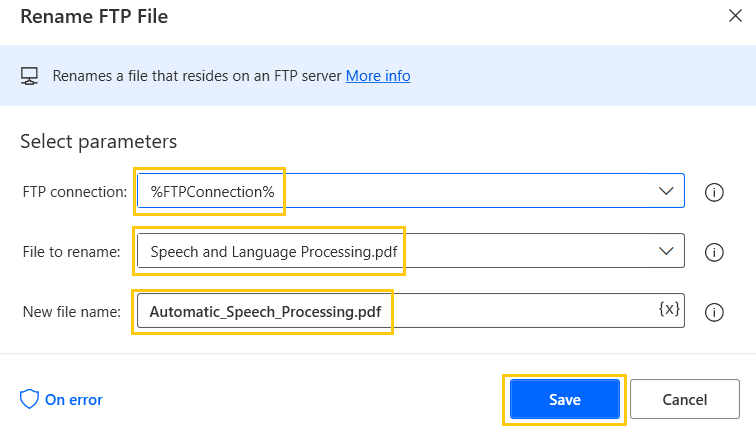
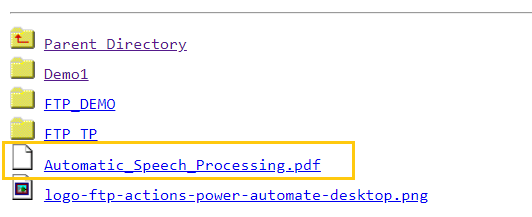
- Save and Run the flow. We have our file renamed to Automatic_Speech_Processing.pdf on our FTP server.
Delete FTP File and Directory
These actions are used to delete the file or directory from the FTP server.
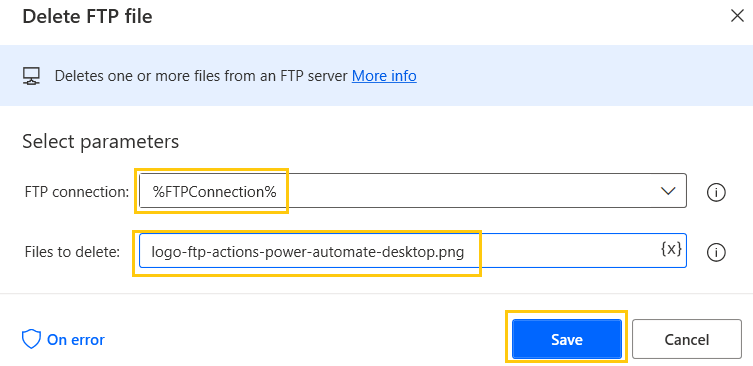
- From the Actions panel, drag and drop the Delete FTP File action into the workspace. Add the FTP connection, and Files to delete. Click on Save.
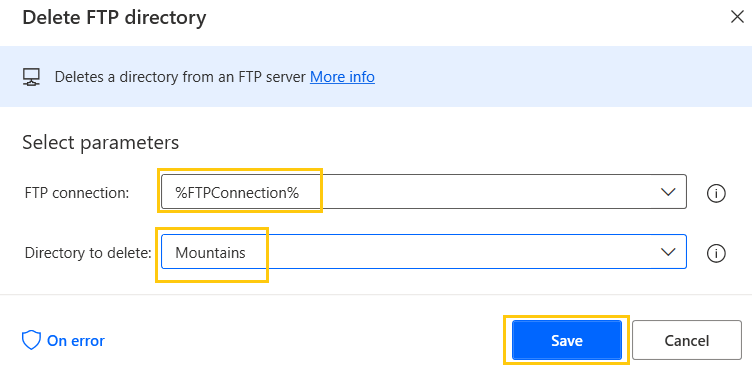
- From the Actions panel, drag and drop the Delete FTP directory action into the workspace. Add the FTP connection, and Directory to delete. Click on Save.
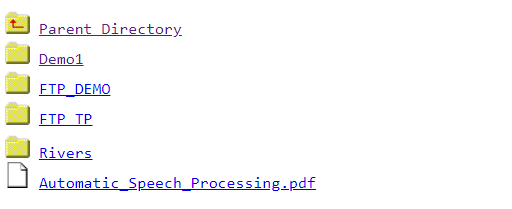
- Save and Run the flow. We get the mentioned file and directory deleted from our FTP server.
Recommended Readings
- Wait in Power Automate Desktop
- Mouse and Keyboard in Power Automate Desktop
- Introduction to Power Automate Desktop
- Microsoft Power Automate Desktop Layout
- Date and Time Actions in Power Automate Desktop
- OCR Actions in Power Automate Desktop
- CMD actions in Power Automate Desktop
- UI Automation in Power Automate Desktop
I am Sharvari Raut, having sound knowledge and experience in technical writing. Currently, pursuing my B.Tech in Computer Science and Engineering.
