

Compression Action in Power Automate Desktop
These actions are used to Zip or Unzip files from a folder or a directory. Zip is quite useful when you want to transfer a large number of files and data with limited capacity. For example, the email size capacity for attachments is 25MB, to transfer 100MB of data we can zip and compress the files.
Creating a flow with the folder actions
- Open Power Automate Desktop App.

- Firstly, we need to create a flow. Click on New flow.

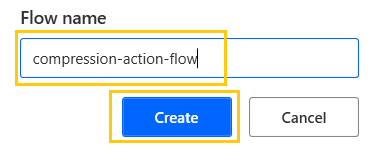
- Create a flow name compression-action-flow in Power Automate Desktop.
ZIP the files using Power Automate Desktop
This action is used for zipping the folders or files present in a particular folder or a directory on our PC.
- We have folders present in the Rivers folder on our PC.

- Go to Power Automate Desktop
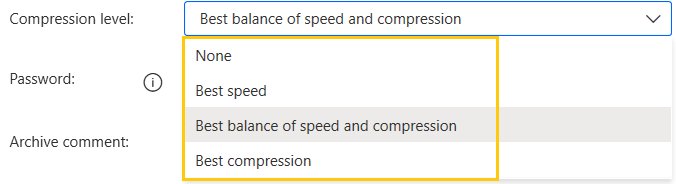
- From the Actions panel, drag and drop the Zip files action into the workspace. Add the Archive path where you want your zip file to be created. Add the path for the files to zip. Select compression level to Best balance speed and compression.
- Add Password and comment. The output will be in ZipFile and click on Save.

- In Compression level, we have three options like Best speed, the Best balance of speed and compression, and Best compression.
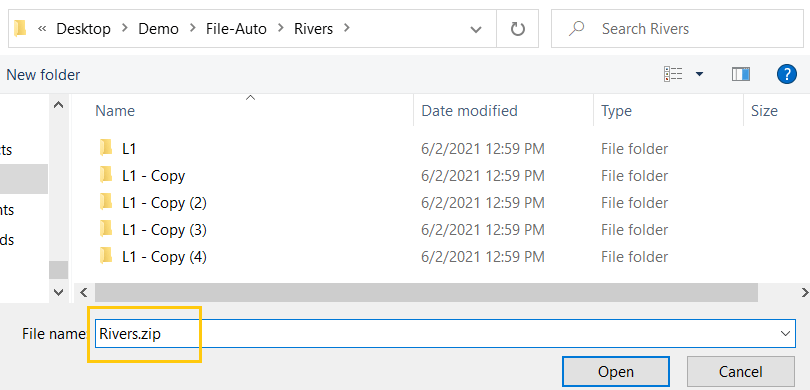
- While adding the archive path make sure you give the proper name with extension to the zip file.
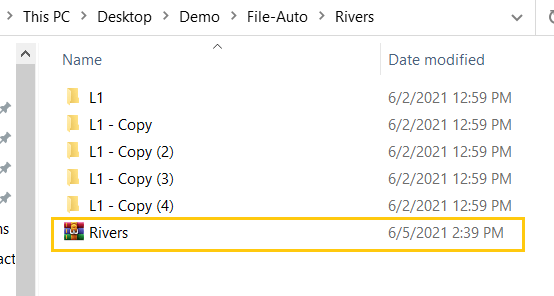
- Save and Run the flow. We have our Rivers.zip created in the Rivers folder on our PC.
UnZip files in Power Automate Desktop
This action is used for unzipping the folders or files present in a particular folder or a directory on our PC.
- From the Actions panel, drag and drop the Unzip files action into the workspace. Add the Archive path where you want your zip file to be unzipped. Add the Destination folder path. Add Password and click on Save.

- While adding the archive path make sure that you add the Zip file path.
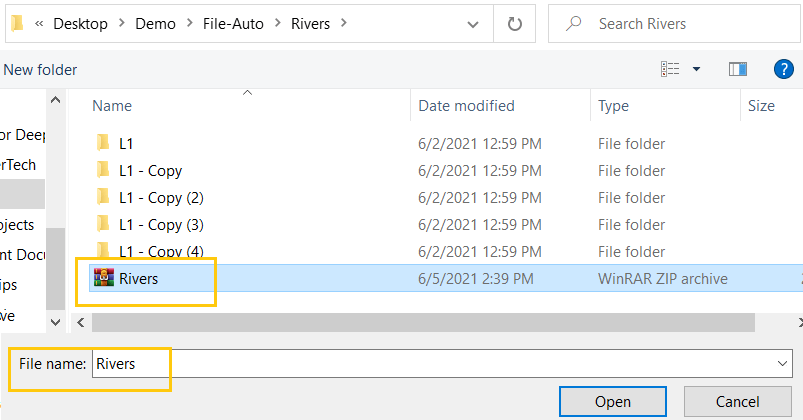
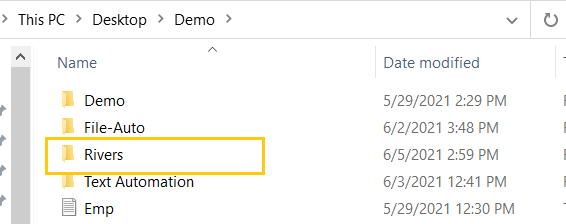
- Save and Run the flow. We have our Rivers folder unzipped in the Demo folder on our PC.
Recommended Readings
- Email Automation in Power Automate Desktop
- PDF Automation in Power Automate Desktop
- XML Automation in Power Automate Desktop
- Outlook Automation in Power Automate Desktop
- Folder Actions in Power Automate Desktop
- File Actions in Power Automate Desktop
- Excel Automation in Power Automate Desktop
- Loop Actions in Power Automate Desktop
About Author :
I am Sharvari Raut, having sound knowledge and experience in technical writing. Currently, pursuing my B.Tech in Computer Science and Engineering.
Comment / Suggestion Section
Point our Mistakes and Post Your Suggestions
