

Microsoft Power Automate Desktop Layout
In this article, we are going to see a brief walkthrough of the Microsoft Power Automate Desktop environment.
Power Automate is a simple tool that allows you to automate any task. To use the power automate desktop we need to make sure that we using the right components.
- Open Power Automate Desktop App.

- We need to create a new flow to see all those components. Click on New flow.

- Give some name to the flow and click on Create. Here, we are creating a flow with the name "Hello World".
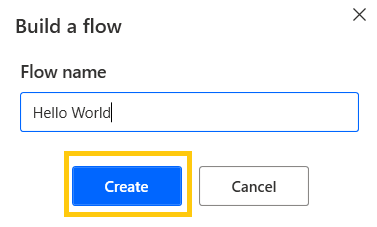
- We have our flow created by the name "Hello World" in My flows. We can see the status of our flow and when our flow was last modified. My flows section will consist of all the flows from the flow designer.

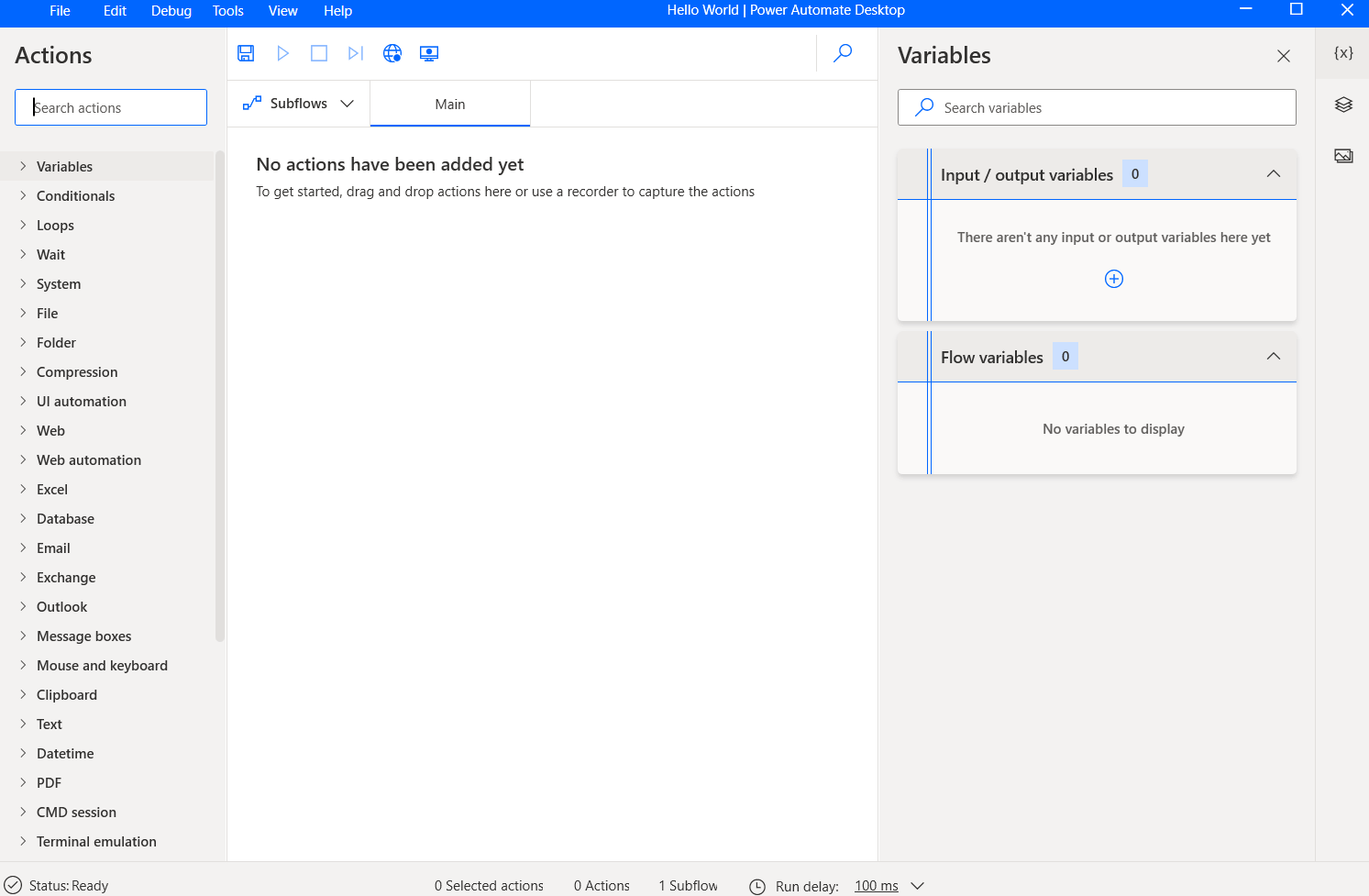
- A new window will automatically be opened which contains all the components or sections. This window is our flow designer. As we can see there are many sections available in the flow designer window. Lets, go through the sections one by one.
Loop Actions in Power Automate Desktop
Actions panel
On the left-hand side, you have an Actions pane. In this Actions pane, we have more than 370+ actions. This includes a number of applications under the web automation and windows application. Here, we can drag and drop action into our workspace. It provides actions for Excel, Email, Database, etc. These actions are pre-defined to make our work simple.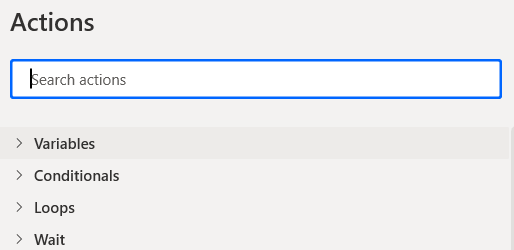
FTP Actions in Power Automate Desktop
Variables
On the right-hand side, we have the variables pane. Here this panel shows the input and output variables that are passed into the particular flow. It also displays the variables which you have been currently used in the flow.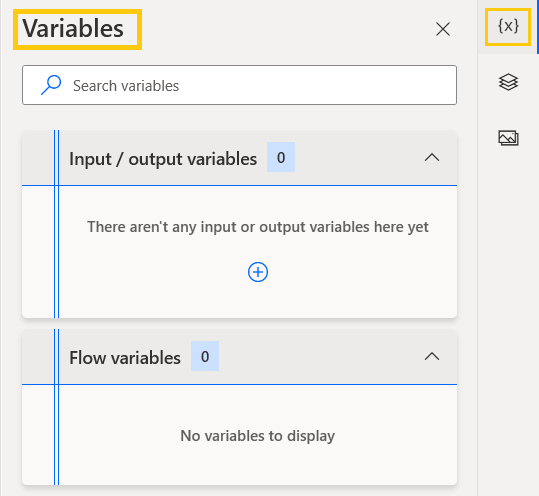
Mouse and Keyboard in Power Automate Desktop
UI elements
On the right-hand side of the flow designer, below the variables pane, we have UI elements. Actions under the UI group are designed to work directly with windows and applications. To achieve these results Power Automate Desktop uses UI elements to identify windows and their components or elements.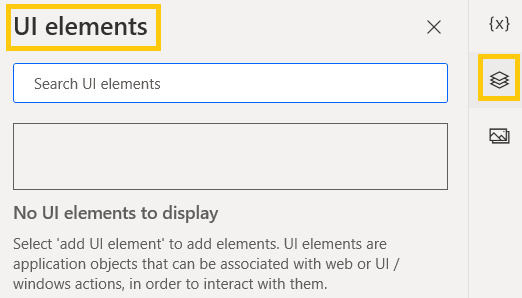
Date and Time Actions in Power Automate Desktop
Images
On the right-hand side of the flow designer, below the UI elements pane, we have Images. If you want to capture any images you can use this Images pane for it. It is also used to manage the images in the desktop flow.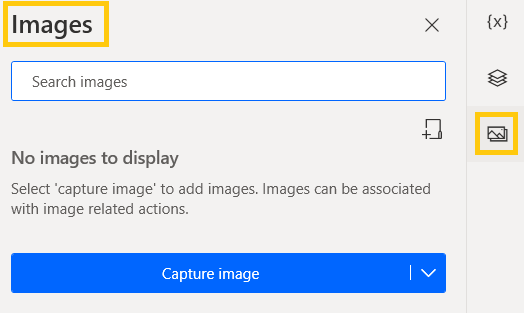
XML Automation in Power Automate Desktop
Workspace
The center space in which we are going to design our flow is our main workspace. We can drag and drop, delete, add, edit actions over here. We have two major things here one is Main and the other is Subflows.
To start designing the flow we are going to start from the Main flow and later we create Subflows for the main flow.
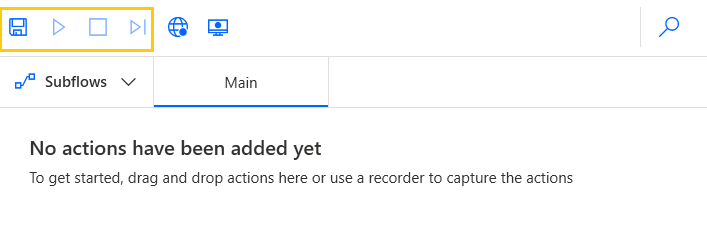
- We can also, Save the flow using the save button. Also, we have other buttons to Run, Stop, and Skip the flow.
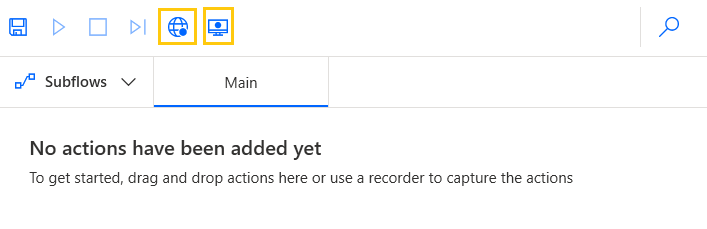
- We can record sessions with a web recorder and desktop recorder. The web recorder supports Microsoft Edge, Chrome, Firefox, and Internet Explorer browsers in which we can record sessions. The Desktop recorder will record everything from the desktop including mouse click and keyboard actions.
Recommended Readings
- Interview Questions Power Automate Desktop
- Variables in Power Automate Desktop
- List Variable in Power Automate Desktop
- If Else Conditions in Power Automate Desktop
- Mouse and Keyboard in Power Automate Desktop
- Wait in Power Automate Desktop
- FTP Actions in Power Automate Desktop
- Clipboard Actions in Power Automate Desktop
I am Sharvari Raut, having sound knowledge and experience in technical writing. Currently, pursuing my B.Tech in Computer Science and Engineering.
