

Mouse and Keyboard Actions in Power Automate Desktop
In some cases, web pages and desktop applications require physical clicks or a keypress to perform certain functions. You can stimulate the use of a mouse and keyboard to automate simple tasks.
Simulation of mouse and keyboard actions provides an alternative to automated tasks on software that do not support UI and web actions. This option allows businesses to use any application.
Power Automate Desktop offers a variety of actions that allow you to simulate mouse and keyboard performance such as cursor navigation, mouse click, and typing. Mouse and Keyboard Actions take control or automate tasks of the mouse and keyboard in Power Automate Desktop.
There are a total of eleven actions in power automate desktop
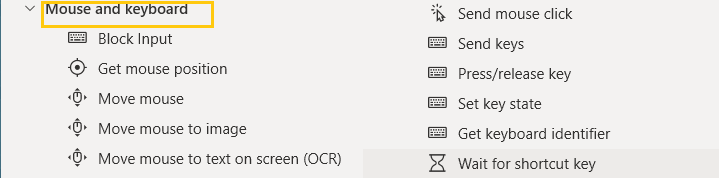
- Block Input: Blocks user mouse and keyboard input
- Get mouse position: Gets the current position of the mouse cursor on the screen in the form of X and Y coordinates
- Move mouse: Moves the mouse to a specified position
- Move mouse to image: Moves the mouse over a specified image found on the screen
- Move mouse to text on screen (OCR): Moves the mouse over a specified text found on the screen
- Send mouse click: Sends a mouse click event
- Send keys: Sends keys to the application that is currently active
- Press/release key: Presses (and holds) or releases one or more keyboard keys
- Set key state: Sets the state (on or off) for the keys Caps Lock, Num Lock, or Scroll Lock
- Get keyboard identifier: Gets the active keyboard identifier from the machine's registry
- Wait for shortcut key: Waits run until a specific shortcut key is pressed.
Outlook Automation in Power Automate Desktop
- Open Power Automate Desktop App.

- Firstly, we need to create a flow. Click on New flow.

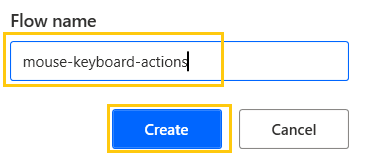
- Create a flow with the name mouse-keyboard-actions.
Block Input
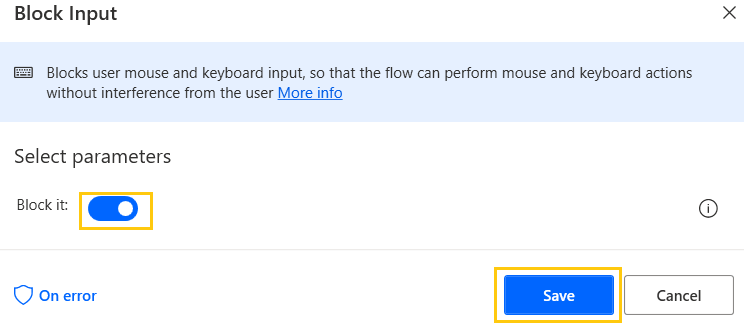
Block Input action blocks user mouse and keyboard input so, that the manual movements won't interfere in the flow execution.
- From the actions pane, drag and drop Block Input action into the workspace. Enable the Block it and click on Save.
Get mouse position
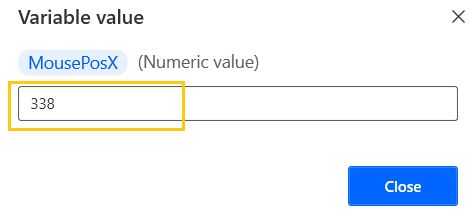
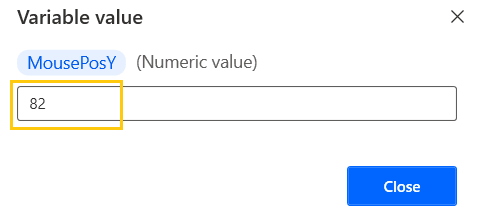
Gets the current position of the mouse cursor on the screen in the form of X and Y coordinates.
- From the actions pane, drag and drop Get mouse position action into the workspace. Relative to Screen and click on Save. The output will be stored as X and Y coordinates in two variables.

- Save and Run the flow. We get the X and Y coordinates of the mouse cursor.
Move mouse actions
Moves the mouse to a specified position. For example, if you want to click something on specific location, this action is quite helpful.
- From the actions pane, drag and drop Move mouse action into the workspace. Add the Position X and Y coordinates relative to Screen. Press Control+Shift to add the cursor position directly. Move mouse animation with low speed. Click on Save.

- Save and Run the flow. The mouse will automatically go to the specified position.
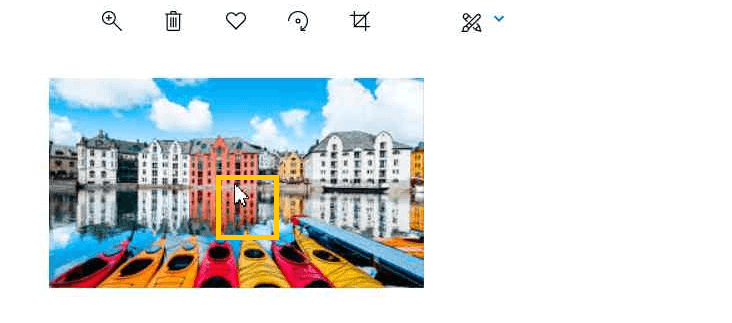
Moves the mouse over a specified image found on the screen
- From the actions pane, drag and drop Move mouse to image action into the workspace. Add image, mouse animation with low speed, and output will be produced in X and Y variables. Click on Save.
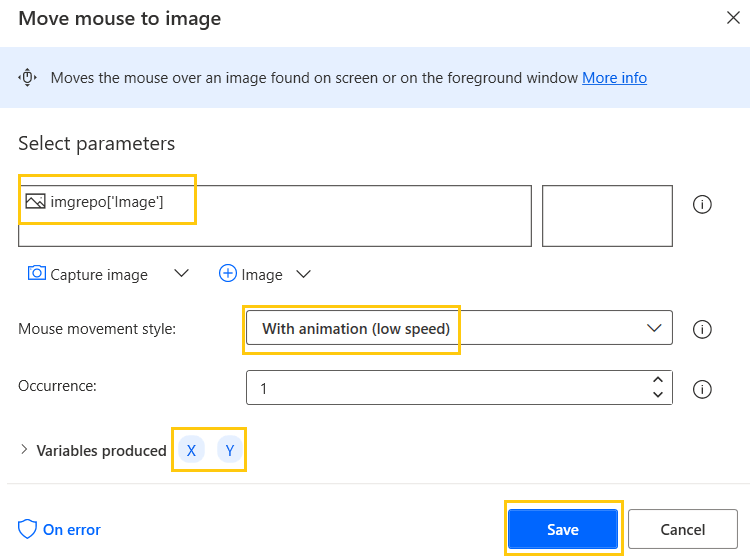
This is the image that we have added.
- Save and Run the flow. The mouse will automatically navigate to the specified image on the screen.
Switch Case in Power Automate Desktop
Moves the mouse over a specified text found on the screen
- From the actions pane, drag and drop Move mouse to text on screen (OCR) action into the workspace. Select OCR engine type as Tesseract engine, Text to find as Input, Occurrences as 1, Search for text on Entire screen, Search mode as the whole screen, and with animation Normal speed.
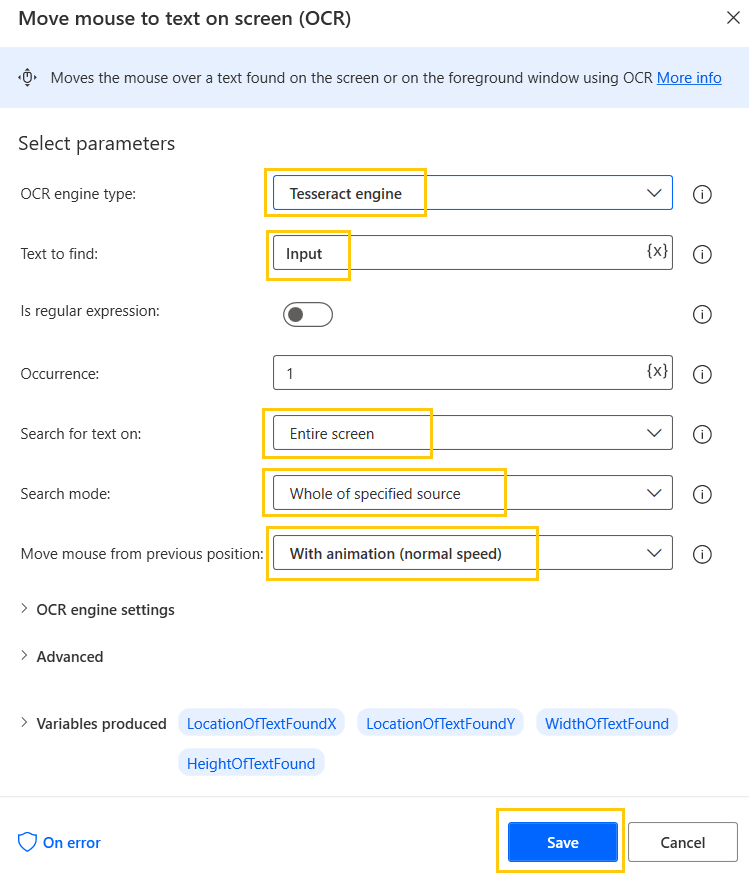
- Save and Run the flow. The mouse will automatically navigate to the specified text on the screen.

Date and Time Actions in Power Automate Desktop
Sends a mouse click event
- From the actions pane, drag and drop Send mouse click action into the workspace. Mouse event to send as Left click and Wait for 40secs. Click on Save.
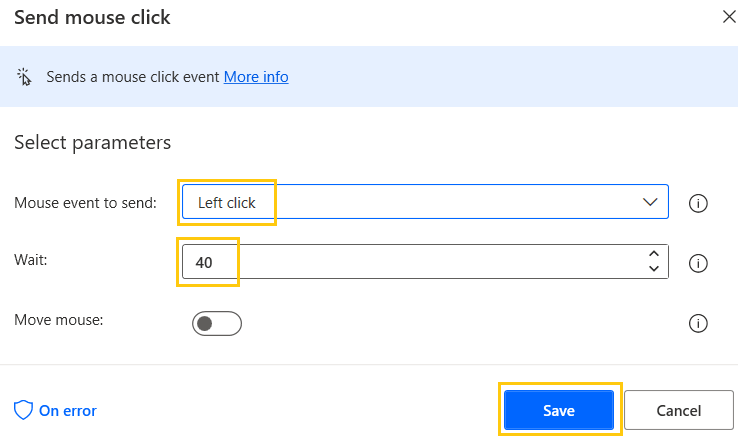
- Save and Run the flow. The mouse will automatically navigate to the last cursor position and do left-click action.

Send keys
Sends keys to the application that is currently active
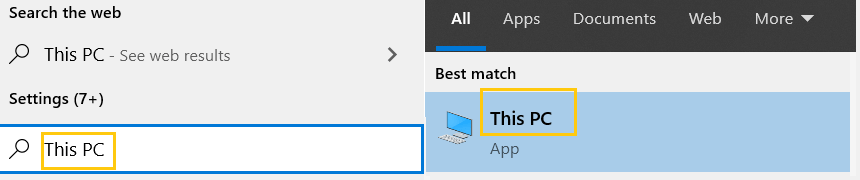
- From the actions pane, drag and drop Send keys action into the workspace. Text to send as This PC{Return}, the delay between the strokes is 2secs. Click on Save.

- Save and Run the flow. PC will type the text “This PC” into the Start Menu search
Press/Release keys
Presses (and holds) or releases one or more keyboard keys
- From the actions pane, drag and drop Press/release key action into the workspace. We have Control, Alt, Shift, and Win keys to press or release from the keyboard. Click on Save.
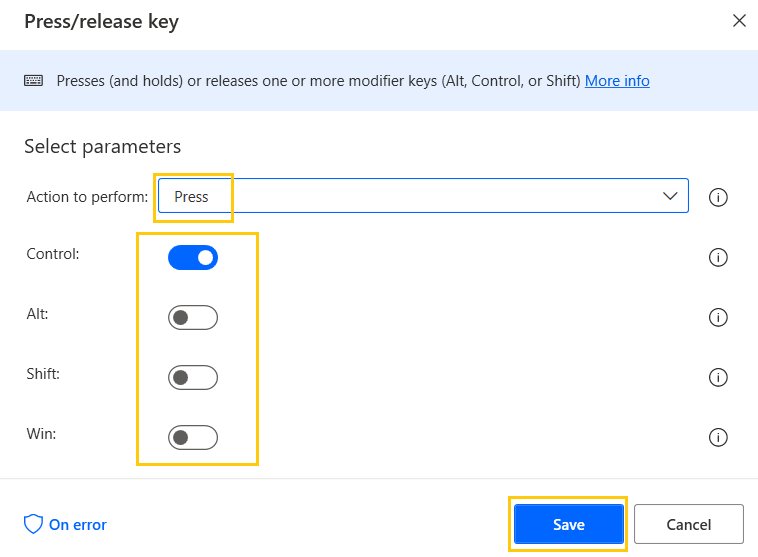
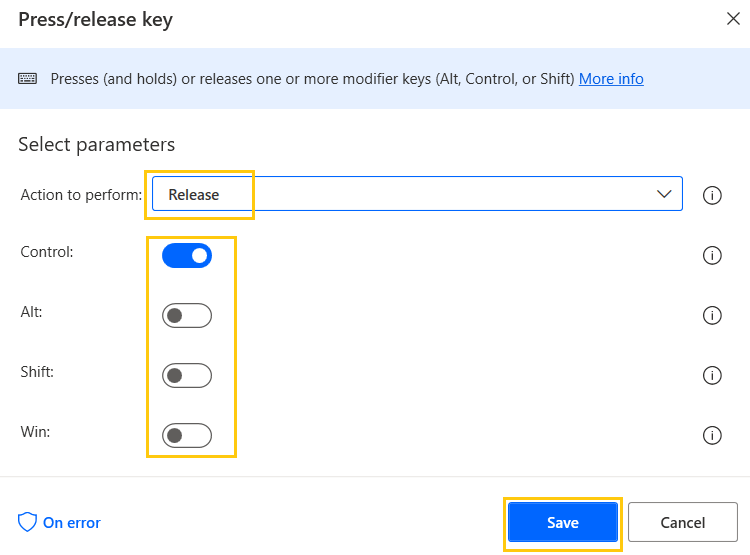
- Similarly, we have a Release option in this action.
Wait for shortcut key
Waits run until a specific shortcut key is pressed.
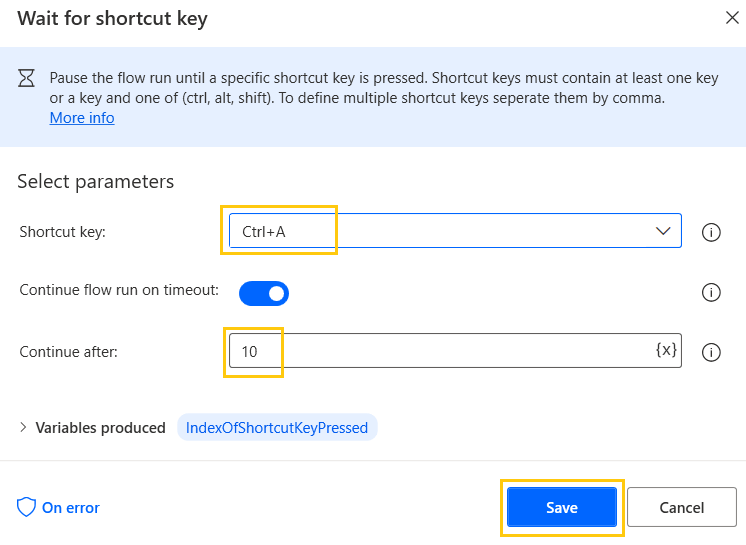
- From the actions pane, drag and drop Wait for shortcut key action into the workspace. Shortcut key as Ctrl+A and timeout as 10secs. Click on Save.
Set key state
Sets the state (on or off) for the keys Caps Lock, Num Lock, or Scroll Lock
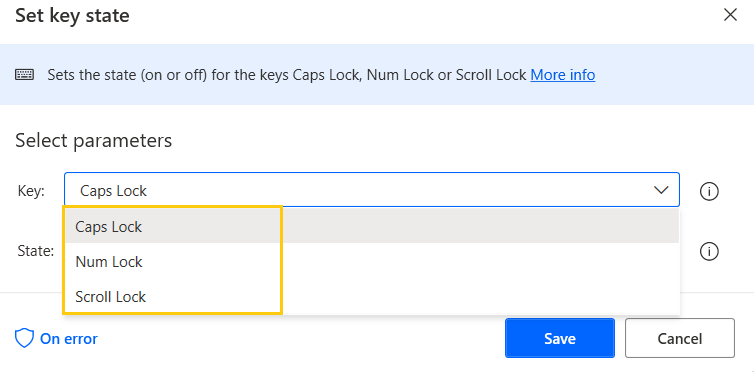
- From the actions pane, drag and drop Set key state action into the workspace. Key action as Caps Lock and State as On. Click on Save.

- The key parameter has options like Caps Lock, Num Lock, or Scroll Lock
Get keyboard identifier
Gets the active keyboard identifier from the machine's registry
- From the actions pane, drag and drop Get keyboard identifier action into the workspace. This action doesn't have any input. Click on Save.
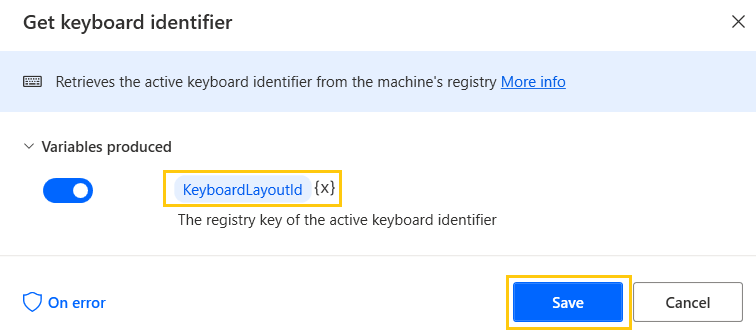
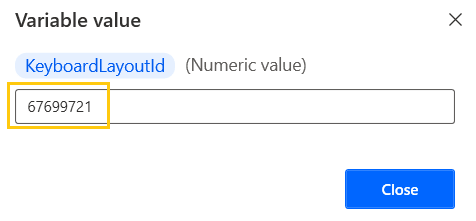
- Save and Run the flow. The output will be the keyboard layout identifier number.
Recommended Readings
- Introduction to Power Automate Desktop
- Microsoft Power Automate Desktop Layout
- Interview Questions Power Automate Desktop
- Variables in Power Automate Desktop
- FTP Actions in Power Automate Desktop
- Clipboard Actions in Power Automate Desktop
- Date and Time Actions in Power Automate Desktop
- OCR Actions in Power Automate Desktop
I am Sharvari Raut, having sound knowledge and experience in technical writing. Currently, pursuing my B.Tech in Computer Science and Engineering.
