

CMD actions in Power Automate Desktop
To automate windows command sessions we use cmd actions in power automate desktop. These actions are useful to execute any files, write files, and close files.

There are five command actions:
- Open CMD session: It used to open a new CMD session.
- Read from CMD session: It is used to read the output of a CMD session.
- Write to CMD session: It is used to execute a command on an open CMD session.
- Wait for the text on CMD session: It is used to wait for a specific text on a previously opened CMD session.
- Close CMD session: It is used to close a previously opened CMD session.
List Variable in Power Automate Desktop
- Open Power Automate Desktop App.

- Firstly, we need to create a flow. Click on New flow.

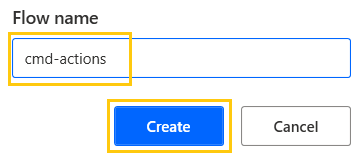
- Create a flow with the name cmd-actions.
Wait in Power Automate Desktop
Open CMD session
This action is used to open a new CMD session.
From the Actions panel, drag and drop the Open CMD session actions into the workspace. Add the Working folder path in which you want to open your command. The output will be produced in the CmdSession variable. Click on Save.
Read from CMD session
This action is used to read the output of a CMD session.
From the Actions panel, drag and drop the Read from CMD session actions into the workspace. Add the variable from the CMD session action. The output will be stored in the CmdOutput variable. Click on Save.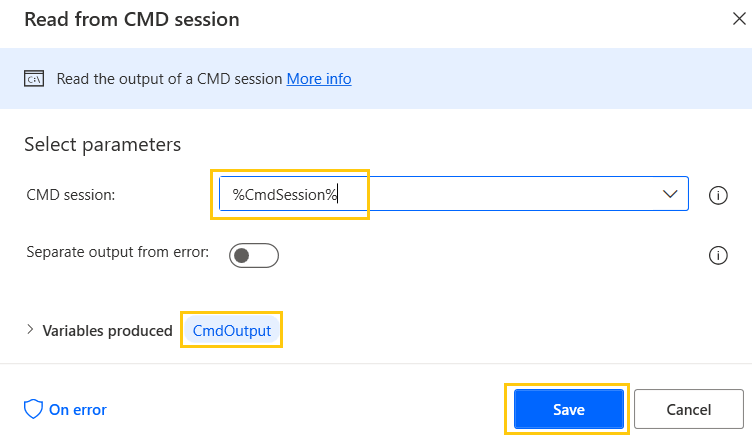
Write to CMD session
This action is used to execute a command on an open CMD session.
From the Actions panel, drag and drop the Write to CMD session actions into the workspace. Add the variable from the CMD session action. Add command to open a text file note.txt. Enable send enter after every command. Click on Save.
Mouse and Keyboard in Power Automate Desktop
Wait for text on CMD session
This action is used to wait for a specific text on a previously opened CMD session.
From the Actions panel, drag and drop the Wait for text on CMD session actions into the workspace. Add the variable from the CMD session action. Add text to wait as note.txt. Click on Save.
Close CMD session
This action is used to close a previously opened CMD session.
From the Actions panel, drag and drop the Close CMD session actions into the workspace. Add the variable from the CMD session action. Click on Save.
- Here, is our complete flow

- Save and Run the flow. We get our file note.txt opened.

Recommended Readings
- OCR Actions in Power Automate Desktop
- Date and Time Actions in Power Automate Desktop
- Clipboard Actions in Power Automate Desktop
- FTP Actions in Power Automate Desktop
- Database Actions in Power Automate Desktop
- Outlook Automation in Power Automate Desktop
- XML Automation in Power Automate Desktop
- PDF Automation in Power Automate Desktop
I am Sharvari Raut, having sound knowledge and experience in technical writing. Currently, pursuing my B.Tech in Computer Science and Engineering.
