

Text Actions in Power Automate Desktop
Using the same text and data formats is a widespread practice in all businesses, ensuring data integrity and readability. Maintaining similarity in numerical, text, and date values are very important, especially in areas such as finance and operations.
In business environments, Microsoft Excel registrations, databases, and reports require the same data formats to make information more accessible and give users the ability to search for it faster and more efficiently.
In this, article we will learn Text actions in Power Automate Desktop to manipulate texts and automate tasks related to texts.
Creating a flow with the text actions
- Open Power Automate Desktop App.

- Firstly, we need to create a flow. Click on New flow.

- Create a flow name text-automation in Power Automate Desktop.

To perform actions with text type variables, the text actions require specifying the text by a text variable. The actions store the output in a new variable.
Append Line to Text Action
To add a line of text to a single text value or list of text values, use the Append line to text action.
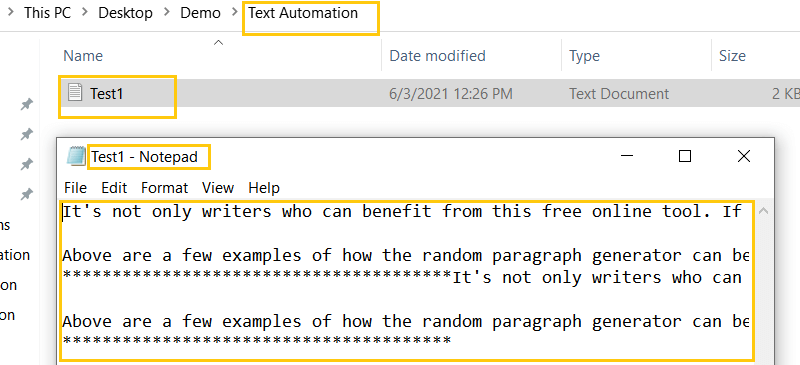
- Here, we have created a Test1.txt file on my PC, which has some text in it. We are going to append some new text to this original text by using Append line to text action.
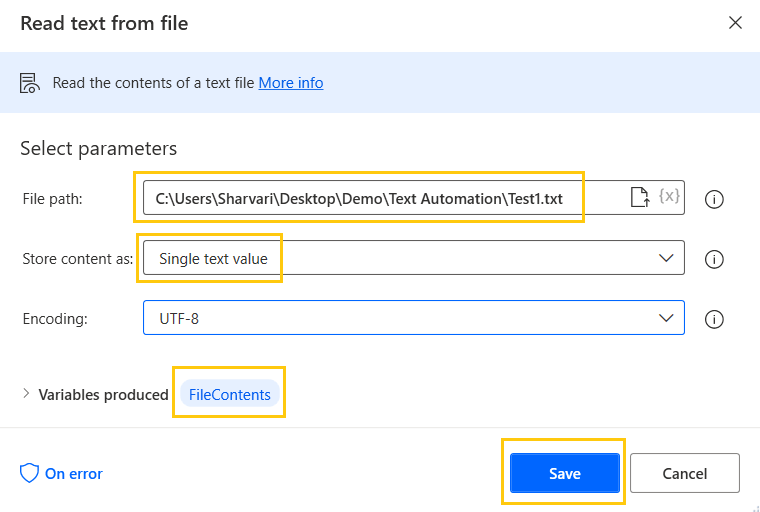
- From the Actions panel, drag and drop the Read text from file action into the workspace. Add the File path of Test1.txt. Store content as a Single text value.
- The output will be in the FileContents variable and click on Save.
- From the Actions panel, drag and drop the Append line to text action into the workspace. Add the FileContents variable in the Original text. Add a line to append as Thank You.
- The output will be stored in the Result variable. Click on Save.

- From the Actions panel, drag and drop the Write text to file action into the workspace. For if file exists parameter we have two options either Overwrite existing content or Append content.

- Add File Path of Text1.txt. and Text to write as Result variable. If file exists as Append content. Click on Save.

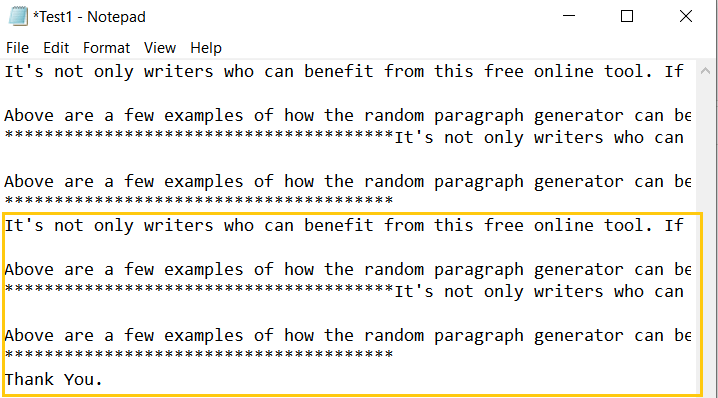
- Save and Run the flow. We get the new text appended to the original text in Test1.txt.
Get SubText Action
To get a specific part of a text or list of text values use the Get subtext action.
- First Set a variable. From the Actions panel, drag and drop the Set variable action into the workspace. Add text to the variable and name the variable as Name. Click on Save.

- From the Actions panel, drag and drop the Get subtext action into the workspace. In the Start index, we can either start from the Start of text or from the Character position.

- In Length, either from the End of text or by Number of chars.
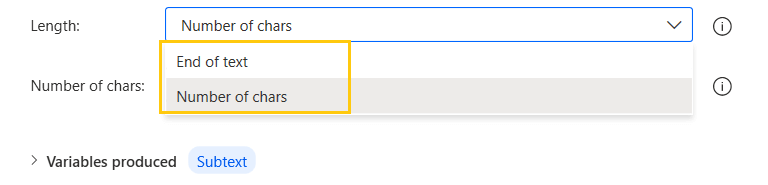
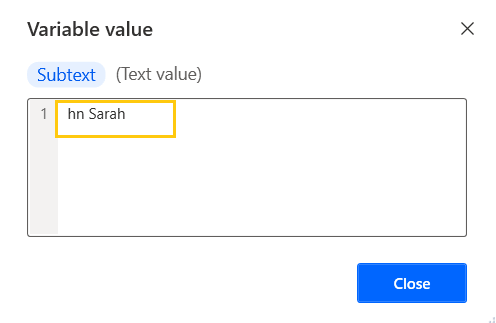
- Add Original text as Name variable. Start index as Character position from 2. Length as Number of chars with 8.
- The output will be stored in the Subtext variable. Click on Save.

- Save and Run the flow. We get the part of string characters in the Subtext variable.
Pad Text Action
Pad Text by adding whitespace, word, or phrase before or after text or text value list with Pad text action. The action adds the specified characters to the text so that the led text reaches the specified length.
Enter the text value in the pad or the characters which are used to wrap the text value, as a variable. The action keeps text included for new text variables.
- To pad text it can be done from Left or Right.
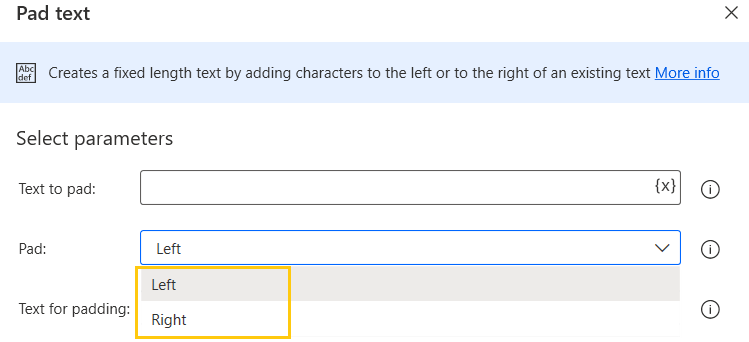
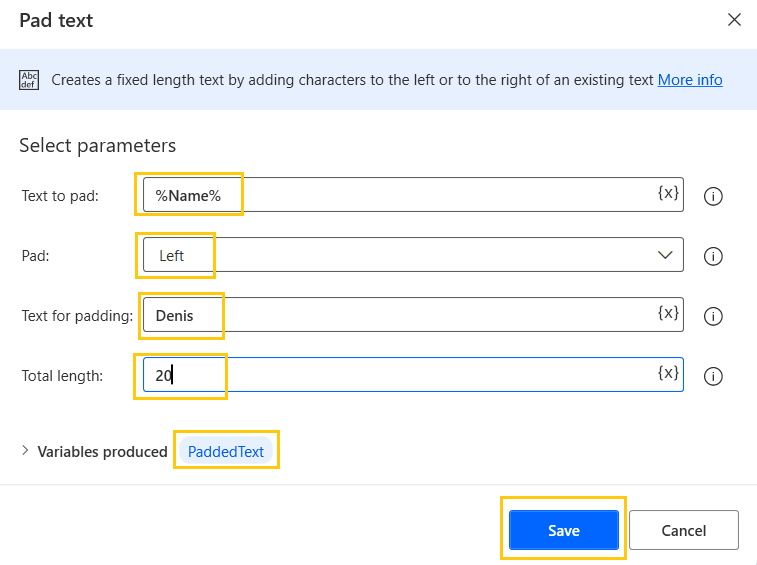
- From the Actions panel, drag and drop the Pad text action into the workspace. In Text to pad add Name variable. Select Pad as Left and Text for padding as Denis with Total length as 20.
- The output will be stored in the PaddedText variable. Click on Save.
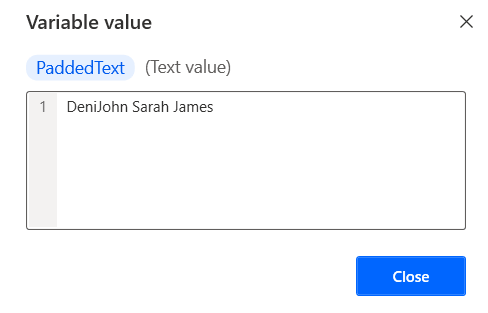
- Save and Run the flow. We get output as text padded from the left with 20 characters in the Paddedtext variable.
Trim Text Action
To remove whitespace from a text string, use the Trim text action. Trim whitespaces from the beginning of a text string, the end of a text string, or both.
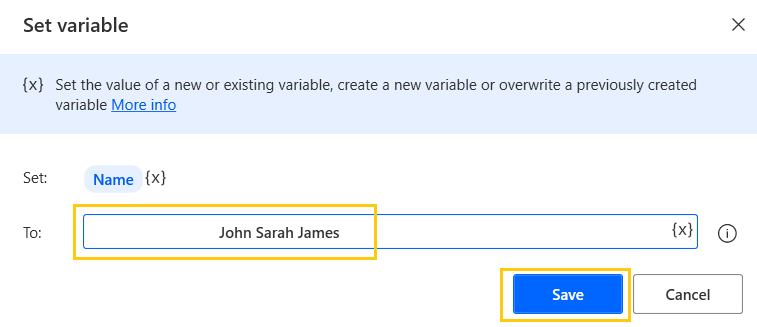
- In Set variable, we have added some space in the beginning. Click on Save.
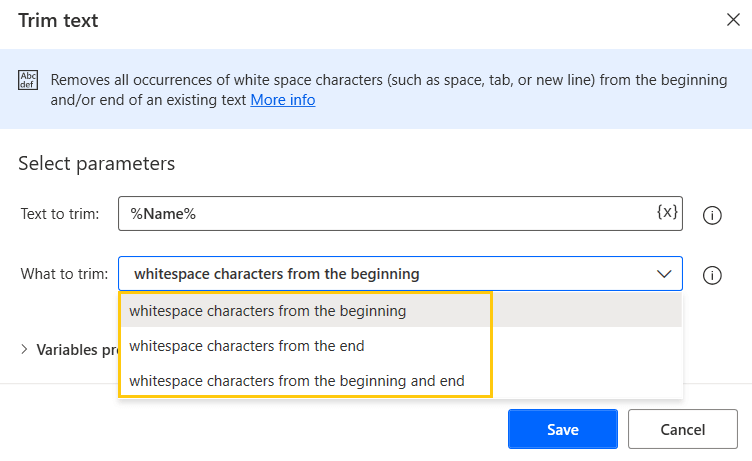
- From the Actions panel, drag and drop the Trim text action into the workspace. We can trim the text by whitespace characters from the beginning, from the end, and from both beginning and end.
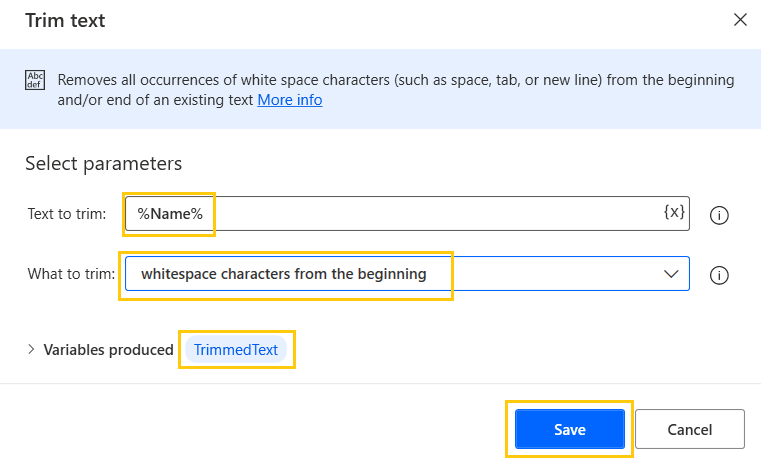
- Add the Name variable. To trim whitespace characters from the beginning. The output will be in the TrimmedText variable and click on Save.
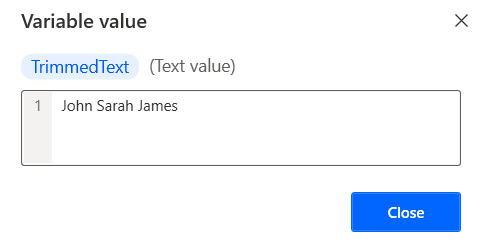
- We have this value in our Name variable.
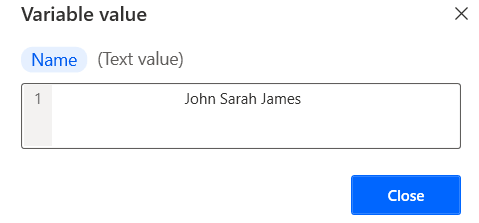
- Save and Run the flow. We get output as this without the whitespace at the beginning.
Change Text Case Action
This action is used to change the case of the text value or list of values.
- From the Actions panel, drag and drop the Change text case action into the workspace. We can convert the text case into Upper case, Lower case, Title case, and Sentence case.
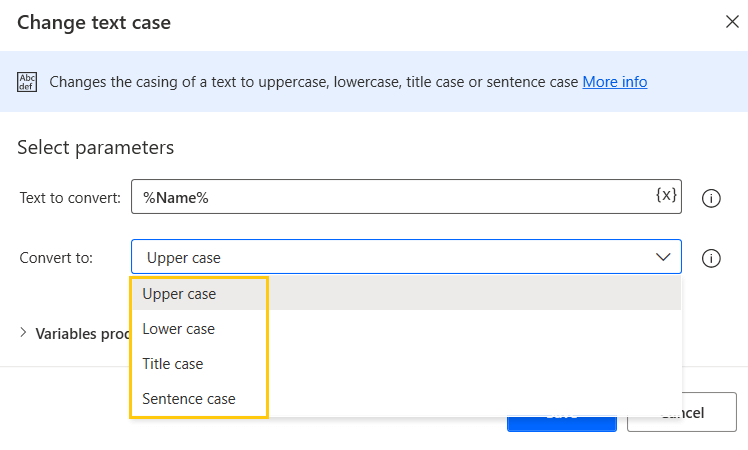
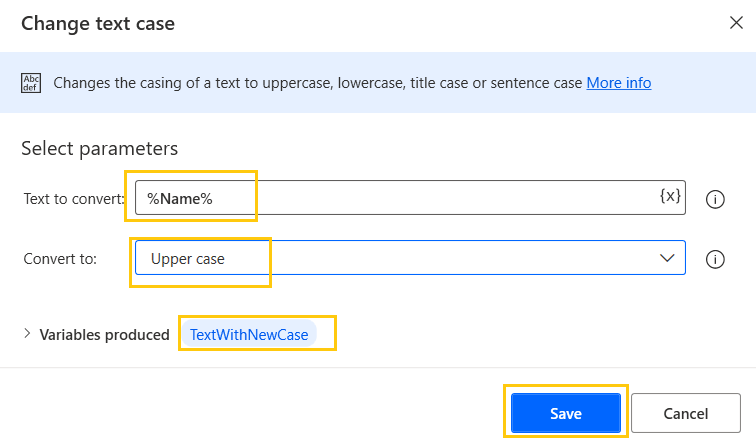
- Add Name variable to Text to convert. Convert to Upper case and click on Save.
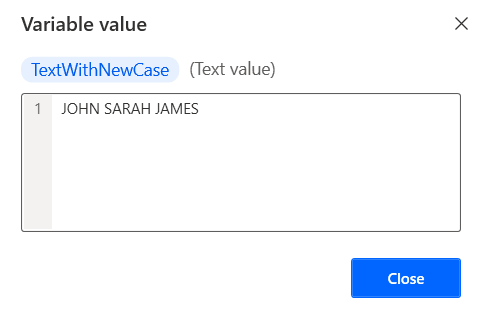
- Save and Run the flow. We get output as our text in the Upper case.
Create Random Text Action
This action is used to get Random Text from specified values.
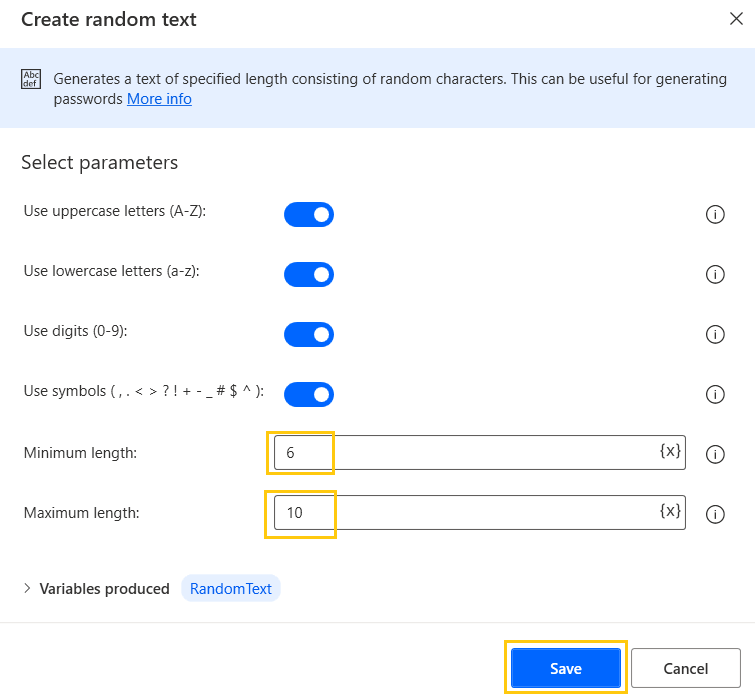
- From the Actions panel, drag and drop the Create random text action into the workspace. Enable what we want in random text like Uppercase letters, lowercase letters, digits, and symbols with minimum and maximum lengths. Click on Save.
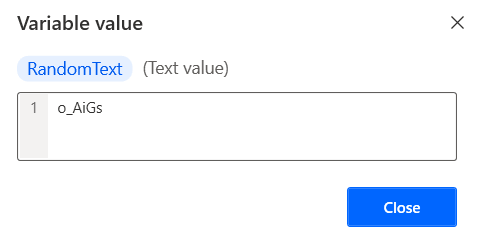
- Save and Run the flow. We get output as our text with random characters.
Replace Text Action
This action is used to Replace any text value from a string, text file, or any list values.
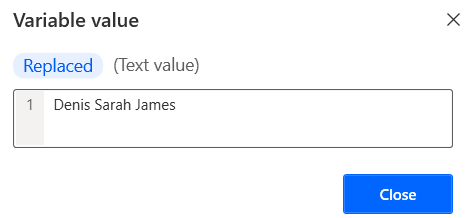
- From the Actions panel, drag and drop the Replace text action into the workspace. Text to parse is Name variable, Text to find as John and Replace it with Denis.
- The output will be stored in the Replaced variable. Click on Save.

- Save and Run the flow. We get output as our text John replaced by Denis.
Split Text Action
This action creates a list that contains the substrings of text which is separated by a delimiter.
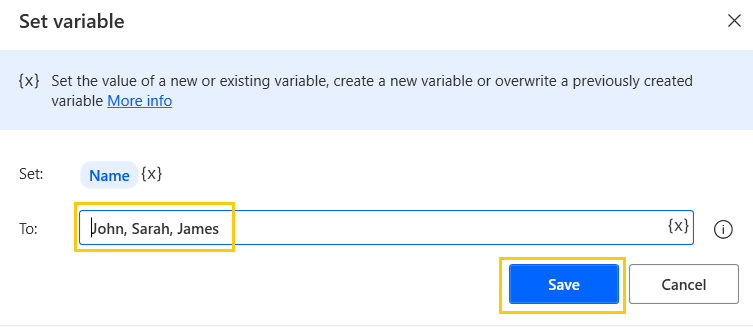
- In the Set variable, separate each word by commas. Click on Save.
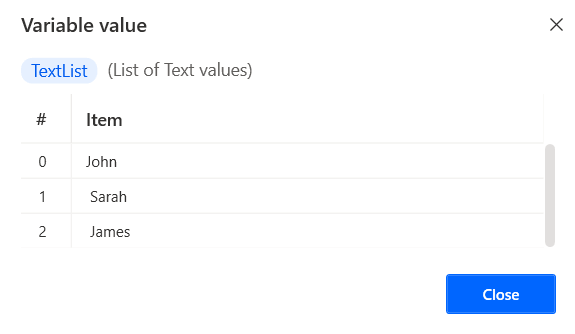
- From the Actions panel, drag and drop the Split text action into the workspace. The text to split as Name variable, Delimiter type as Custom as ",". The output will be stored in the TextList variable. Click on Save.

- Save and Run the flow. We get output as a list of text values.
Parse Text Action
This action parses a text or a text file to find the occurrences of a mentioned subtext or a regular expression.
- We have created a random.txt file with some text in it.
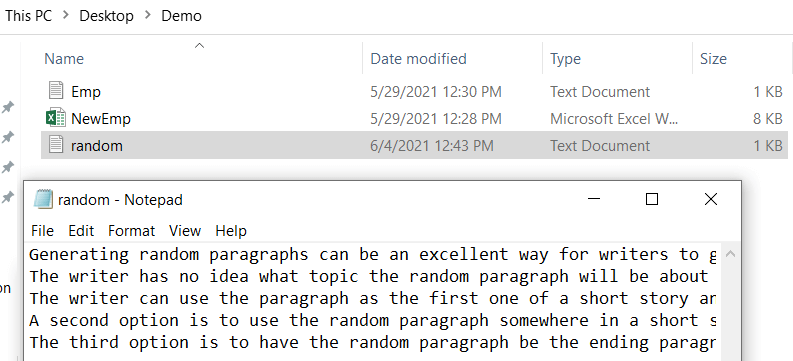
- From the Actions panel, drag and drop the Read text from file action into the workspace. Add File path of random.txt file and store the content as a Single text value. The output will be stored in the FileContents variable. Click on Save.

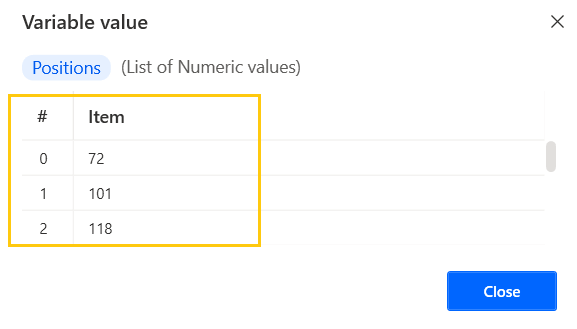
- From the Actions panel, drag and drop the Parse text action into the workspace. Text to Parse as FileContents variable, Text to Find as "the", starting position from 0 and Ignore the case. The output will be stored in the Positions variable. Click on Save.

- Save and Run the flow. We get the output of the list of positions where the occurrences of "the" are found.
Escape text for regular expression
This action escapes a small set of characters (\, *, +, ?, |, {, [, (,), ^, $, ., #, and white space) by replacing them with their escape codes. For example, \w for a word character or \s for space.
- We have created a random.txt file with some text in it.
- From the Actions panel, drag and drop the Read text from file action into the workspace. Add File path of random.txt file and store the content as a Single text value. The output will be stored in the FileContents variable. Click on Save.
- From the Actions panel, drag and drop the Escape text for regular expression action into the workspace. Add FileContents variable in Text to escape. The output will be stored in the EscapedText variable. Click on Save.
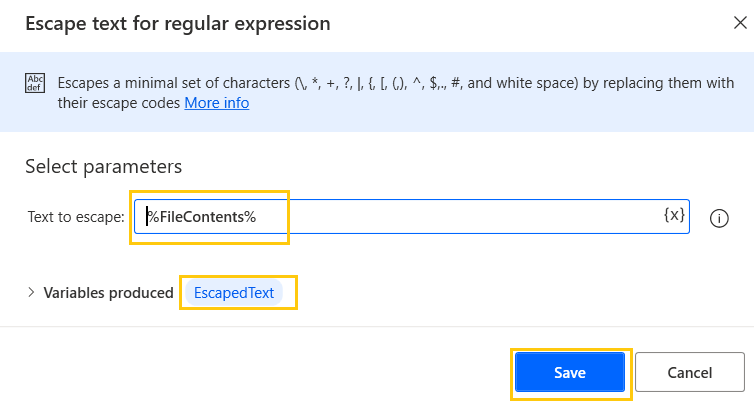
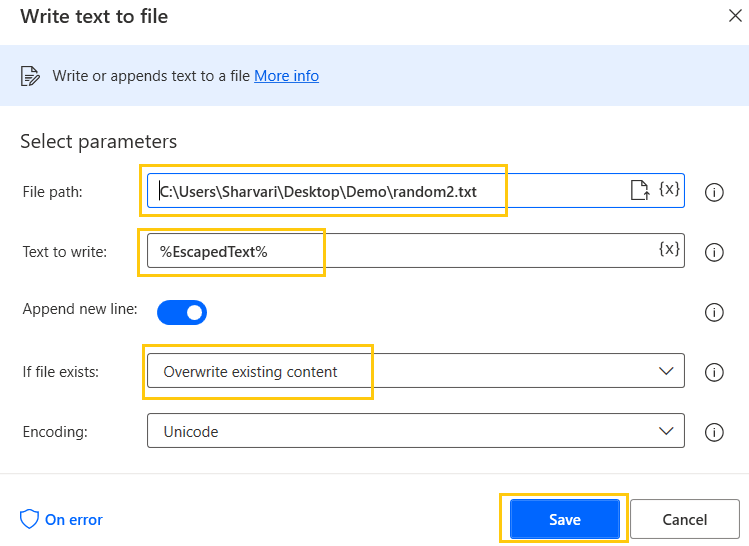
- From the Actions panel, drag and drop the Write text to file action into the workspace. Add File path for random2.txt file and write text as EscapedText variable. Click on Save.
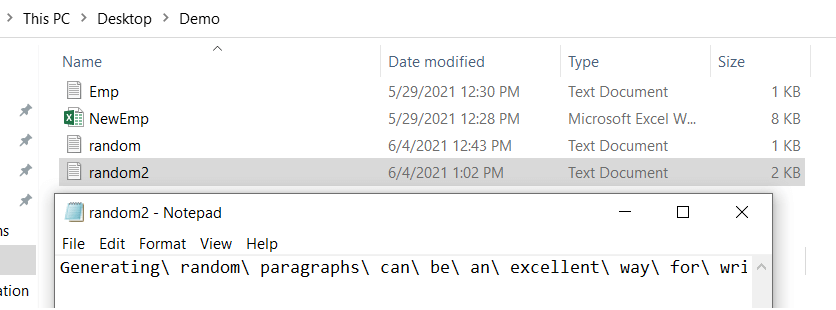
- Save and Run the flow. We get the output in random2.txt where whitespaces are replaced with "\".
Join Text Action
This action changes a list into a text value by separating the text items with the help of a specified delimiter.
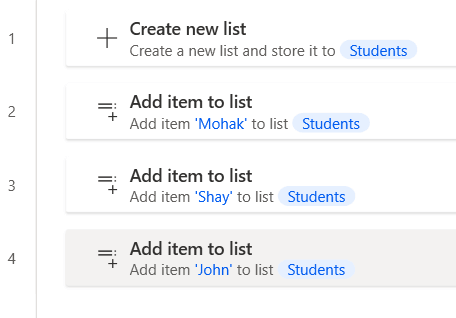
- Create a list of names of Students with items in it.
- From the Actions panel, drag and drop the Join text action into the workspace. We have three ways to separate list items, Standard, Custom, and None.
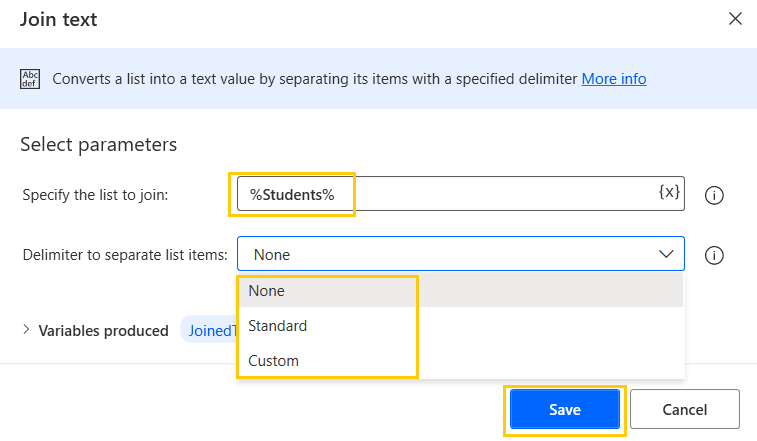
- In Standard, we have Space, Tab, and New line as a delimiter.

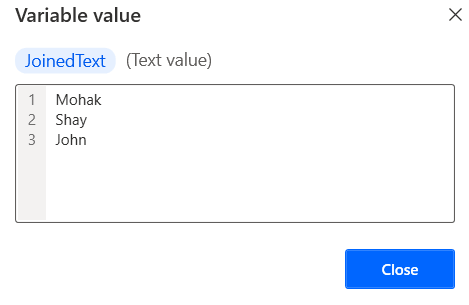
- Add the Students list variable to list to join, Delimiter type as Standard, and New line as delimimeter. The output will be stored in the JoinedText variable. Click on Save.

- Save and Run the flow. We get the output as every item from the list on the new line.
Recommended Readings
- Compression Action in Power Automate Desktop
- Email Automation in Power Automate Desktop
- PDF Automation in Power Automate Desktop
- XML Automation in Power Automate Desktop
- File Actions in Power Automate Desktop
- Excel Automation in Power Automate Desktop
- Loop Actions in Power Automate Desktop
- Switch Case in Power Automate Desktop
I am Sharvari Raut, having sound knowledge and experience in technical writing. Currently, pursuing my B.Tech in Computer Science and Engineering.
