

- First things are First
- What is Docker ?
- Install Docker for Protractor
- Install Kitematic with Docker aka Docker UI
- Docker repository with CLi/Command Prompt for Protractor
- Selenium Node Installation in Docker for Protractor
- VNC Viewer for Docker
- Commands required for Docker and Protractor
- Protractor Integration with Docker
- Errors I have faced during Docker installation
- Docker Compose in Protractor
First things are First
In this tutorial, You are going to learn about docker. Before you jump into the docker, I want you to know how much time it will take to learn this docker in protractor.
For me, it took almost 7 hours to make it work on my laptop, so you can think now how much patience you need to have.
I have followed many tutorials, before starting this, but somehow things get outdated and will not work, so if this any of the steps in this tutorial is not working keep calm and search in google sometimes, it may be an issue only with protractor, so you give a try with selenium.
With all said, we would be going in baby steps, so I have created 50-60 images in this docker tutorial, if you feel like you do not want to waste time then please do navigate to List of docker commands used in this tutorial section
After writing this, I Will start watching "You Were Never Really Here" movie.
What is Docker ?
Docker is nothing but a virtual machine packed in containers, and we use the docker to run our protractor Grid. Docker server as a Virtual machine with a specific product like Unit with Chrome or Firefox.
Most of the Companies use the docker to create their own applications just like Firefox inside a container. Docker is worth a thing for cross-browser testing; instead of paying more money to cloud-based companies, it is better to use the Docker.
I know there are too much explanations for Docker, but this much is enough for our automation and for all.
FYI : I am using the Win10 operating system for this tutorial because I have only one laptop, silly.
Install Docker for Protractor
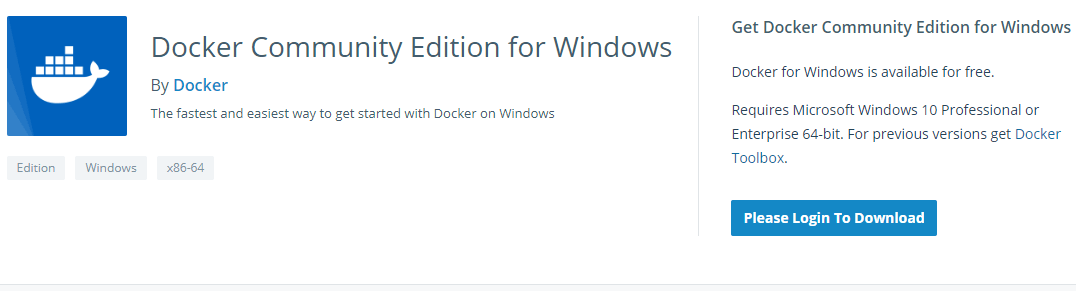
- Open the Docker URL : https://www.docker.com/products/docker-desktop

- Download the docker according to your Operating System
- If you are using the docker for the first time then you need to sign-up and download the Docker, it is free
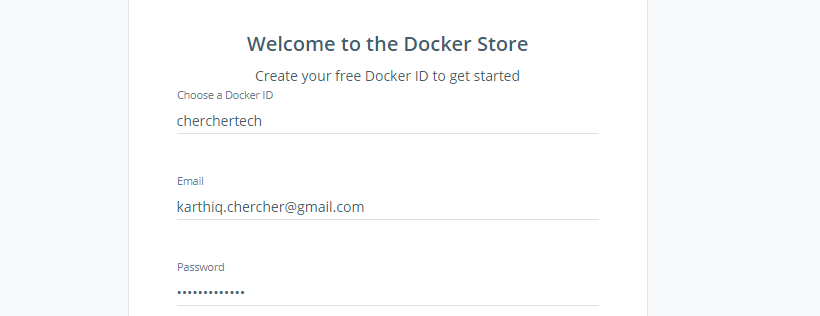
- Fill your details on sign up page and verify the confirmation message
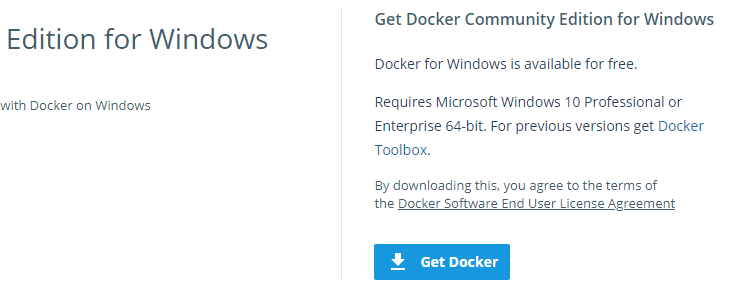
- Click on Get docker and wait for some time to get the Docker to be downloaded
- After downloading Open the docker exe file, it may again download few more packages
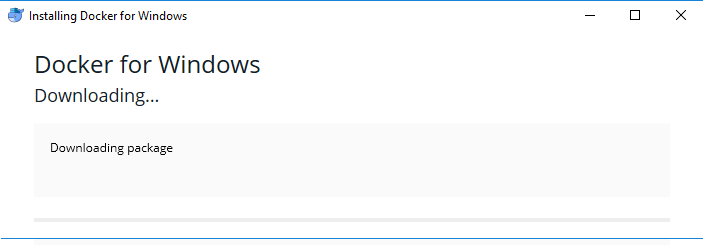
- You may see below image if docker exe is installed successfully
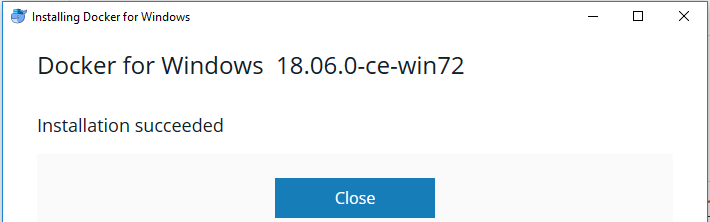
- Press Start Icon/ win key and select Docker for Windows Option
Install Kitematic with Docker aka Docker UI
Kitematic provides the UI for the Docker; When you download docker, it will be like a cli/cmd terminal, so let's download it.
But sometimes this KiteMatic may not work during those time please do use the Docker cli or Command prompt to install things.
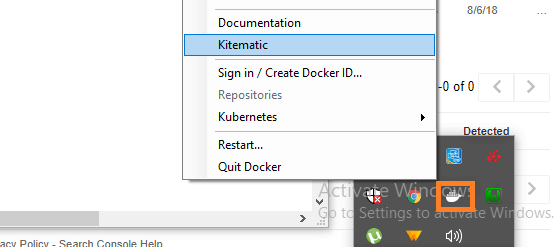
- Go to Dock of the right bottom side in the windows operation system; you may find Triangle click it. Now you can see Docker icon, do right-click on it and select Kitematic
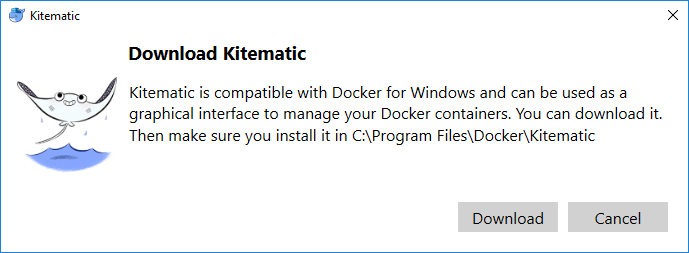
- Click on download button to download the Docker Kitematic
- Open the KiteMatic exe file to install it

- Use the login id that you have created while downloading the docker
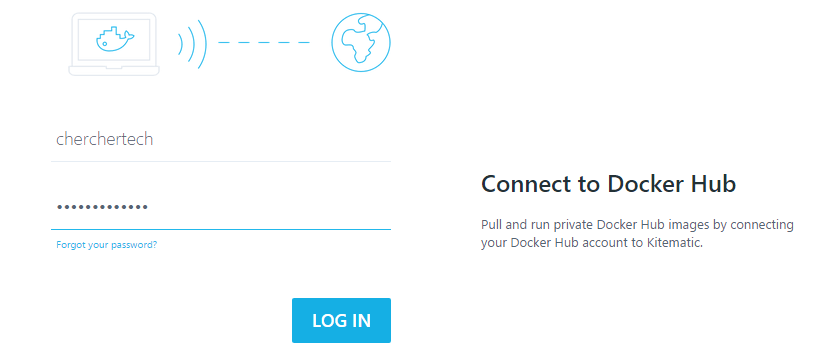
- Home page of KiteMatic may look like below image
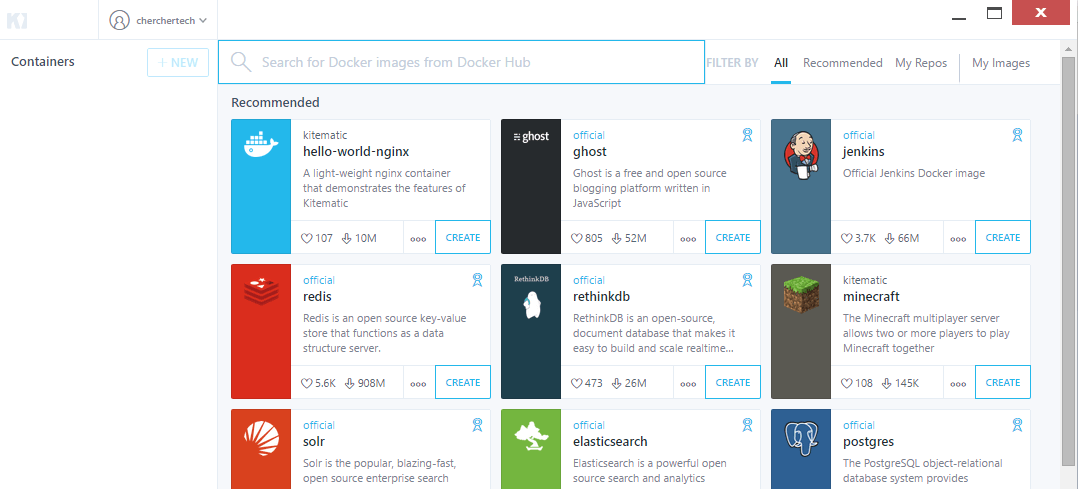
- Search for selenium/Selenium hub; Now in the listing, you can find the Hub for selenium, click on create to download it

- Similar to this, you can download the node images as well.
Docker repository with CLi/Command Prompt for Protractor
Sometimes, you might face an issue with the installation of the image in Kitematic UI, and same issues you will face with Cli/Cmd as well
- First and foremost thing about Docker is, docker is mainly used with Linux, So We have to switch to Windows mode.
To switch to Windows mode, Navigate to the folder where you have installed your docker using CMD/Terminal, Now if you are able to see the DockerCli file, then type the below command in the CMD to switch to windows/or to other operating systems.
It's not like with one switch you will be able to go windows, it is trial and error switch and try to install, it goes till you are able to install.
DockerCli.exe -SwitchDaemon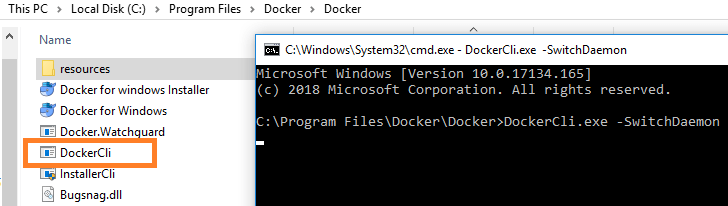
- For installing in the Command line, we must need to know the command first, and it different from image to image.
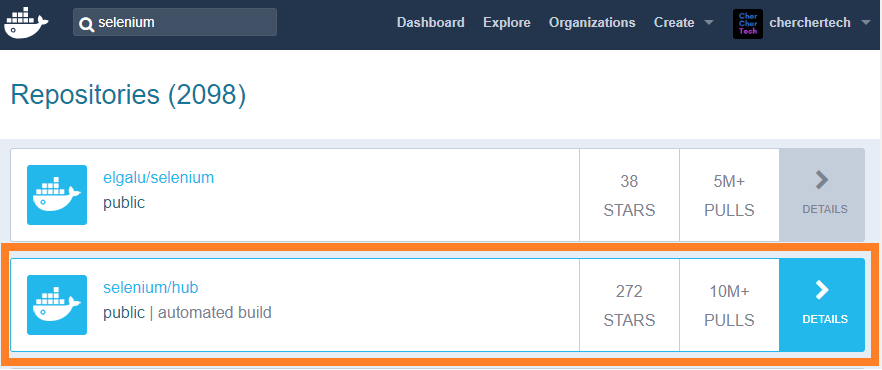
- Navigate to : https://hub.docker.com/ and search for selenium and click the highlighted item
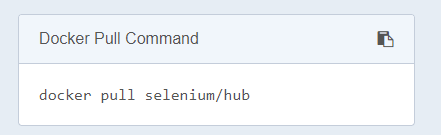
- Sometimes you need to install the Pull Command to install the package; this is present on the right-hand side
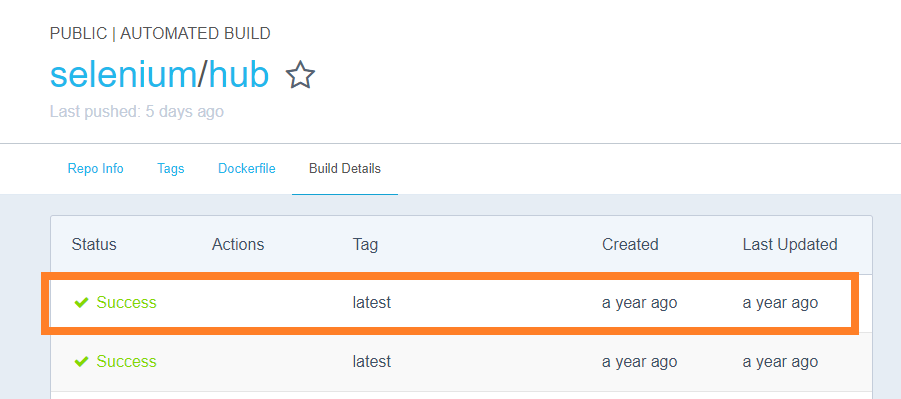
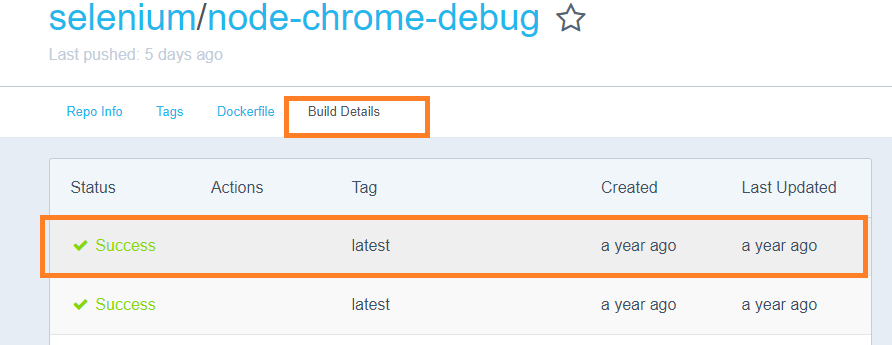
- Go to Build Details Tab and choose the latest image
- If you have entered the right command, then you might see the installation
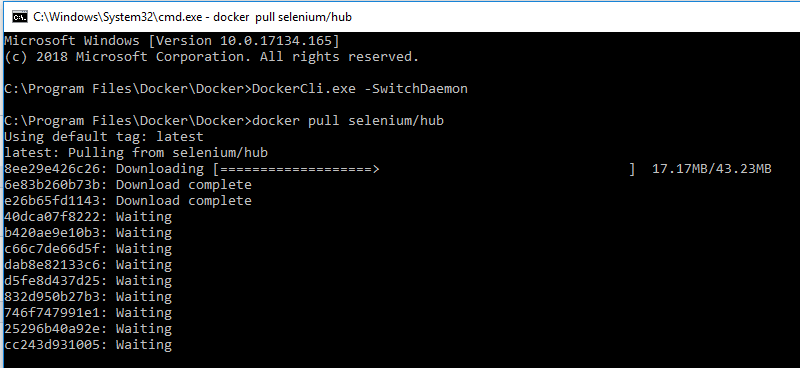
- It will take some time based on your Internet speed to complete the installation

- Use the highlighted command to install the Hub
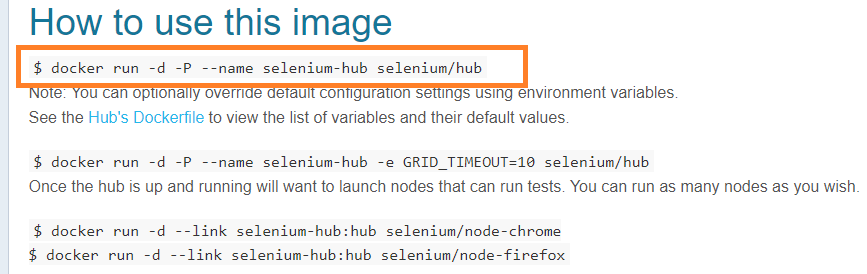
- Copy-paste the command in your CMD/Terminal
docker run -d -P --name selenium-hub selenium/hub
- Above command will start the Hub service

- Use ps command to check the services which are up
docker ps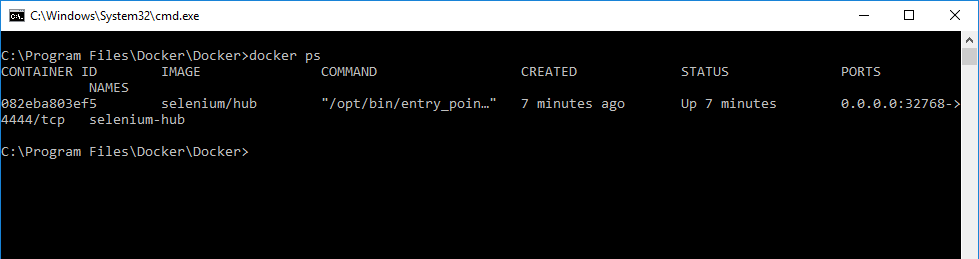
- You can also check the Images which are running in the KiteMatic UI as well; you can view them on the left side

Selenium Node Installation in Docker for Protractor
Yes, you can install the node just like a hub, but there are two kinds of nodes, which one to chose.
- Chrome-Node : Chrome node does not provide any UI to view the execution of the program
- Chrome-Node-Debug : Chrome Node Debug provides a UI to see the execution of the program
- For this tutorial purpose I would be using the Chrome with UI, i.e., Chrome-Node-Debug, so search for Chrome Node Debug
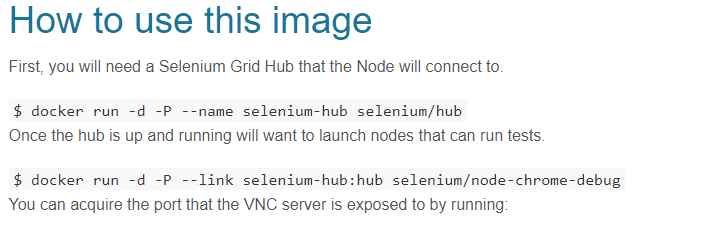
docker run -d -P --link selenium-hub:hub selenium/node-chrome-debug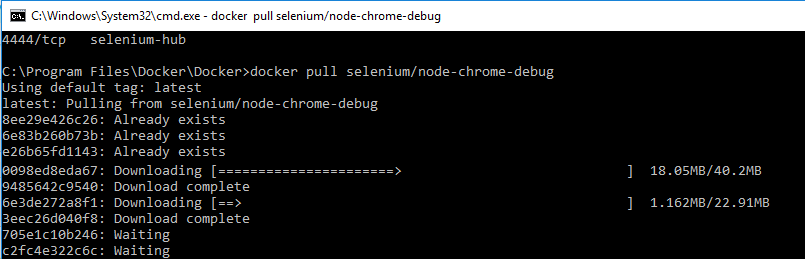
- You can use the same command to check whether it got installed or not.

- You view the command to Invoke the Chrome Node Debug by navigating to 'How to use this section.'
- If the invocation is successful, then you may see a string like this

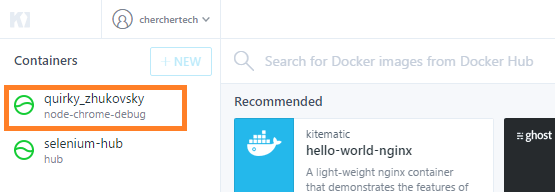
- You can see the Running node in the KiteMatic UI, the name of the node changes each time
- You can see the details o the hub to connect in the dark screen, which I have copy-pasted below the image
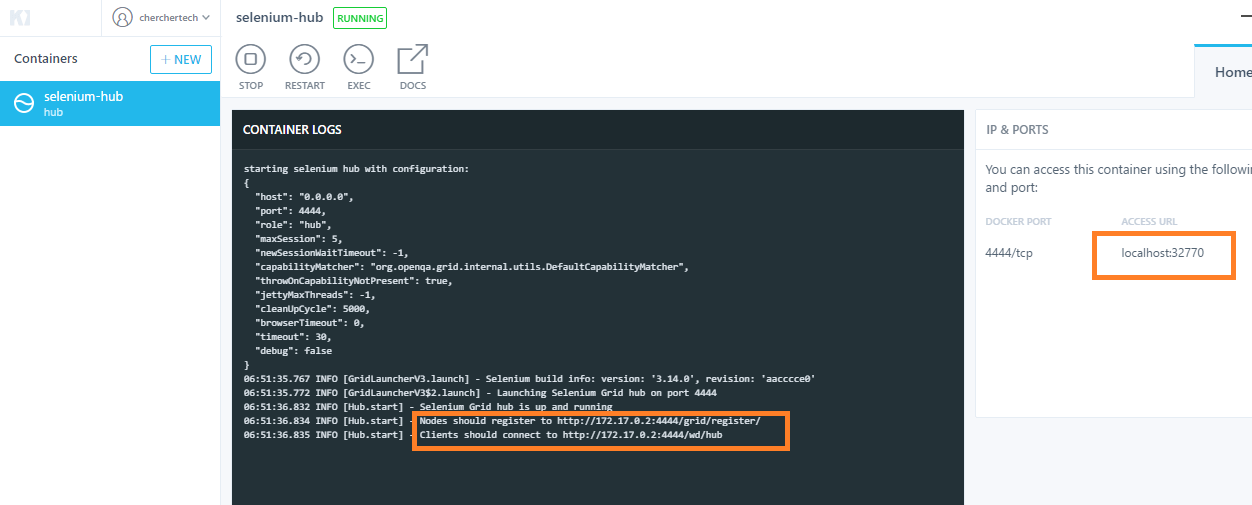
- Before Connecting the Node
[Hub.start] - Nodes should register to http://172.17.0.2:4444/grid/register/
[Hub.start] - Clients should connect to http://172.17.0.2:4444/wd/hub
After Connecting the Node
# after node installation
[Hub.start] - Nodes should register to http://172.17.0.2:4444/grid/register/
[Hub.start] - Clients should connect to http://172.17.0.2:4444/wd/hub
[DefaultGridRegistry.add] - Registered a node http://172.17.0.3:5555- To confirm the Node Connection, do visit to the given detail, the post number you can see by click on the HUB

- Click on the console like on the right side to view the connections to the Hub. You can see the details like what the nodes connected and what browsers are connected

VNC Viewer for Docker
As I said earlier, you may want to see the execution of the program in the given docker. You cannot view a docker just like that; we have to connect the docker with our system using some tool.
I would recommend using the VNC viewer to connect the Docker. VNC viewer helps to connect the Remote machine with Local machine.
- Go to Google APP store and select VNC viewer or directly search in Google
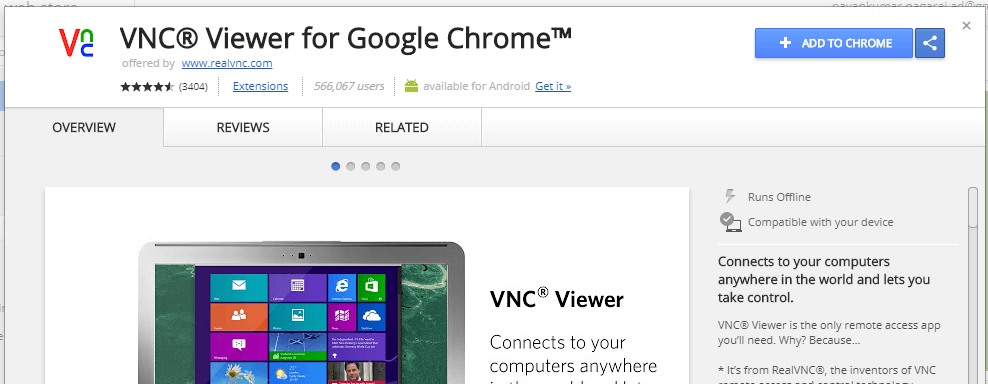
- After installing you can start the VNC viewer from the Google Apps on the right top corner of the browser (square dots)
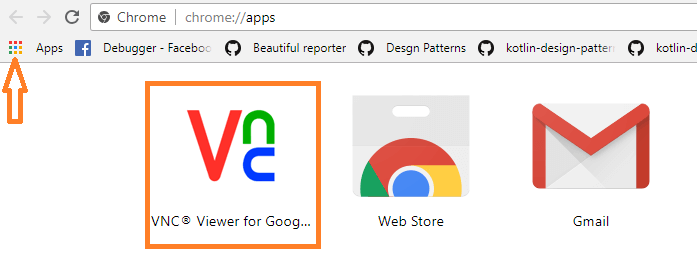
- VNC viewer will expect the IP address and port number of the NODE to connect; you can get it from the kitematic UI or from the ps command in CMD

- While connecting VNC may show Un-Encrypted connection, accept it
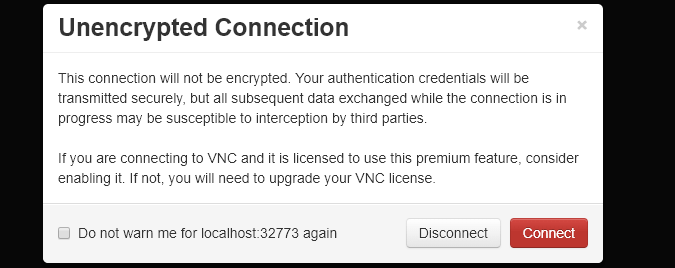
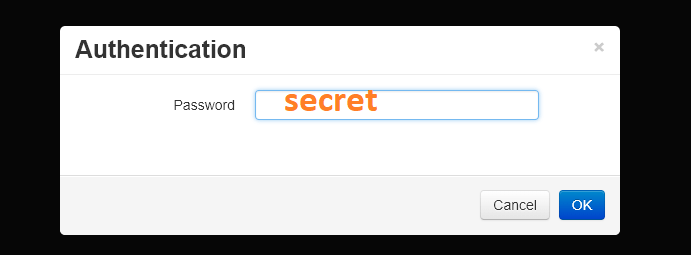
- The default password is secret ( all lower case), you can change it if you want to
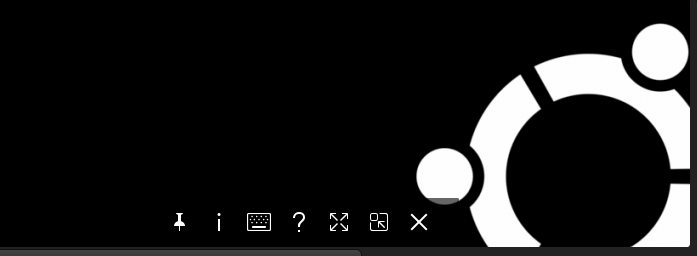
- Below is the UI of the Ubuntu, the UI of the Docker Image
Commands required for Docker and Protractor
// install the Hub
docker pull selenium/hub
// invoke the hub
docker run -d -P --name selenium-hub selenium/hub
// install the Node
docker pull selenium/node-chrome-debug
// invoke the node
docker run -d -P --link selenium-hub:hub selenium/node-chrome-debug
// list the running process
docker ps
// list all the running process
docker ps -aProtractor Integration with Docker
Now we are on the important part of the tutorial, Let's integrate the protractor scripts with Docker. Be aware that it is a single line change in the conf file.
Consider below protractor Test file for docker integration; this script will take a screenshot of the opened page.
import{createWriteStream} from 'fs'
import { browser, by, element, ExpectedConditions} from 'protractor'
describe('Protractor Typescript Demo', function() {
	browser.ignoreSynchronization = true; // for non-angular websites
	it('get Cookie test in Protractor', function() {
		browser.get("https://google.com")
		browser.getTitle().then(function(t){
			console.log("Title of Google : "+t)
		})
		// take screenshot
		browser.takeScreenshot().then(function (png) {
			var stream = createWriteStream("Chercher_tech_Screenshot.png");
			stream.write(new Buffer(png, 'base64'));
			stream.end();
		});
	});
});
Conf file that we use for execution, The only change is SeleniumAddress Parameter in the conf file. SeleniumAddress should be the one that I have highlighted in the Hub in the KiteMatic UI.
After Connecting the Node
# after node installation
[Hub.start] - Nodes should register to http://172.17.0.2:4444/grid/register/
[Hub.start] - Clients should connect to http://172.17.0.2:4444/wd/hub
[DefaultGridRegistry.add] - Registered a node http://172.17.0.3:5555
Now lets have a look at the conf.js file
exports.config = {
  framework:'jasmine',
  browserName:'chrome',
    seleniumAddress:'http://localhost:4444/wd/hub',
   specs: ['D:Protractor DemoJSFilesLocation	est.js'],
}Errors I have faced during Docker installation
- docker: image operating system "linux" cannot be used on this platform.
This issue happens because you have not switched the Operating system in CMD, so change Operating system using below commandC:Program FilesDockerDocker>DockerCli.exe -SwitchDaemon - Error: ETIMEDOUT connect ETIMEDOUT 172.17.0.2:4444
You will get this error because you might have used some IP for seleniumAddress rather than using the localhost, so seleniumAddress must be localhost then port.seleniumAddress:'http://localhost:4444/wd/hub',
Docker Compose in Protractor
Compose is a tool for defining and running multi-container Docker applications. With Compose, you use a YAML file to configure your application’s services. Then, with a single command, you create and start all the services from your configuration.
In layman terms, Compose contains a set of commands, just like the batch file in your windows operating system.
services:
    NameOfHub:
        image: selenium/hub
        container_name: NameOfHub
        privileged: true
        ports:
            - 4444:4444
        environment:
            - GRID_TIMEOUT=240000
            - GRID_BROWSER_TIMEOUT=240000
    NameOfNode:
        image: selenium/node-chrome-debug
        privileged: true
        depends_on:
            - NameOfHub
        ports:
            - 5900
        environment:
            - HUB_PORT_4444_TCP_ADDR=NameOfHub
            - HUB_PORT_4444_TCP_PORT=4444
Recommended Readings
I am Pavankumar, Having 8.5 years of experience currently working in Video/Live Analytics project.