

Installation of Rest Assured
You may face the below error if you are using the older version of the eclipse; please update the eclipse versions. I am currently using Version: 2020-06 (4.16.0) Build id: 20200615-1200
Installation of rest assured requires 4 software.
- Java
- Eclipse
- Maven
In the Maven, we will be using multiple dependencies, so rest assured will be one of the dependencies in the Maven.
For the first lesson, we will be getting started with rest assured dependency along with JUnit dependency.
Open eclipse and go to File> New > Project; 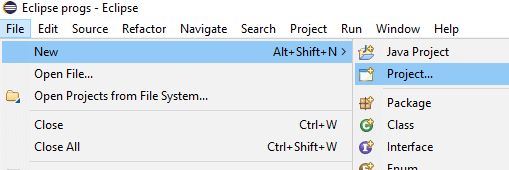
Scroll down, select Maven Project under Maven.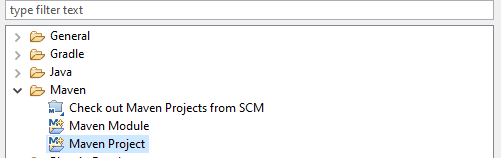
Once you select a Maven project, then Select Create a simple project.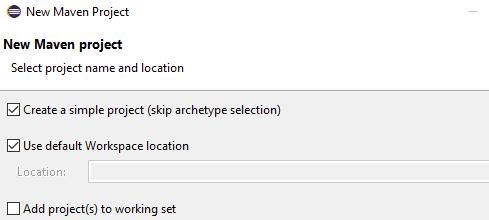
You have to provide artifact id and group ID; the group ID and artifact ID will be used as part of a pom.xml, and artifact ID is going to be your project name. 
Then click on the Finish button.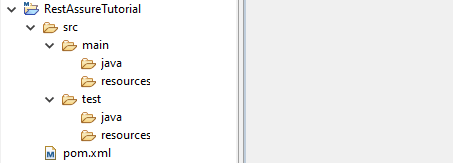
Now we have created the Maven project, but we have to add the dependencies to use our rest assured. Our rest assured jars are present as part of the Maven repository, so we can use those rest assured jars from the Maven repository.
To add the dependencies, open the pom.xml file present in the project. Select the pom.xml tab to view the XML content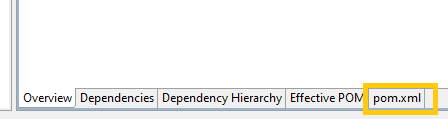
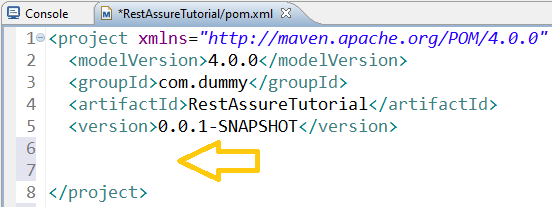
You can visit the Maven repository(https://mvnrepository.com/artifact/io.rest-assured/rest-assured), or you can search rest assured Maven in Google to get the link or to get the web page from where you can copy the dependencies.
Choose the version that you want to use in your project; for this tutorial purpose, I am going to use the latest version, and the versions may change when you are reading this particular tutorial, so use a version according to your project.
Select the Maven tab, and you can copy the content present inside the textbox and paste the copied content into your pom.xml file.
Similarly, search for Junit jars in the Maven repository and add them into your pom.xml. You have to place these dependencies inside the <dependencies> tag
<dependencies>
	  <!-- https://mvnrepository.com/artifact/io.rest-assured/rest-assured -->
	<dependency>
	    <groupId>io.rest-assured</groupId>
	    <artifactId>rest-assured</artifactId>
	    <version>4.3.1</version>
	    <scope>test</scope>
	</dependency>
	  <!-- https://mvnrepository.com/artifact/org.junit.jupiter/junit-jupiter-engine -->
	<dependency>
	    <groupId>org.junit.jupiter</groupId>
	    <artifactId>junit-jupiter-engine</artifactId>
	    <version>5.7.0-M1</version>
	    <scope>test</scope>
	</dependency>
  </dependencies>
Save the pom.xml file now it will download all the jars from the Maven repository.
With this, we are done with the installation of rest assured, the below topic would cover how to get started with rest assured.
First RestAssured test
We can write test cases in different formats using rest assured. In the below example, I am not explaining much of the things, but this example is to check whether your setup is working or not.
We have a dedicated chapter on different formats of using rest assured.
As of now, I am going to retrieve all the products present in an API endpoint https://chercher.tech/sample/api/product/read.php. This endpoint is present on our website itself, and you can access the UI of the endpoint at https://chercher.tech/sample/api-ui
Setting the Latest JRE:
Create a new package called com.products under src/test/java
Create a new Class under the above-created package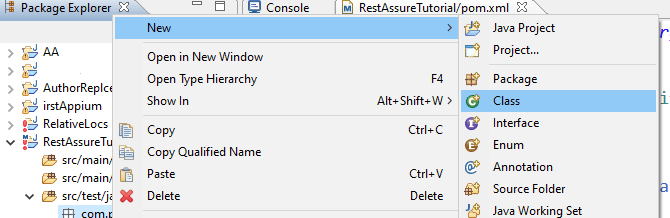
After creating a class, you might see the below error.
or
Implicit super constructor Object() is undefined for the default constructor. Must define an explicit constructor

Click on the configure build path.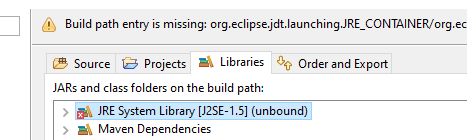
Select the JRE System Library and click the Remove button
Select the workspace default JRE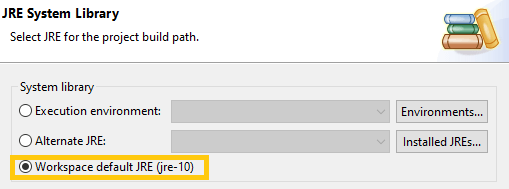
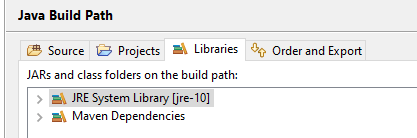
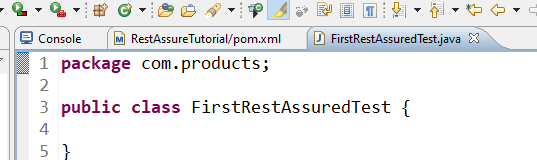
After adding all the libraries, the errors are gone, lets see how to write the first test case.
First Rest assured code:
We will be writing out the first code with rest assured to print the response from the server.
- RestAssured: Most of the request-related methods are present in the RestAssured class as static methods.
- given() : preparing the request
- when() : preparing the request
- get() : creates the request and send it to the server
- prettyPrint() : prints the response to the console.
Paste the following code into the editor.
package com.products;
import io.restassured.RestAssured;
public class FirstRestAssuredTest {
	public static void main(String[] args) {
		RestAssured.given()
		.when()
		.get("https://chercher.tech/sample/api/product/read.php")
		.prettyPrint();
	}
}
Output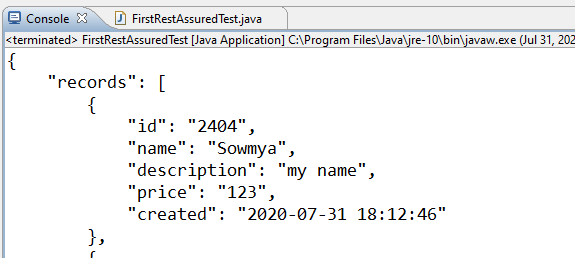
First Rest assured Test:
In the above test, We have seen how to create a request and send it to the server, and we were able to print the response that we received from the server.
In the below program, we are going to test the above code, whether we are receiving the 200 status code or not.
import org.junit.jupiter.api.Test;
import io.restassured.RestAssured;
public class FirstRestAssuredTest {
	@Test
	void sampleTest() {
		RestAssured.given()
		.when()
		.get("https://chercher.tech/sample/api/product/read.php")
		.then()
		.statusCode(200);
	}
}
So whenever we say test, we need to have some testing Framework, so for this purpose, we have already introduced the dependency of JUnit, so we are going to use it as a unit test Framework here.
Set the new Launcher for the project; set the JUnit5 as the launcher.
Output is
Recommended Readings
I am Pavankumar, Having 8.5 years of experience currently working in Video/Live Analytics project.