

WebElement Operations in Puppeteer
With Puppeteer, We can perform all the operations that we perform on a webpage and objects on the webpage manually.
Most of the time web pages involve clicks, setting values, dragging & dropping, verifying the state of the elements, and the text in the elements.
To perform any operation in Puppeteer, we have to find the element/elements on the webpage.
Click an Element in Protractor
We can perform clicking operation using the Puppeteer, before performing the click operation we have to uniquely find the elements using locators
The height and width of element must be more than 0px to click the element using Puppeteer
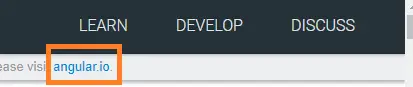
Program to perform click operation in Puppeteer.
const puppeteer = require('puppeteer');
async function run(){
    const browser = await puppeteer.launch({headless:false})
    const page = await browser.newPage()
    await page.goto('https://angularjs.org/');
    await page.click(".container p.site-notice.visible-desktop a")
}
run()Set text to fields in Puppeteer
type() method in Puppeteer sets the text into an editable element (textbar, text area, button) without replacing the previously available content.
const puppeteer = require('puppeteer');
async function run(){
    const browser = await puppeteer.launch({headless:false})
    const page = await browser.newPage()
    await page.goto('https://google.com/');
    await page.type("[name='q']", "chercher tech")
}
run()
If you have executed the above code, you might have received the below output.
type with Delay:
When we set the text to any field on the webpage, we can make the puppeteer enter the text with some dealy for each character using the {delay:time_interval}, here the time_interval is in milliseconds.
const puppeteer = require('puppeteer');
async function run(){
    const browser = await puppeteer.launch({headless:false})
    const page = await browser.newPage()
    await page.goto('https://google.com/');
    await page.type("[name='q']", "chercher tech", {delay:500})
}
run()
Get Text of an element in Puppeteer
The values present between > < are considered as text in HTML, textContent will help you get the text out of an attribute. The puppeteer will fetch the values of the text, not only the current element text but also the text of other elements inside that element.
const puppeteer = require('puppeteer');
async function run(){
    const browser = await puppeteer.launch({headless:false})
    const page = await browser.newPage()
    await page.goto('https://google.com/');
    var link = await page.$eval(".gb_d[data-pid='23']",
                element=> element.textContent)
    await console.log(link)
}
run()getAttribute of an Element in Puppeteer
getAttribute(attribute_name) method fetches the value of an attribute, in HTML code whatever is present on the left side of '=' is an attribute, the value on the right side is the Attribute value.
const puppeteer = require('puppeteer');
async function run(){
    const browser = await puppeteer.launch({headless:false})
    const page = await browser.newPage()
    await page.goto('https://google.com/');
    var link = await page.$eval(".gb_d[data-pid='23']",
                element=> element.getAttribute("data-pid"))
    await console.log(link)
}
run()
The second way of getting Attribute:
But above one may or may not work for all the attributes, so in such cases try to use the below method to get the Attribute of an element.
const puppeteer = require('puppeteer');
async function run(){
    const browser = await puppeteer.launch({headless:false})
    const page = await browser.newPage()
    await page.goto('https://google.com/');
    var link = await page.$eval(".gb_d[data-pid='23']",
                element=> element.href)
    await console.log(link)
}
run()Recommended Readings
I am Pavankumar, Having 8.5 years of experience currently working in Video/Live Analytics project.
