

GeoLocations Puppeteer
In this article, we will see how to add/fake geolocation using puppeteer, which can be used for location testing on websites.
Web applications may need some time to access your location in order to show relevant data. For instance, while looking for hotels in a particular location on a website, the maps in the application may use the current geolocation to display hotels that are nearby.
So while testing, the question that arises is how to test the application for various locations without being in that place in real-time?
In the early days the websites used IP addresses to find out the approximate location but today with Geolocation API, browsers can detect your location accurately.
There are three steps involved in setting the geolocation in the puppeteer.
- Grant permission for the geo-location parameter after launching the browser.
- Set the geolocation of the user for the website.
- Open the required URL [https://chercher.tech/practice/geo-location], the look of the app may change as time goes
Grant permission:
Grant permission is nothing but letting the puppeteer know that the user may set the geolocation in the current browser session. In this step, we can also set permission for other notifications along with geolocation.
const context = browser.defaultBrowserContext()
await context.overridePermissions("https://chercher.tech/practice/geo-location", ['geolocation'])
Set the geolocation details in puppeteer:
We can set the geolocation details once we are done with granting the permission using
setGeolocation() function. setGeolocation() accepts latitude and longitude as parameters.await page.setGeolocation({latitude:90, longitude:20})Open the URL/app:
We can open the URL of the application to reflect our changes,
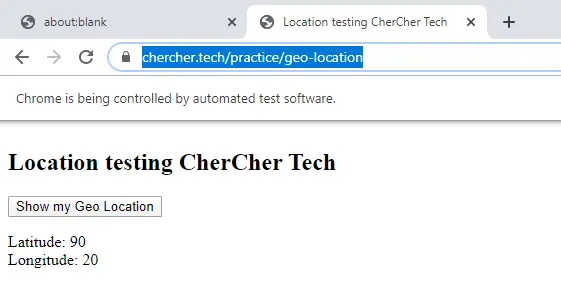
await page.goto("https://chercher.tech/practice/geo-location");Complete example for setting geolocation, here the app itself shows the location that we are setting.
const puppeteer =  require('puppeteer');
async function runJob(){
    // Launch a clean browser
    const browser = await puppeteer.launch({headless:false});
    const page = await browser.newPage();
    // grant permission
    const context = browser.defaultBrowserContext()
    await context.overridePermissions("https://chercher.tech/practice/geo-location", ['geolocation'])
    //set the location
    await page.setGeolocation({latitude:90, longitude:20})
    //open url
    await page.goto("https://chercher.tech/practice/geo-location");
};
runJob()
Observations on setting GeoLocation with Puppeteer
Domain matter:
In the above example, I have given the below code. here the first parameter is the URL of the app where the geolocation request is present.
await context.overridePermissions("https://chercher.tech/practice/geo-location", ['geolocation']) - Browser does not consider the Complete URL but only considers the Domain name (chercher.tech)
- Change the URL to https://chercher.tech/practice/frames, still, the app works as expected and geolocation works fine.
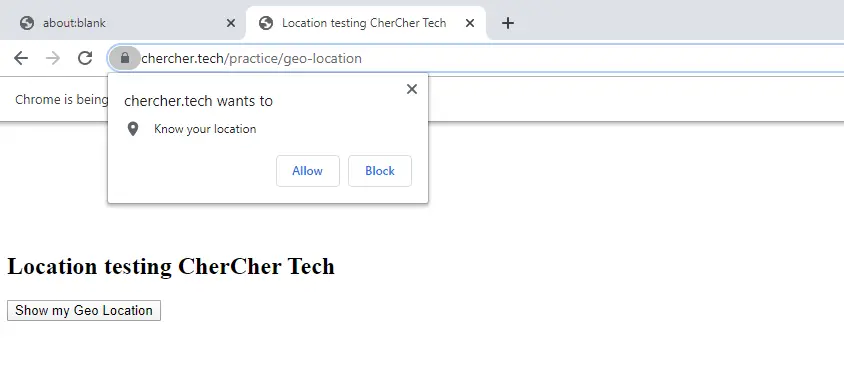
- Change the URL to https://google.com/practice/geo-location, now the app fails and requests for geolocation
- Changing the position of function
setGeolocation()below thegoto()function will request the geolocation, rather than considering the next line in the puppeteer program.
await page.goto("https://chercher.tech/practice/geo-location"); await page.setGeolocation({latitude:90, longitude:20})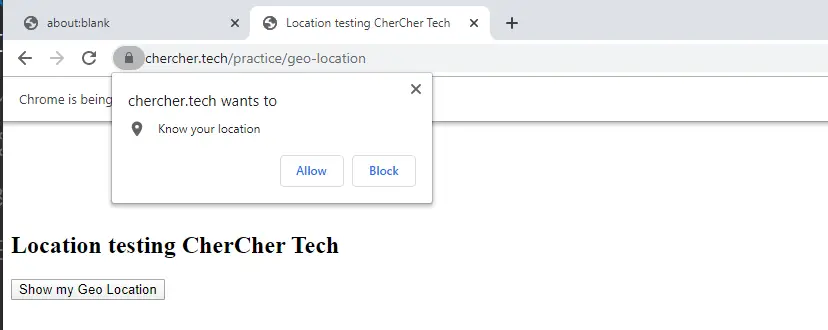
Recommended Readings
I am Pavankumar, Having 8.5 years of experience currently working in Video/Live Analytics project.
