

- Select Class to Handle Dropdowns in Selenium
- Single Dropdown
- MultiValue Dropdown in selenium
- Custom Dropdowns handling in selenium
- Check whether a dropdown is a Single value or MultiValue dropdown ?
- Get All Options Present in Dropdown
- Verify the Particular Option is present in the dropdown or not ?
- Different ways to select the dropdown option
- Click Method to select the dropdown option
- Actions class to select an option from the dropdown
- Verify a Particular Option is present in the dropdown or not ?
- Ways to check whether the Option is selected or not in Dropdown with Selenium
Select Class to Handle Dropdowns in Selenium
Selenium provides Select class, with help of select class we can handle dropdowns on the webpage
Steps to select a value in the dropdown in selenium :
- Find the dropdown using findElement
- Create an object for Select class passing dropdown element as a parameter
- Select the value from the dropdown values
There are two types of dropdowns :
- Single value Dropdown
- Multi-Value Dropdown
Methods Present in Select Class ( All methods are non-static ):
|
|
|
Single Dropdown
80% of the dropdowns are single value dropdowns; single value dropdowns are standard dropdowns on which you can select only one value; once you choose a value, the dropdown shrinks.
Dropdown are formed using select tag in html, if dropdown is not formed with select tag you cannot use this Select Class methods in selenium
We will see how to handle such kinds of dropdowns in selenium on Custom Dropdown in the Selenium webdriver tutorial.
Look at the below clip : Once option is chosen the dropdown shrunken
We can use only a few methods present in the Select class of Selenium for Single value Dropdown.
Dropdown Details in selenium webdriver:
- Index starts from 0 in dropdowns
- Value is nothing but 'value' attributes value
- Value could be different from Visible text(Note: In below dropdown image, value is Apple, but the Visible Text is 'iPhone' )
- Visible text is nothing but text between '>' and '<'

Let us select the 1st option :1. Create a Java Class

2. Open Firefox (I am using FF 57, so I will be using geckodriver.exe)
// set the geckodriver.exe property
System.setProperty("webdriver.gecko.driver", "C:/path/geckodriver.exe");
// open firefox
WebDriver driver = new FirefoxDriver();
3. Navigate to Practice page: https://chercher.tech/java/practice-dropdowns
// open webpage
driver.get("https://chercher.tech/java/practice-dropdowns");
4. Find the dropdown( not the options) using xpath or preferred locator and store it in 'dropdownElement' variable
// find the dropdown using xpath
WebElement dropdownElement = driver.findElement(By.xpath("//select[@id='first']"));
5. Create Select Class object and pass the dropdownElement as a parameter
Select dropdown = new Select(dropdownElement);6. Select option which is at 1st position using selectByIndex() method in Select Class, Options starts from the '0'(zero).
dropdown.selectByIndex(1);Complete program to select 1st option in Dropdown using selectByIndex()
import org.openqa.selenium.support.ui.Select;
public class SingleDrodown {
	public static void main(String[] args) throws Exception {
		// set the geckodriver.exe property
		System.setProperty("webdriver.gecko.driver", "C:/path/geckodriver.exe");
		// open firefox
		WebDriver driver = new FirefoxDriver();
		driver.manage().timeouts().implicitlyWait(1, TimeUnit.MINUTES);
		// open webpage
		driver.get("https://chercher.tech/java/practice-dropdowns");
		// find the dropdown using xpath
		WebElement dropdownElement = driver.findElement(By.xpath("//select[@id='first']"));
		// create object for Select class
		Select dropdown = new Select(dropdownElement);
		// select 1st option from the dropdown options
		dropdown.selectByIndex(1);
		Thread.sleep(10000);
	}
}selectByValue()
Sometimes we may need to select an option based on the value attribute, situations like the options maybe shuffling, or when options are dynamic. In such cases, we must go either with selectByValue() or selectByIndex().
Below example showcases how to select dropdown using selectByValue() method:
public class SingleDropdownSelectByValue {
	public static void main(String[] args) throws Exception {
		// set the geckodriver.exe property
		System.setProperty("webdriver.gecko.driver", "C:/path/geckodriver.exe");
		// open firefox
		WebDriver driver = new FirefoxDriver();
		driver.manage().timeouts().implicitlyWait(1, TimeUnit.MINUTES);
		// open webpage
		driver.get("https://chercher.tech/java/practice-dropdowns");
		// find the dropdown using xpath
		WebElement dropdownElement = driver.findElement(By.xpath("//select[@id='first']"));
		// create object for Select class
		Select dropdown = new Select(dropdownElement);
		// select "Apple" value option from the dropdown options
		dropdown.selectByValue("Apple");
		Thread.sleep(10000);
	}
}
selectByVisibleText()
Below one is example for selectByVisibleText(), code selects 'Bing' from dropdown
driver.get("https://chercher.tech/java/practice-dropdowns");
// find the dropdown using xpath
WebElement dropdownElement = driver.findElement(By.xpath("//select[@id='first']"));
// create object for Select class
Select dropdown = new Select(dropdownElement);
// select "Apple" value option from the dropdown options
dropdown.selectByVisibleText("Bing");
Thread.sleep(10000);
MultiValue Dropdown in selenium
20% of the dropdowns are multiple select dropdowns, there are cases where applications have to let the user choose multiple values from dropdowns like a menu in the restaurant, menu in fruit selection, etc.
We can use all the methods present in the Select class to mess with multiple value dropdowns.
Steps to select Multiple options in the multi-select dropdown :
- select an option on the multi-select dropdown if you want to select only one option
- If you want to select more options, press the CTRL key on your keyboard, and select options.
- If you want to select the x position to the y position option, click the x option and press the Shift key, and click the options; all the options between x and y will be selected.

selectByIndex() on Multi-value dropdown:
Select options that are at index 0 and index 3 using selectByIndex();, this is how we can select multiple values in dropdown using selenium. If you try to select an index that is not present selenium throws NoSuchElementException
public static void main(String[] args) throws Exception {
	// set the geckodriver.exe property
	System.setProperty("webdriver.gecko.driver", "C:/~/geckodriver.exe");
	// open firefox
	WebDriver driver = new FirefoxDriver();
	driver.manage().timeouts().implicitlyWait(1, TimeUnit.MINUTES);
	// open webpage
	driver.get("https://chercher.tech/practice/practice-dropdowns");
	// find the dropdown using xpath
	WebElement dropdownElement = driver.findElement(By.xpath("//select[@id='second']"));
	// create object for Select class
	Select dropdown = new Select(dropdownElement);
	// select 1st option from the dropdown options
	dropdown.selectByIndex(0);
	dropdown.selectByIndex(3);
}selectByValue() on Multi value dropdown
Select options which are having value as 'donut' and 'burger' using selectByValue();
// open webpage
driver.get("https://chercher.tech/practice/practice-dropdowns");
// find the dropdown using xpath
WebElement dropdownElement = driver.findElement(By.xpath("//select[@id='second']"));
// create object for Select class
Select dropdown = new Select(dropdownElement);
// select options from the dropdown options which have value as 'donut', 'burger'
dropdown.selectByValue("donut");
dropdown.selectByValue("burger");
selectByVisibleText() on Multi-value dropdown
selectByVisibleText() helps us to select multiple values in dropdown using webdriver, Let us see example how to select 'Pizza' and 'Bonda' from dropdown using selectByVisibleText()
// open firefox
WebDriver driver = new FirefoxDriver();
driver.manage().timeouts().implicitlyWait(1, TimeUnit.MINUTES);
// open webpage
driver.get("https://chercher.tech/practice/practice-dropdowns");
// find the dropdown using xpath
WebElement dropdownElement = driver.findElement(By.xpath("//select[@id='second']"));
// create object for Select class
Select dropdown = new Select(dropdownElement);
// select options from the dropdown options which have text as 'Donut', 'Bonda'
dropdown.selectByVisibleText("Donut");
dropdown.selectByVisibleText("Bonda");
deselectAll() on Multiple value dropdown
If there is a situation like we might have selected a few items without our knowledge, and if we want to deselect them deselectALL() is the best option
deselectAll()- removes the selected items from the selection.
// open firefox
WebDriver driver = new FirefoxDriver();
driver.manage().timeouts().implicitlyWait(1, TimeUnit.MINUTES);
// open webpage
driver.get("https://chercher.tech/practice/practice-dropdowns");
// find the dropdown using xpath
WebElement dropdownElement = driver.findElement(By.xpath("//select[@id='second']"));
// create object for Select class
Select dropdown = new Select(dropdownElement);
// select options from the dropdown options which have text as 'Donut', 'Bonda'
dropdown.selectByVisibleText("Donut");
dropdown.selectByVisibleText("Bonda");
// deselect all the options
dropdown.deselectAll();
deselectByIndex() on Multiple value dropdown
deselectByIndex() de-selects a option based on value attribute
// open webpage
driver.get("https://chercher.tech/practice/practice-dropdowns");
// find the dropdown using xpath
WebElement dropdownElement = driver.findElement(By.xpath("//select[@id='second']"));
// create object for Select class
Select dropdown = new Select(dropdownElement);
// select options from the dropdown options which have value as 'donut', 'burger','pizza','bonda'
dropdown.selectByValue("donut");
dropdown.selectByValue("burger");
dropdown.selectByValue("pizza");
dropdown.selectByValue("bonda");
// deselect a option based on the index (1),
// be aware that index starts with 0
dropdown.deselectByIndex(1);Custom Dropdowns handling in selenium
The Custom dropdowns are built using different technologies like bootstrap, flask, django so on, but what we receive at our browser is none other than HTML code. These kinds of pick and place tools will not follow standard coding, but the output will be the same as the original HTML.
Let's take an example : Goto Practice dropdowns page, you can find custom dropdown which uses below HTML code to form the dropdown.
<b>Custom Dropdown</b><br>
<div class="dropdown">
  <button class="btn btn-success dropdown-toggle" type="button" data-toggle="dropdown">Dropdown can Be made using<span class="caret"></span></button>
  <ul class="dropdown-menu">
    <li><b> li</b></li>
    <li><b> span</b></li>
    <li><b> td</b></li>
    <li><b> submenu</b></li>
  </ul>
</div>
If you try to use Select class on this custom dropdown, selenium webdriver throws UnexpectedTagNameException
To overcome the custom dropdown issue, we have to combine selenium methods to select a value from dropdowns that are not formed by using a select class.
Common Steps :
- Click the Dropdown
- Click the option or the value
Steps to select the Custom Dropdown:
1. Open Browser and Navigate to Url: https://chercher.tech/java/practice-dropdowns
2. Find the custom dropdown box and store it
// PLEASE DO WRITE IMPORT STATEMENTS
// find the dropdown using xpath
WebElement dropdownElement = driver.findElement(By.xpath("//button[@id='custom']"));
3. Click the stored dropdown box.
// PLEASE DO WRITE IMPORT STATEMENTS
// click the dropdown element
dropdownElement.click();
4. Find the required value from the dropdown and click it, finding option must happen after clicking the dropdown
// find and click the dropdown element
driver.findElement(By.xpath("//b[contains(text(),'submenu')]")).click();
Complete program to choose a value from the custom dropdown
// PLEASE DO WRITE IMPORT STATEMENTS
public class CustomDropdown {
	public static void main(String[] args) throws Exception {
		// set the geckodriver.exe property
		System.setProperty("webdriver.gecko.driver", "C:/~/geckodriver.exe");
		// open firefox
		WebDriver driver = new FirefoxDriver();
		driver.manage().timeouts().implicitlyWait(1, TimeUnit.MINUTES);
		// open webpage
		driver.get("https://chercher.tech/java/practice-dropdowns");
		// find the dropdown using xpath
		WebElement dropdownElement = driver.findElement(By.xpath("//button[@id='custom']"));
		// click the dropdown element
		dropdownElement.click();
		Thread.sleep(3000);
		// find and click the dropdown element
		driver.findElement(By.xpath("//b[contains(text(),'submenu')]")).click();
	}
}Check whether a dropdown is a Single value or MultiValue dropdown ?
We can verify whether a dropdown is a single value dropdown or a multi-value dropdown in many ways.
1. isMultiple - this method is a non-static method of Select class in selenium.
isMultiple method returns True if the dropdown is multi-value dropdown otherwise it returns false for single value dropdown
// open webpage
driver.get("https://chercher.tech/practice/practice-dropdowns");
// find the dropdown using xpath
WebElement dropdownElement = driver.findElement(By.xpath("//select[@id='second']"));
// create object for Select class
Select dropdown = new Select(dropdownElement);
// check single or multi dropdown
boolean singleOrMultiple = dropdown.isMultiple();
if (singleOrMultiple) {
	System.out.println("Dropdown is Multi value dropdown");
}else{
	System.out.println("Dropdown is Single value dropdown");
}
2. getAttribute("multiple") method return true if the dropdown is multiple and returns false in case of single value dropdown
// open webpage
driver.get("https://chercher.tech/practice/practice-dropdowns");
// find the dropdown using xpath
WebElement dropdownElement = driver.findElement(By.xpath("//select[@id='first']"));
// create object for Select class
String singleOrMulti = dropdownElement.getAttribute("multiple");
// compare the result
if (singleOrMulti != null) {
	System.out.println("Dropdown is Multi value dropdown");
}else{
	System.out.println("Dropdown is Single value dropdown");
}
Get All Options Present in Dropdown
getOptions() - method return all the options present in dropdown irrespective of whether selected or not
// open webpage
driver.get("https://chercher.tech/practice/practice-dropdowns");
// find the dropdown using xpath
WebElement dropdownElement = driver.findElement(By.xpath("//select[@id='first']"));
// create object for Select class
Select dropdown = new Select(dropdownElement);
// get all the options and store it in list
List allElements = dropdown.getOptions();
System.out.println("Values present in Single Value Dropdown");
for (WebElement element : allElements) {
	// iterate over each element and print the text
	System.out.println(element.getText());
}
System.out.println("************************************");
WebElement dropdownElementMulti = driver.findElement(By.xpath("//select[@id='second']"));
Select dropdownMulti = new Select(dropdownElementMulti);
// get all the options and store it in list
List<WebElement> allElementsMulti = dropdownMulti.getOptions();
System.out.println("Values present in Multi value Dropdown");
for (WebElement elementMulti : allElementsMulti) {
	// iterate over each element and print the text
	System.out.println(elementMulti.getText());
}
Output :
Verify the Particular Option is present in the dropdown or not ?
We can verify whether a particular option is present or not in the selenium webdriver.
Scenario :
1. Navigate to Selenium dropdown Practice Page : https://chercher.tech/java/practice-dropdowns.html
2. Check Avatar is present under Animals dropdown
Steps to find Option present in the dropdown or not in webdriver
- Find the dropdown using findElement() Method
- Create an object for Select class passing above found element
- use getOptions() method present in Select class object and store values(it returns webelement in list) in List
- iterate the list to get the text from the Options one by one
- compare the result text with the expected result.
// open webpage
driver.get("https://chercher.tech/practice/practice-dropdowns");
// find the dropdown using xpath
WebElement dropdownElement = driver.findElement(By.xpath("//select[@id='animals']"));
// create object for Select class
Select dropdown = new Select(dropdownElement);
// get all the options and store it in list
List allElements = dropdown.getOptions();
System.out.println("Values present in Single Value Dropdown");
for (WebElement element : allElements) {
	// iterate over each element and print the text
	String dropdownOptionValue = element.getText();
	if (dropdownOptionValue.equals("Avatar")) {
		System.out.println("Avatar Option is present though it is not a cat family :)");
	}
}Different ways to select the dropdown option
Selecting a value from the dropdown is an easier task, but sometimes we may need to select an option without using the Select class.
We can select the dropdown values in a few ways:
- Select class methods ( selectByIndex, selectByValue, selectByVisibleText )s
- Click method
- Actions class click methods
- Find element method
- Sendkeys method
- Javascript method
Method 1, 4, 5 are not applicable for custom dropdowns.
We already familiar with Select class methods; we will learn how to use the remaining methods in the above list.
Implicit Wait
Click Method to select the dropdown option
We can use the click method to select an option from the dropdown, and this method is the most preferred mether after select class methods.
Scenario : Select Bing Option from the Products dropdown on https://chercher.tech/java/practice-dropdowns
Steps to select an option:
1. Open the Browser and Navigate to Url: https://chercher.tech/java/practice-dropdowns
2. Find the custom dropdown box and store it
// find the dropdown using xpath
WebElement dropdownElement = driver.findElement(By.xpath("//select[@id='first']"));
3. Click the stored dropdown box.
// click the dropdown element
dropdownElement.click();
4. Find the required value from the dropdown and click it, finding option must happen after clicking the dropdown
// find and click the dropdown element
driver.findElement(By.xpath("//option[text()='Bing']")).click();
Complete program to choose a value from the custom dropdown
// PLEASE DO WRITE IMPORT STATEMENTS
		// open webpage
		driver.get("https://chercher.tech/practice/practice-dropdowns");
		// find the dropdown using xpath
		WebElement dropdownElement = driver.findElement(By.xpath("//select[@id='first']"));
		// click the dropdown element
		dropdownElement.click();
		Thread.sleep(3000);
		// find and click the dropdown element
driver.findElement(By.xpath("//option[text()='Bing']")).click();Actions class to select an option from the dropdown
Actions class can be used to select a dropdown value in selenium webdriver; we have to click the dropdown first and then option from the dropdown
Actions act = new Actions(driver);
// click the dropdown
act.click(driver.findElement(By.xpath("//select[@id='first']")))
		// click the option
		.click(driver.findElement(By.xpath("//option[text()='Bing']")))
		// perform the operation
		.build().perform();
Find Element Method
This is the simplest way to select a dropdown option in selenium, but sometimes this approach throws ElementNotVisibleException.
1. Find the option and store it as Webelement, click the webelement
// open webpage
driver.get("https://chercher.tech/java/practice-dropdowns");
// find the option and click it..ta..da
driver.findElement(By.xpath("//option[text()='Bing']")).click();
Select dropdown option with Sendkeys
We can use sendkeys method to select an option from a dropdown, first of all, we have to find the dropdown element and use the sendkeys method to select the option.
We have to pass the exact text present in the dropdown option; if we do not send the exact text, selenium chooses the almost exact match option, which is at the top.
For example: If you want to choose the option "22," but if you are sending "2" in sendkeys, selenium tries to set "2" only but if there is no option "2" but if there is "21" which is topper than option "22", selenium selects "21".
// open firefox
	WebDriver driver = new FirefoxDriver();
driver.manage().timeouts().implicitlyWait(1, TimeUnit.MINUTES);
// open webpage
driver.get("https://chercher.tech/practice/practice-dropdowns");
// find the option and click it..ta..da
driver.findElement(By.xpath("//select[@id='first']")).sendKeys("Bing");
JavaScript method to select the dropdown option
We can use the JavascriptExecutor method to select an option from the dropdown with the help of JavaScriptExecutor. We have to set the dropdown option using the "value" property of the element.
- Open the browser and navigate to the URL
- Find the dropdown
- Set the value using Javascript executor
// open webpage
driver.get("https://chercher.tech/practice/practice-dropdowns");
// find the dropdown using xpath
WebElement dropdownElement = driver.findElement(By.xpath("//button[@id='custom']"));
//cast driver object to JavaScriptExecutor
JavascriptExecutor jse = (JavascriptExecutor) driver;
// set the dropdown value t0 'Bing' using javascript
    jse.executeScript("arguments[0].value='Bing'", dropdownElement);
Verify a Particular Option is present in the dropdown or not ?
We can verify whether a particular option is present or not in the selenium.
Scenario :
1. Navigate to Selenium dropdown Practice Page : https://chercher.tech/java/practice-dropdowns.html
2. Check 'Avatar' is present under Animals dropdown
In the Normal way, whenever somebody asks us this question, we just start to think like Newton, but we never try to think in a simple way.
findElement() way:
1. Navigate to the page
2. Find the element, Job Done
Are you kidding us ??
Nopes,
Think about the below steps.
2.1. Write the xpath which refers to dropdown and options
i) xpath for finding the dropdown //select[@id='animals']
ii) extend xpath to the options //select[@id='animals']//option[text()='Avatar']
2.2. If the element is not present on the page, webdriver throws an exception, which is nothing but NoSuchElementException
2.3. Let's handle the Exception using try...catch block from java.
2.4. You should limit operation to finding the element itself; you should not try to click or do anything else.
2.4.1 What happens if try to perform some operation, it throws an exception which is ElementNotVisibleException because the option is inside the dropdown
// PLEASE DO WRITE IMPORT STATEMENTS
		// open webpage
		driver.get("https://chercher.tech/practice/practice-dropdowns");
		// find the dropdown option using xpath
		try{
			driver.findElement(By.xpath("//select[@id='animals']//option[text()='Avatar']"));
			System.out.println("Avatar Option is present though it is not a cat family :)");
		}catch(NoSuchElementException e){
			System.out.println("Avatar Option is not present :(");
		}
selectByVisibleText() Way :
Please follow the below steps:
- Find the dropdown using findElement() Method
- Create an object for Select class passing above found element
- Try to select the given Option using selectByVisibleText(), here 'Avatar'. do not be mad at me :), think below steps.
- What happens when there is no such option ?
Ans: You are right, it throws an Exception - which Exception does it throw?
Ans: Again, you are right; it throws NoSuchElementException. - Can you handle NoSuchElementException?
Ans. Sure, try...Catch block from java, Exception type should be NoSuchElementException on catch block
- Which are the lines I have to place inside try block
Ans: Whichever the line throws an exception, here selectByVisibleText() should come inside try block; - Write what should happen when there is no such Option inside the catch block.
Yes, You have verified whether the element is present or not.
// PLEASE DO WRITE IMPORT STATEMENTS
		// open webpage
		driver.get("https://chercher.tech/practice/practice-dropdowns");
		// find the dropdown using xpath
		WebElement dropdownElement = driver.findElement(By.xpath("//select[@id='animals']"));
		// create object for Select class
		Select dropdown = new Select(dropdownElement);
		// write code inside try which throws exception
		try {
			// select option from the dropdown options if it is 'Avatar' text
			dropdown.selectByVisibleText("Avatar");
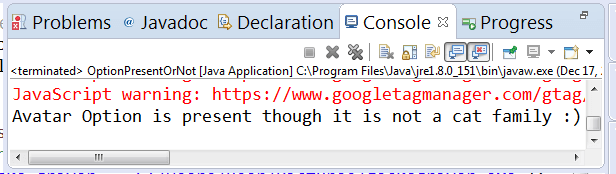
			System.out.println("Avatar Option is present though it is not a cat family :)");
		} catch (NoSuchElementException e) {
			System.out.println("Avatar Option is not present :(");
		}
getOptions() way :
getOptions() method provides all the elements present in the dropdown, once we get the element we can extract the text from the element and compare it with the expected result ('Avatar')
Steps :
- Find the dropdown using findElement Method
- Create an object for Select class passing above found element
- use
getOptions()method present in Select class object and store values(it returns webelement in the list) in List - iterate the list to get the text from the Options one by one
- compare the result text with the expected result('Avatar').
// open webpage
driver.get("https://chercher.tech/practice/practice-dropdowns");
// find the dropdown using xpath
WebElement dropdownElement = driver.findElement(By.xpath("//select[@id='animals']"));
// create object for Select class
Select dropdown = new Select(dropdownElement);
// get all the options and store it in list
List<WebElement> allElements = dropdown.getOptions();
boolean presenceOfElement = false;
for (WebElement element : allElements) {
	// iterate over each element and print the text
	String dropdownOptionValue = element.getText();
	if (dropdownOptionValue.equals("Avatar")) {
		presenceOfElement = true;
	}
}
if(presenceOfElement){
	System.out.println("Get All Options : Avatar Option is present though it is not a cat family :)");
}else{
	System.out.println("Get All Options : Avatar Option is not present :(");
}
Ways to check whether the Option is selected or not in Dropdown with Selenium
We can verify whether an option is selected or not in a dropdown using selenium, and there are different ways to do it.
- isSelect() method
- Verify with getFirstSelectedOption()
- Use getAttribute() method
- Use Java script Method
isSelected() method to verify option is selected or not in dropdown
Usually, people think that isSelected() method is used to see whether a dropdown is selected or not, but in selenium isSelected() also can be used to check whether a dropdown is selected or not.
Steps:
1. Open the browser and open URL : https://chercher.tech/java/practice-dropdowns
2. Find the required option as an element; here, we are finding the option 'Google' as an element.
WebElement dropdownElement = driver.findElement(By.xpath("//select[@id='first']//option[text()='Google']"));3. Use isSelected() method on the element. It returns true if the element is selected or returns false if the element is not selected.
// returns true if selected ,false if not selected
boolean selectedOrNot = dropdownElement.isSelected();
Complete program for isSelected() method to verify option is selected or not in selenium webdriver
// PLEASE DO WRITE IMPORT STATEMENTS
		// open webpage
		driver.get("https://chercher.tech/practice/practice-dropdowns");
		// find the dropdown using xpath
		WebElement dropdownElement = driver.findElement(By.xpath("//select[@id='first']//option[text()='Google']"));
		// returns true if selected ,false if not selected
		boolean selectedOrNot = dropdownElement.isSelected();
		// print the text
		System.out.println("is Google option selected : "+selectedOrNot);
Highlight an Element in Screenshots using selenium
getFirstSelectedOption() to check whether an option is selected or not in selenium webdriver
getFirstSelectedOption() method provides us option element which is selected currently, we need to extract the text from the element and verify the text with the expected result.
Steps:
1. Open the browser and navigate to URL : https://chercher.tech/java/practice-dropdowns,
2. Find the dropdown using the find element method
3. Create Select class object and pass the element
// create object for Select class
Select dropdown = new Select(dropdownElement);
4. Use getFirstSelectedOption() method to get the currently selected option.
// select 1st selected option from the dropdown options
WebElement selectedOption = dropdown.getFirstSelectedOption();
5. Get the text from the option
// get the text from the option
String selectedOptionText = selectedOption.getText();
Complete program to check a dropdown option is selected or not using getFirstSelectedOption
// PLEASE DO WRITE IMPORT STATEMENTS
		// open webpage
		driver.get("https://chercher.tech/practice/practice-dropdowns");
		// find the dropdown using xpath
		WebElement dropdownElement = driver.findElement(By.xpath("//select[@id='first']"));
		// create object for Select class
		Select dropdown = new Select(dropdownElement);
		// select 1st selected option from the dropdown options
		WebElement selectedOption = dropdown.getFirstSelectedOption();
		// get the text from the option
		String selectedOptionText = selectedOption.getText();
		// print the text
		System.out.println("Selected option from the dropdown is : "+selectedOptionText);
getAttribute() to check whether the option is selected or not in selenium webdriver
We usually use the getAttribute() method to get the value of any Attribute in the HTML like class value, style value, id value so on, But using getAttribute() we can also check whether the option is selected or not in selenium webdriver
Steps :
1. Find the dropdown
2. Use the getAttribute() method on the dropdown; it returns the text of the selected option
WebElement dropdownElement = driver.findElement(By.xpath("//select[@id='first']"));
// returns the value of selected options
String selectedOrNot = dropdownElement.getAttribute("value");
Complete program to use getAttribute() method to see an option is selected or not in selenium webdriver
// PLEASE DO WRITE IMPORT STATEMENTS
		// open webpage
		driver.get("https://chercher.tech//java/practice-dropdowns");
		// find the dropdown using xpath
		WebElement dropdownElement = driver.findElement(By.xpath("//select[@id='first']"));
		// returns the value of selected options
		String selectedOrNot = dropdownElement.getAttribute("value");
		System.out.println("Selected Option Values is  : "+selectedOrNot);
Recommended Readings
I am Pavankumar, Having 8.5 years of experience currently working in Video/Live Analytics project.
Hi, When I try to fetch all options from select tag, Its printing nothing if I take List type as WebElement. If I just take List , then getting incompatible type exception. Can you please help me?
Please find the source code:
"WebElement statuDropdown = this.actions.findWebDriverElement(By.xpath("//select[@id='projectStatusInput']"));
Select dropdown = new Select(statuDropdown);
List allElements = dropdown.getOptions();
for(WebElement value:allElements){
LoggerReporter.LOGNREPORT.sphnxPASS(PROJECT, "Total available Status are --> "+value.getText());
} --> it is showing red line at for (WebElement ) because of incompatible types.
If I use below code, it is printing nothing:
one of the Best sites to learn selenium
- AdminReply
Thank you
Hi Karthiq, I really like the contents on this site. It has been written in a way that anyone one can understand. I have learnt a lot from this website. Just wanted to thank you for sharing such amazing articles:)
- AdminReply
We are glad
I did not found KarthiQ name amongst the authors of medium.com . Have you considered to share your experience and insights with huge auditory they have ? Some of the similar platforms ( e.g. auth0.com/blog ) even pay technical writers for the content .
- karthiQ [ admin]Reply
Hi Alex, It is better to have our own place, is not it ?
Thanks for this tutorial ! It is very thorough, comprehensive and easy to read and follow . ( I have seen a lot of API docs for Java, Node.js and Python about Selenium and this article, examples and code snippets is one of the best to my knowledge ) .
- karthiQ [ admin]Reply
Hello Alex, Thanks for acknowledging us
456400
Hi, When I try to fetch all options from select tag, Its printing nothing if I take List type as WebElement. If I just take List , then getting incompatible type exception. Can you please help me?
Please find the source code:
"WebElement statuDropdown = this.actions.findWebDriverElement(By.xpath("//select[@id='projectStatusInput']"));
            Select dropdown = new Select(statuDropdown);
            List allElements = dropdown.getOptions();
            for(WebElement value:allElements){
                System.out.println("Total available Status are   --> "+value.getText());
            }  --> it is showing red line at for (WebElement ) because of incompatible types.
If I use below code, it is printing nothing:
   WebElement statuDropdown = this.actions.findWebDriverElement(By.xpath("//select[@id='projectStatusInput']"));
            Select dropdown = new Select(statuDropdown);
            List<WebElement> allElements = dropdown.getOptions();
            for(WebElement value:allElements){
                System.out.println( "Total available Status are   --> "+value.getText());
            }
It is just printing --> Total available Status are 6 times as there are 6 options available under select tag.
Please check and let me know if I miss anything