

- Try Xpath Add on with selenium webdriver
- Install Try Xpath step by step tutorial in selenium webdriver
- Step by Step Installation of Try Xpath with firefox for selenium webdriver
- Verify Xpath with Try Xpath ( Firebug alternative in selenium webdriver)
- Verify CSS Selector with Try Xpath ( Firebug alternative in selenium webdriver)
Try Xpath Add on with selenium webdriver
To work with Selenium webdriver it is important to find the element, so far we were using firepath along with firebug to inspect the elements, but now firebug have become obsolete so do firepath, Now automation developers and webpage developers are facing an issue with firefox to find xpath and CSS selector
Firefox stopped supporting firebug and firepath, as firepath is just an add on to firebug. On November 14, with the launch of Firefox Quantum (AKA 57), support for old school extensions will stop in Firefox. That means Firebug will no longer work for many developers.
People who were using firbeug are in need of an alternative tool to find xpaths
There are other add ons to overcome firebug isolation. One of the best tools to verify XPath is Try Xpath add on to firefox developed by larissa9839. We are going to learn how to install and how to use try xpath with firefox in a step by step manner to use along with selenium webdriver.
Try Xpath is one of the best alternatives to firebug. However, it may help the user to find the XPath, Try Xpath add on's sole purpose to verify whether our XPath is matching with any tool or not.
Advantages of Try Xpath With Selenium Webdriver :
1. Try Xpath helps users to verify Xpath
2. Try Xpath helps to evaluate CSS selectors
3. If there is more than one matching element, Try Xpath helps to focus on the required element usingFocusbutton.
Install Try Xpath step by step tutorial in selenium webdriver
Step by Step Installation of Try Xpath with firefox for selenium webdriver
- Open Firefox latest version(release from FF 57)
2. Click on Open menu /Tools Icon -
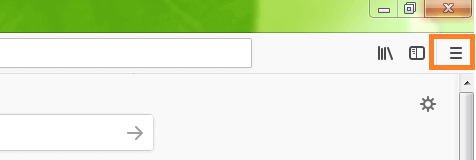
3. Click on Add ons Options -

4. Click on Get More Add Ons option from left Top corner -
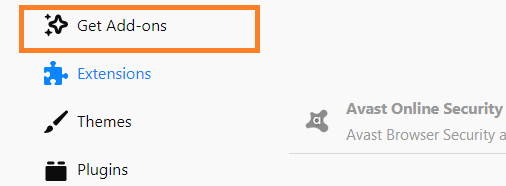
5. Scroll to the bottom of the page and Choose to See More Add ons!-

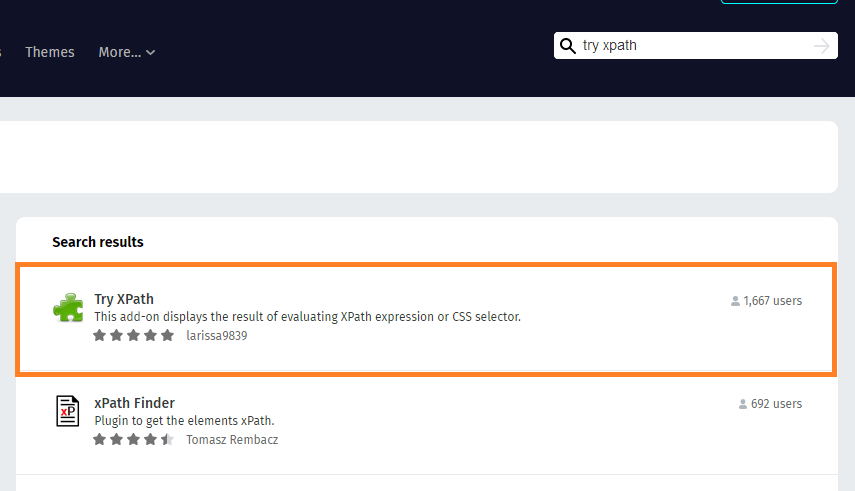
6. Type Try Xpath on the search field

-
7. Click on the Try Xpath Add on -
8. User will be navigated to Add on the page, now Click add to firefox button-
-
-
-
-
-
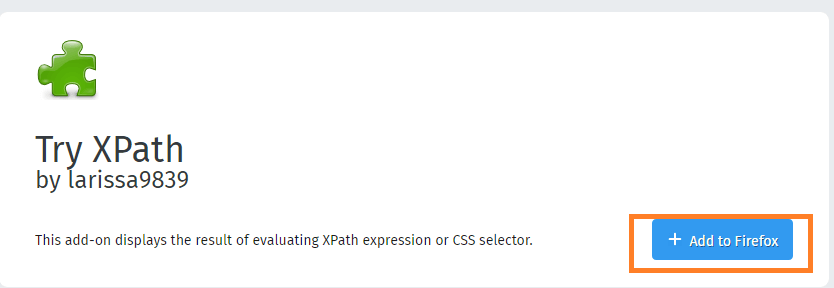
9. Try Xpath Add on will start installing into firefox -
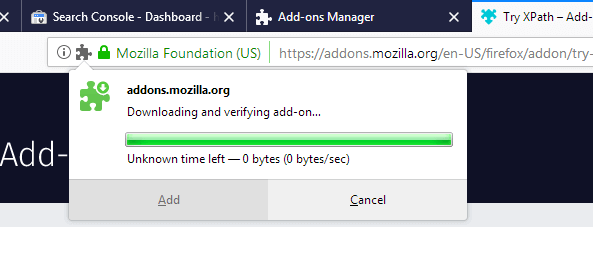
10. Give permission to add the Try Xpath
-

-
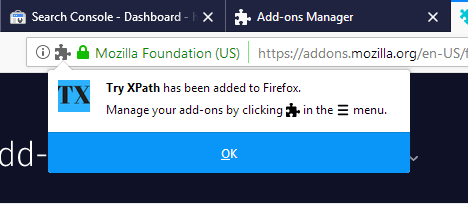
11. If Try Xpath installed without failure, you may see a successful message. -
-
-
-
-
-
Verify Xpath with Try Xpath ( Firebug alternative in selenium webdriver)
- You can find TX icon in the toolbar of firefox, click the icon.

2. On Click of the icon, it opens a dialog box which will provide multiple options such as XPath or CSS(query Selector), the input field for value, and the number of matches, the expression is correct or not, results of the matches
3. Choose Way:Xpath_Any, expression://input[@name='q'] after navigating to google page, hit Enter Keyon your keyboard or click Execute button
4 If there is a matching element, Try Xpath highlights the element with a dashed redline. -

5. If there are more elements which match the xpath, Try Xpath highlights all of them, and you can use the Focus button to find the right element
(Open Url : https://chercher.tech/java/practice-dropdowns) -

5. You can narrow down the results by giving an index to xpath

Verify CSS Selector with Try Xpath ( Firebug alternative in selenium webdriver)
1. Choose Way: querySelector, expression: select, hit Enter Key on your keyboard or click Execute button
(Open Url : https://chercher.tech/java/practice-dropdowns)
2. If there is a matching element for the given CSS value, Try Xpath highlights the element with a dashed redline. 
3. If there are more elements which match the xpath, Try Xpath will not highlight all of them except the first match
4. If we want to all the matches for the Given xpath, please do change the Way: querySelectorAll, hit Enter after changing the way, Try Xpath will highlight all the matching elements
5. Scroll down the dialog box, to see all th element details 
6. With the help of Focus button you highlight the elements(Blue Solid Line)
Recommended Readings
- Xpath in Selenium Webdriver
- Find Element / Find Elements in Selenium
- Get Text, Attribute, CSS, Size values from Element in Selenium
- Sendkeys : Click : Clear : Submit ~ Element Input Operations
- Get Title : URL : Page Source in Selenium
- Navigation Commands in Selenium
- Browser Size in Selenium Webdriver | maximize();
- Close and Quit Browser in Selenium Webdriver
I am Pavankumar, Having 8.5 years of experience currently working in Video/Live Analytics project.
Hi,
In the 8th step of installation: For me"Add to firefox" button is not active.
It is saying you need to download firefox to install this addon, but firefox is already installed and also downloaded from the link they have mentioned still it is not active.
Please suggest.