

AutoIt with Selenium
Auto It is an open-source tool used to automate the operating system based applications.
Sometimes, we might face scenarios in selenium like automating window popups at that time selenium will not help us to automate such popups, so we have to use third-party tools like AutoIt or sikuli.
Let us discuss AutoIt application, It is basically used to simulate the keystrokes and mouse action, and also, we can create GUI, but our site limits till mouse actions and keystrokes.
AutoIt has a built-in feature to compile the script and generate a .exe executable file. You do not need any extra add-on to do all these things.
Some window popups for information:
Download pop up
Save as pop up
Window Applications
To install AutoIt, follow the below steps.
- Goto https://www.autoitscript.com/site/autoit/downloads/
- Click download AutoIt button
- After downloading go to the downloaded folder and right-click on the AutoIt application and select Open and follow the download instructions
- It may take 2 minutes to install
- Click Finish button
- Once the installation is complete , Goto Start ->All Programs->AutoIt v3->select sciTE Script Editor
- Script editor looks Like below one here we are going to write our script to perform an action on the window application
Inspect Window popups with AutoIT
Before we perform any action with AutoIt, we need to find the object on which we are going to perform the action, like as in selenium.
So to inspect the element in AutoIt we are using AutoIt Window Info application, we do not need to download it separately as it comes with AutoIt application.
To open the AutoIt Window Info application, Goto Start->All Programs->AutoIt V3->AutoIt Window Info.
AutoIt Window Info:
AutoIt v3 comes with a standalone tool called the AutoIt Window Info Tool (Program FilesAutoIt3Au3Info.exe). Au3Info allows you to get information from a specified window that can be used to automate it effectively. Information that can be obtained includes:
- Window titles
- Text on the window (visible and hidden)
- Window size and position
- Contents of the status bar
- The Position of the mouse pointer
- The Color of the pixels underneath the mouse pointer
- Details of the Control underneath the mouse pointer
WinActivate
Click the web present in the finder tool and drag it to the required application, you may see that application highlighting the part we are finding the info.
Now you can see all the information of the notepad in the finder info above image.
Finding Info:
1. If we want to perform any action on the application, first of all, we need to activate that application
2. Let us write a script to activate the notepad
WinActivate("Untitled - Notepad")
3. To run the script goto Tools->Goto
4.AutoIt activates Notepad when notepad becomes active; it comes to the front. You may see the result in the AutoIt bottom
AutoIt Mouse Actions
In most of the applications, we have click on a button for handling button; we need to use mouse actions.
So, first of all, we need to activate the window or pop up, then only we can proceed with our script.
Click on the Save As button
1. Consider below example where we are clicking on the save as button, so I found the information with the help of Finder Tool and write the command like below
1.1.Navigate to mouse option in the Finder Tool
We use the MouseClick() method for clicking, MouseClick() clicks on the application if it is opened.
//MouseClick method to click
MouseClick("which button", x, y, No.of clicks, clicking speed)
2. But which button you want to click "Right-click or Left Click" ?
2.1. Where to Click ?
2.2. How many clicks do you want to click ?
2.3.On what speed you want to click ?
For the above Queries below one is the answer.
3. Usually, we can set up the buttons as "Primary or Secondary" by default(right-hand user) Primary=Left Button, Secondary=Right Button.
Sometimes Left-hand users might have changed the button options in the control panel, and In such situations, we need to give an option like as in the configuration.
3.1. Second one parameter is x coordinate, and the third parameter is y coordinate
3.2.whether you want single click or double click or triple-click
3.3.it specifies the speed of the click
Code for Clicking:
//for comments in AutoIt use # infront of the line
//do not use //(double slashes)
//activates the Save As title(pop up)
WinActivate("Save As")
//right clicks on a position 657, 564 , it is single click with speed 1
MouseClick("Primary", 657, 564, 1, 1)
But if the application is not opened means AutoIt will give an error, and also, we cannot ensure that because selenium runs faster, so there is a chance to fail the script if the application takes sometime extra to open the dialog box.
WinWaitActive:
WinWaitActive is another method present in the AutoIt; it will wait until the application or pop-up loads, then only it performs the action.
This also works in the same way as WinActivate in remaining aspects.
Read & Write Barcode using Selenium Webdriver.
Code for Clicking:
//for comments in AutoIt use # infront of the line
//do not use //(double slashes)
//activates the Save As title(pop up)
WinWaitActive("Save As")
//right clicks on a position 657, 564 , it is single click with speed 1
MouseClick("Primary", 657, 564, 1, 1)coordinates in AutoIT
In the above example, we have written a code to click on the button with the help of coordinates, but can we tell surely it will work ??
No, because we cannot say all the time the pop going to open in the same position, sometimes it may be somewhere else on the screen, so there will be a change in coordinates.
In other cases, the monitor size also matters I have a small screen, but someone who is having cannot handle the pop-up with the same code.
How to handle it ?
To handle such a scenario, we need to use the coordinates of the pop-up like below.
To obtain the above one follow below steps
1.Open->AutoIt Window Info
2.Select Options->Coord Mode->Window
3. Now find Coordinates with the help of the Finder Tool.
4. It calculates the Pop as (0, 0) coordinates and calculates the distance for the button(497, 467)
5. Now we changed the mode in the AutoIt Window Info application
6. We have to inform the script that we are using window coordinates
7. For that, we need to include below line into our script
AutoItSetOption("MouseCoordinateMode", 0)
7.1. If you want info about MouseCoordMode, please go through the help document
8.Sample program
Code Example for coordinates in AutoIT:
//for comments in AutoIt use # infront of the line donot use //
//activates the Save As title(pop up)
AutoItSetOption("MouseCoordMode", 0)
WinWaitActive("Save As")
//right clicks on a position 657, 564, it is single click with speed 1
MouseClick("Primary", 530, 470, 1, 1)Key Strokes
In most of the applications, we have to enter text on text fields like while saving an image, we need to give a name for it and location for it.
For Handling Key Strokes we are using send("key sequence")
1. First, activate the window
2. Find the coordinates of the text field
3. Click on that text Field using MouseClick
4. Send the Keys using Send() method
Syntax: Send("hello)AutoItSetOption("MouseCoordMode", 0)
WinWaitActive("Save As")
MouseClick("Primary", 298, 406, 1, 1)
Send("hello")In Some Cases, you might be sending an "Enter" key from the keyboard in those cases; we need to use "{}" to send the keys.
AutoItSetOption("MouseCoordMode", 0)
WinWaitActive("Save As")
MouseClick("Primary", 298, 406, 1, 1)
Send("hello")
Send("{Enter}")Now send the text to the notepad when it opens.
AutoItSetOption("MouseCoordMode", 0)
WinWaitActive("Untitled - Notepad")
MouseClick("Primary", 20, 20, 1, 1)
Send("I am note pad")
Send("{Enter}")
Send("{Enter}")
Send("there is one empty line is there between me and first line")Ways to Click a button in AutoIT
In most of the applications, we have to enter text and Clicking the Buttons.
For Handling Key Strokes, we are using send("key sequence," and for Clicking, we used MouseClick() methods.
So far, we have seen methods, those are based on coordinates, but we cannot say 100% it is going to be the same coordinate all the time.
In the below example, we are going to see ways in which we can send keys or clicking on a button.
Advanced AutoIt
1.WinActivate()
With this method, we will activate the window using the WinActivate() method based on their title, and then we will click using MouseClick() method based on the coordinates.
Download the selenium server using AutoIt(just Pop-up)
1. Go to "https://seleniumhq.org/download/."
2. Click on The version link
3. It opens a Dialog box.
4.Handle that dialog box with selenium
WinActivate("Opening selenium-java-2.45.0.zip")
AutoItSetOption("MouseCoordMode", 0)
MouseClick("Primary", 290, 160, 1, 1)
2.ControlClick()
With this method, we will not activate the window, but we will click on the particular object either button or text field based on their id or Class+instance.please not that we did not use WinActivate() in this.
Important: To use this method, please Uncheck the "use Spy" option from the AutoIt Window Info application.
ControlClick("title of the window", '', "ID of the element")Handle the Save As Dialog Box.
1.Inspect the Button
2. Click On the Save Button
ControlClick("Save As", '', "Text:&save;ID:1")I hope it works for everyone.
3.Send()
In this method, we will activate the window using the WinActivate() method based on their title, and then we will click using the Send() method based on the keys like how many tabs and then enter.
WinActivate("title of the window")
Send("{tab}{Enter}")
Download the selenium server using AutoIt(just Pop-up)
1.Goto "https://seleniumhq.org/download/" 2.Click on The version link
3. It opens a Dialog box.
4.Handle that dialog box with selenium
5. Note check the active element then press the tabs and enter manually once then write the program(for this pop up active element is Cancel button as you can see the blue line over the button)
WinActivate("Opening selenium-server-standalone-2.45.0.jar")
Send("{TAB}{TAB}{ENTER}")Convert .au3 to a .exe in AutoIT
We usually write a script in AutoIt whenever we need to handle the pop-up or some window application.
But when you save the AutoIt script, it saves as a .au3 file, you can execute your .au3 files only in systems where you have AutoIt installed, but in practice, we do not install any AutoIt in the system then how to run in these script in those systems.
For this, we need to convert the file to a format that can be executed in all the systems.
Everyone knows that .exe file works in all the systems, without using any application.
Steps to convert the .au3 to .exe file
1. Write your script in AutoIt
2.Goto Tools->Compile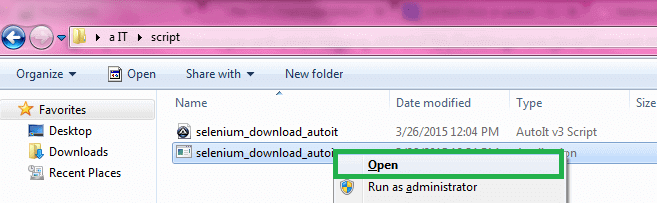
3. Now go to the location where you are saving your .au3 files
4. Now you can see a .exe file in the same location
5. Double click on the .exe file, It runs and does the same action as we did it in Tools->Go
6. You can also open the .exe application by RightClick->Open
Invoke AutoIt
To use the AutoIt .exe file in our selenium programs, we need to invoke the .exe file during the execution time.
Steps to handle selenium server download pop-up
1. Write the script to handle the dialog box in your AutoIt
2.Convert the file to .exe file
3. Write you selenium programs till the clicking on the link
4. Write the below code to invoke the AutoIt .exe file, and it throws IOException
Runtime.getRuntime().exec("C:Userspatha ITscriptselenium_download_autoit.exe");5. Total code may look like this
Code Example for AutoIT Invocation in Selenium
import java.io.IOException;
import org.openqa.selenium.By;
import org.openqa.selenium.WebDriver;
import org.openqa.selenium.firefox.FirefoxDriver;
public class SeleniumDownload
{
	public static void main(String[] args) throws IOException
	{
		WebDriver driver=new FirefoxDriver();
		driver.get("https://seleniumhq.org/download/");
		driver.findElement(By.xpath("//p[contains(text(), 'Download version')]//a[text()='2.45.0']")).click();
		Runtime.getRuntime().exec("C:Usersscriptselenium_download_autoit.exe");
	}
}Handle Notepad with AutoIT
Scenario: open notepad and enter "This is test Text" and save the notepad
Open NotePad
Syntax: Run("notepad.exe")Wait for notepad to open using its title.
Syntax: WinWaitActive("Untitled - Notepad")Once notepad is opened cursor in notepad points in the edit area, now send the text you need to enter.
Syntax: Send("This is test Text")Now Close the notepad, so that we get "do you want to save option."
Syntax: WinClose("Untitled - Notepad")Wait for the do you want to save popup.
Syntax: WinWaitActive("Notepad", "Save")Press key based on the option, windows underscores the key in an option.
Syntax: Send("!n")
Code Example for Notepad Handling in AutoIT:
Run("notepad.exe")
WinWaitActive("Untitled - Notepad")
Send("This is some text.")
WinClose("Untitled - Notepad")
WinWaitActive("Notepad", "Save")
Send("!n")Drawbacks of AutoIT
- Below are few drawbacks
- We can convert the .au3 files to .exe files only
- We can use .exe files in windows only
- We cannot run .exe files in Linux without using the other application
- Python
- .exe does not work in mac
Take Web Page Screenshot and Compare Screenshots in selenium
Recommended Readings
- Log4j in Selenium - Java
- Page Object Model in Selenium | POM Framework
- Featured Page Object Model in Selenium | Feature Framework
- Factory Pattern in Selenium
- CSV Files in Selenium
- Apache POI to read write excel in Selenium Webdriver
- Properties file with Java in Selenium | prop.getProperty()
- Selenium Grid | Remote execution in webdriver
I am Pavankumar, Having 8.5 years of experience currently working in Video/Live Analytics project.