

Browser Options Class in Selenium webdriver
ChromeOptions class extends MutableCapabilities Class and MutableCapabilities extends Object Class, ChromeOptions also implements Serializable, Capabilities.
We can use ChromeOptions class to manage options specific to ChromeDriver. Similar to ChromeOptions, Firefox also provides FirefoxOptions class where you can set all the options specific to the execution of the session.
The remaining browsers also provide this feature. Using Browser Options class, we can set options like making the browser headless, load extensions, set binaries and set proxy so on.
Methods present in the Browser Options class
All the methods present in the ChromeOptions/ FirefoxOptions class are non-static methods, below are the methods present in the ChromeOptions/ FirefoxOptions.
1. setBinary
2. setAcceptInsecureCerts
3. setProxy
4. addExtensions
5. setHeadless
6. addArguments
7. setUnhandledPromptBehaviour
8. addEncodedExtensions
9. getPlatform
10. setExperimentalOption
11. getCapability
12. setPageLoadStrategy
13. asMap
14. merge
setBinary in ChromeOptions/FirefoxOptions
We cannot expect systems to have the browser exe file in the right path; sometimes due to permission issues. People will install the browsers in a different path.
In these cases, the Selenium searches for the browser exe in the default path as the browser is not present in the default path; selenium throws an exception.
This happens not only for chrome and firefox but also happens to other browsers.
To overcome this, selenium provides a method called setBinary in ChromeOptions/FirefoxOptions class; using this method; we can set the browser exe path.
public static void main(String[] args) {
	System.setProperty("webdriver.chrome.driver", "D:PATHchromedriver.exe");
	ChromeOptions co = new ChromeOptions();
	// set the binary path
	co.setBinary("C:Program Files (x86)GoogleChromeApplicationchrome.exe");
	//open the browser
	WebDriver driver = new ChromeDriver(co);
	driver.get("https://google.com");
}
setBinary method is an overloaded method, in the above example, we have passed the path as String, but we can also send a file as a parameter.
The below example shows how to set the exe binary path using FirefoxOptions.
public static void main(String[] args) {
	System.setProperty("webdriver.gecko.driver", "D:PATHgeckodriver.exe");
	FirefoxOptions fo = new FirefoxOptions();
	fo.setBinary(new FirefoxBinary(new File("C:Program FilesMozilla Firefoxirefox.exe")));
	//open the browser
	WebDriver driver = new FirefoxDriver();
	driver.get("https://bing.com");
}
This method is used whenever the tester wants to perform the version testing in selenium. In version testing, we may need to have more than one version of the browser. In such cases, we will install the additional browser on a custom path.
setAcceptInsecureCerts in selenium
SSL (Secure Socket Layer) Certificate is nothing but an encrypted way of transmitting data from the website to database, database to the website.
If a site enables its SSL certificate, we can see https protocol instead of HTTP protocol. Few companies will have their own certificates, and few companies will buy from the SSL providing companies.
For example, Google, Fb, Amazon have their own certificate but in the case of this(chercher.tech) website has received the SSL certificate from my hosting company (it would be fun, so try to open this site like https://chercher.tech)
Sometimes some sites will open only when you open them in https mode; there are a few more sites whatever you open; they will open only with https protocol.
Some browsers will not allow you to open the https version of the website, so in this case, we have to bypass the authentication certificate or SSL certificate to test the website.
setAcceptInsecureCerts method present in the ChromeOptions/FirefoxOptions/InternetExplorerOptions class will help us to bypass the SSL certificate.
setAcceptInsecureCerts method accepts a boolean parameter if the true driver accepts the certificate and proceeds further, if false is passed and the site has SSL, then the driver will stop the execution as it cannot proceed further due to SSL.
public static void main(String[] args) {
	System.setProperty("webdriver.gecko.driver", "D:PATHgeckodriver.exe");
	FirefoxOptions fo = new FirefoxOptions();
	// accept the certificate
	fo.setAcceptInsecureCerts(true);
	//open the browser
	WebDriver driver = new FirefoxDriver();
	driver.get("https://www.cacert.org/");
}
The sites are having https may or may not throw the certificate warning; if a site throws a certificate warning(below image) then only this method serves its purpose; otherwise, this method does not have any effect.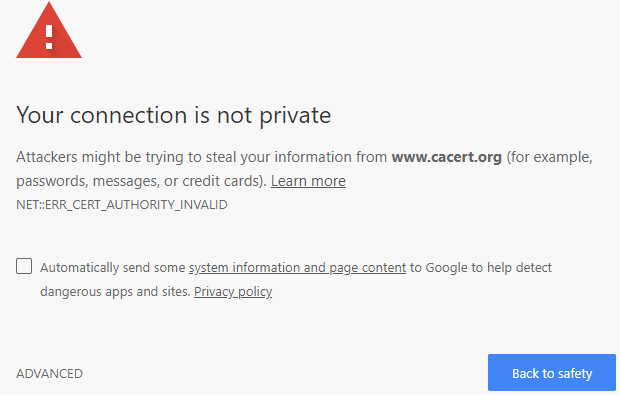
Handle PROXY in Selenium Webdriver
Before starting this section, I want to inform you guys that all the proxies used in this are my imagination, obviously, these will not help you to bypass any server, but it will help you to learn how actually proxy works in selenium.
A proxy is nothing but a mask over your computer address; every company will have a proxy at least for installing the software.
Basically, the proxy is nothing but showing someone else's computer as your computer through masking.
By connecting through one of these proxy servers, your computer sends your requests to the proxy server which then processes your request and returns what you were wanting.
Proxies are used for a number of reasons such as to filter web content, to go around restrictions such as parental blocks, to screen downloads and uploads, and to provide anonymity when surfing the internet.
FYI : I use proxy only to use Facebook.., Nah I am too old for Facebook
Steps to Handle Proxy in selenium: If you ever visited the Proxy section of the Browser, you might have noticed that there are two types of proxy settings.
- Automatic configuration
- Manual Configuration
You might have read using Capabilities class to set the Proxy but with updated versions of selenium will support Browser Options class.
Automatic proxy in selenium :
We can set the automatic proxy using ChromeOptions/FirefoxOptions/InternetExplorerOptions class; for setting a proxy, we have to configure Proxy in selenium webdriver.
setProxyAutoconfigUrl is the method we have to call from the Object of Proxy class to set the automatic proxy.
Do not close the browser in your code as we want to ensure whether our code worked or not. Do not forget to pass the Browser options object to Browser Driver.
public static void main(String[] args) {
	System.setProperty("webdriver.gecko.driver", "D:PATHgeckodriver.exe");
	FirefoxOptions fo = new FirefoxOptions();
	// Create object Proxy class
	Proxy prox = new Proxy();
	prox.setProxyAutoconfigUrl("https://proxy.chercher.tech");
	// register the proxy with options class
	fo.setProxy(prox);
	// create object to firefx driver
	WebDriver driver = new FirefoxDriver(fo);
}
Open the proxy setting in the browser that you opened with automation.
Manual Proxy Configuration in Selenium :
In the below image, I have highlighted what is required for the manual proxy,
We have to set :
- Http Proxy
- SSL Proxy
- FTP Proxy
- Socks Proxy
If we did not set the version, then selenium throws the below exception, as well as you need to let the system know that You are setting manual Proxy.
Exception in thread "main" org.openqa.selenium.SessionNotCreatedException: InvalidArgumentError: Expected [object Undefined] undefined to be an integer
Let see the program, how to set the manual proxy in selenium.
public static void main(String[] args) {
	System.setProperty("webdriver.gecko.driver", "D:PATHgeckodriver.exe");
	FirefoxOptions fo = new FirefoxOptions();
	String proxyAddress = "dummyhost:8080";
	// Create object Proxy class
	Proxy prox = new Proxy();
	// setting manual proxy
	prox.setProxyType(ProxyType.MANUAL);
	prox.setHttpProxy(proxyAddress);
	prox.setFtpProxy(proxyAddress);
	prox.setSslProxy(proxyAddress);
	// set the SOCKS version
	prox.setSocksVersion(4);
	prox.setSocksProxy(proxyAddress);
	// register the proxy with options class
	fo.setProxy(prox);
	// create object to firefx driver, register options class object
	WebDriver driver = new FirefoxDriver(fo);
}
Open the proxy setting in the browser that you opened with automation.
No Proxy Configuration in Selenium :
We can also set No Proxy option in the browser using selenium, to set No proxy we have to use ProxyType as Direct. We usually use No Proxy to bypass all the proxies set.
public static void main(String[] args) {
	System.setProperty("webdriver.gecko.driver", "D:PATHgeckodriver.exe");
	FirefoxOptions fo = new FirefoxOptions();
	// Create object Proxy class
	Proxy prox = new Proxy();
	prox.setProxyType(ProxyType.DIRECT);
	// register the proxy with options class
	fo.setProxy(prox);
	// create object to firefx driver, register options class
	WebDriver driver = new FirefoxDriver(fo);
}
The output of Direct Proxy program with selenium
Auto Detect Proxy Configuration in Selenium :
By using ProxyType Enum, we can set the Auto-detect proxy in the browser
public static void main(String[] args) {
	System.setProperty("webdriver.gecko.driver", "D:PATHgeckodriver.exe");
	FirefoxOptions fo = new FirefoxOptions();
	// Create object Proxy class
	Proxy prox = new Proxy();
	prox.setProxyType(ProxyType.AUTODETECT);
	// register the proxy with options class
	fo.setProxy(prox);
	// create object to firefx driver, register options class
	WebDriver driver = new FirefoxDriver(fo);
}
The output of the Auto proxy program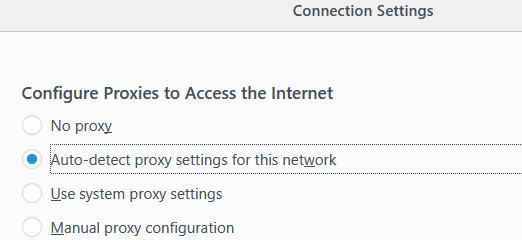
System Proxy Configuration in Selenium :
System proxy is also similar to Auto Proxy; setting system proxy reads the proxy value from the system.
public static void main(String[] args) {
	System.setProperty("webdriver.gecko.driver", "D:PATHgeckodriver.exe");
	FirefoxOptions fo = new FirefoxOptions();
	// Create object Proxy class
	Proxy prox = new Proxy();
	prox.setProxyType(ProxyType.SYSTEM);
	// register the proxy with options class
	fo.setProxy(prox);
	// create object to firefx driver, register options class
	WebDriver driver = new FirefoxDriver(fo);
}
Getter methods in Proxy :
There are few methods present in the proxy class which will retrieve the details about the proxy, which come in handy when you want to instruct the browser to perform some tasks based on the details.
- 1. getFtpProxy : This method retrieves the FTP proxy of the browser
- getHttpProxy :fetches the HTTP proxy
- getNoProxy :gets the values of no proxy
- getProxyAutoconfigUrl : this method retrieves the URL of the automatic proxy
- getProxyType :fetches the proxy type
- getSocksPassword : fetches the password of the SOCKS proxy
- getSocksProxy : fetches the proxy of the SOCKS
- getSocksUsername : fetches the username of the SOCKS proxy
- getSocksVersion : fetches Socks version, the value could be 4 or 5
- getSslProxy :fetches the SSL proxy
- isAutodetect : This method returns true or false, true if the proxy is Auto Detect/ Direct
I hope you clear about how to handle the proxy using ChromeOptions/FirefoxOptions/InternetExplorerOptions. Now let's get back to methods in the Browser Options class
Make browser Headless
setHeadless method in ChromeOptions/FirefoxOptions helps the user to make the browser as headless; We have dedicated a full chapter for Headless browser
public static void main(String[] args) {
	System.setProperty("webdriver.gecko.driver", "D:PATHgeckodriver.exe");
	FirefoxOptions fo = new FirefoxOptions();
	// Create object Proxy class
	fo.setHeadless(true);
	// create object to firefx driver, register options class
	WebDriver driver = new FirefoxDriver(fo);
}
The output of the headless program
addArguments in selenium
Using addArguments method we can achieve result of the all the methods in ChromeOptions/FirefoxOptions/InternetExplorerOptions class.
For Example, we can make the browser as headless; we can add a proxy, we can add extensions, so on..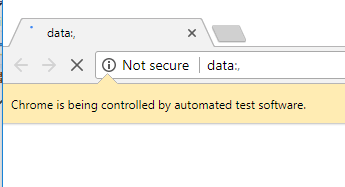
In below example shows how to remove the information bar while executing the automation in chrome.
public static void main(String[] args) {
	System.setProperty("webdriver.chrome.driver", "D:PATHchromedriver.exe");
	ChromeOptions fo = new ChromeOptions();
	// disable the info bar
	fo.addArguments("--disable-infobars");
	// create object to firefx driver, register options class
	WebDriver driver = new ChromeDriver(fo);
	driver.get("https://bing.com");
}
The output of the add arguments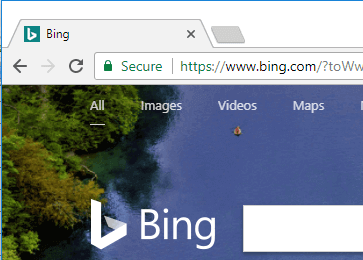
Handle Browser notification
A lot of websites have started sending notifications these days. You get these notifications on desktop or device even when the concerned web page is not open in your browser.
These are also called as Web push notifications. These notifications look like below in chrome browser: We have to use addArguments method to handle these kinds of browser notifications,
public static void main(String[] args) {
	System.setProperty("webdriver.chrome.driver", "D:PATHchromedriver.exe");
	ChromeOptions fo = new ChromeOptions();
	fo.addArguments("--disable-notifications");
	WebDriver driver = new ChromeDriver(fo);
	driver.get("https://drupal-stage-web.weather.com/en-IN");
}
setUnhandledPromptBehaviour in Selenium
setUnhandledPromptBehaviour methods help the user to handle the unhandled alert. Whenever there is an alert, this method performs the operation on that based on your input to this method.
Note: With a few versions, this method may not work.
public static void main(String[] args) {
	System.setProperty("webdriver.chrome.driver", "D:PATHchromedriver.exe");
	ChromeOptions fo = new ChromeOptions();
	// set the behaviuor of the alert
	fo.setUnhandledPromptBehaviour(UnexpectedAlertBehaviour.ACCEPT);
	// create object to firefox driver, register options class
	WebDriver driver = new ChromeDriver(fo);
	driver.get("https://chercher.tech/java/practice-pop-ups-selenium-webdriver");
	driver.findElement(By.name("alert")).click();
	driver.findElement(By.name("prompt")).click();
}Page Load Strategy in selenium
When Page Loading takes too much time, and you need to stop downloading additional subresources (images, CSS, js, etc.), you can change the pageLoadStrategy through the webdriver.
We want to reduce the number of calls to various resources like Images, JS, so on.
Page Load Strategy helps the user to load the webpage faster, and pageLoadStrategy supports the following values.
- 1. normalThis strategy causes Selenium to wait for the full page loading (HTML content and subresources downloaded and parsed).
- 2. eagerThis strategy causes Selenium to wait for the DOMContentLoaded event (HTML content downloaded and parsed only).
- 3. nonethis strategy causes Selenium to return immediately after the initial page content is fully received (HTML content downloaded).
By default, when Selenium loads a page with normal pageLoadStrategy.
public static void main(String[] args) {
	System.setProperty("webdriver.chrome.driver", "D:PATHchromedriver.exe");
	ChromeOptions fo = new ChromeOptions();
	// set the page load strategy
	fo.setPageLoadStrategy(PageLoadStrategy.EAGER);
	// create object to chrome driver, register options class
	WebDriver driver = new ChromeDriver(fo);
	driver.get("https://chercher.tech");
}
Recommended Readings
I am Pavankumar, Having 8.5 years of experience currently working in Video/Live Analytics project.
