

Maven with Selenium
Maven is a dependency management tool, i.e., to execute the frameworks; we need the jar files. Maven helps the user to keep the up to date jar file on the framework.
During runtime, the maven will check the version of the jarfiles present in the local system and compares it with the pom.xml file. If the latest version is available online, then it downloads them automatically and replaces the local version and then executes the framework.
If there is no internet connection or if the latest version is not available, then the maven executes the framework with the jar files available in the local system.
To achieve the above said, we have to follow the below steps:
- Install Maven
- Add dependency
- Integrate TestNG with Maven
- Execute the framework
Types of Maven Repository
There are three types of maven repository; we will discuss them now on this tutorial.
Green : Download requests
Violet : Download of files
Blue : Download Request and download of files
Remote Maven Repository :
Remote maven repository is managed by the companies who own the software, but they will expose the maven software to the maven.
- Selenium jars are availabke at openqa servers
- TestNG, POI jars are available at apache server
Centralized Maven Repository :
This is a cloud server owned by Maven, this server downloads all the latest jar files from the remote maven repositories.
Organization Level repository : All the required jars are downloaded to this server from the centralized maven repository.
All the big multi-national companies follow this process; first of all, we have to request the tool handling teams to review your dependency request, based on our request the tools handling teams reviews and downloads the jar files to organization level server if the jar file doesn't contain any malware.
Few organizations follow this, and this step is optional; if your organization has this level, then you have to use the proxies provided by the tools handling the team.
Local Maven Repositories :
It is the location where the jar files are stored by maven in the local system; these jars are downloaded from the centralized maven repository.
Install Maven with Eclipse
Follow below steps install maven in eclipse, but if you are using luna or above version, you might have maven by default installed with your eclipse, if not follow the below steps.
1. Click on the Help menu, and choose Eclipse Market place.
2. Search for Maven with Eclipse; you will get below software result. As I have installed already, so I will not get an install option; for your case, you will have to click the install option.
3. Accept the agreement and restart the eclipse; this may take a while.
Convert the Existing Java project to Maven Project
We have to follow the below steps to convert the java project into the maven project.
1. Right-click on the java project
2. Go to configure option
3. Select convert to maven project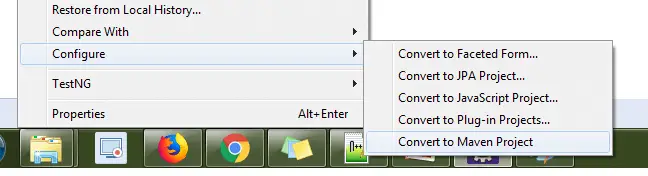
4. Click finish
5. Fill the details of the project keep version number as 0.0.1 and packaging as a jar.
Create a maven project with Selenium in Eclipse
- File New > Project
-
2. Choose Maven Project from select project wizard and click Next.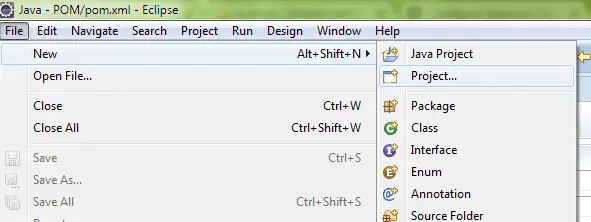
-
3. Check the Create Simple Project Checkbox and click the Next button.
-

4. Enter GroupID and ArtifactID GroupID : will identify your project uniquely across all projects, so we need to enforce a naming schema. It has to follow the package name rules
ArtifactID : is the name of the jar without version.
Version : if you distribute the jar(end product), then you can choose any typical version with numbers and dots (1.0, 1.1, 1.0.1, ...).
Packaging : how you want your end product, maven will export the project as jar or war or any other type we mention.
5. Click finish; Maven takes few moments to create the project and pom.xml
6. Your sample project will look like below.
7. Open pom.xml, and click on the select the pom.xml tab on the right, you find the source code of the XML file.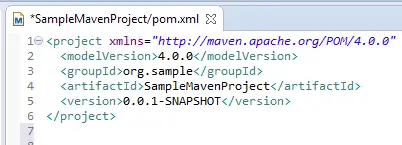
8. We can add our dependencies on this source file, before closing the project tag
For Example : Navigate to selenium site "https://docs.seleniumhq.org/download/maven.jsp", copy the dependency lines from the selenium site.
9. Paste the dependency on the pom.xml, inside the dependencies tag; if the dependencies tag is not there, add one.
10. A similar way you can add TestNG dependency.
11. Press Ctrl+S, maven starts to download all the jar files and dependent jar files as well.
12. Optional Steps (only in case of error) : Sometime, when we try to download the very latest version jars, we may face the below issue.
13. If the above error occurs, you may not be even able to run the code; to overcome the issue, we have to use the stable version of the jar files. We may not get these details from the respective organization's site (selenium, testng orgs), but we can get these details from the maven repository site : https://mvnrepository.com, you can use google for faster navigation.
14. After providing the right details on the pom.xml, press Ctrl+S to download all the dependent jar files.
15. Your maven repository should look like below after downloading dependencies.
16. Create package src/test/java package, then create a Java class
17. Write the following code in that class; if you get no error, then we have installed the maven succesfully.
package sample;
import org.openqa.selenium.WebDriver;
import org.openqa.selenium.firefox.FirefoxDriver;
import org.testng.annotations.Test;
public class MavenTest {
	@Test
	public void test(){
		WebDriver driver = new FirefoxDriver();
		driver.get("https://chercher.tech");
		System.out.println("Title of the page is : " +driver.getTitle());
	}
}
18. Before running we have to make sure of the compiler, navigate to Window>Preferences>Java>Installed JREs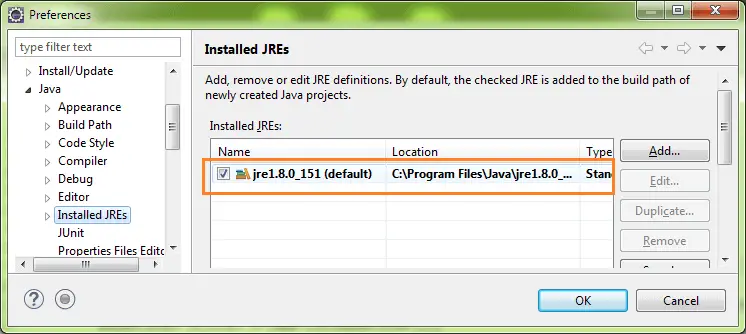
19. If you have the only JRE as your Installed JRE, then we have to add our JDK. We will be using the JRE present under JDK. Click Add button > Standard VM > Directory set the JDK folder. Click finish
20. Set the JDK as default JRE, and Click OK.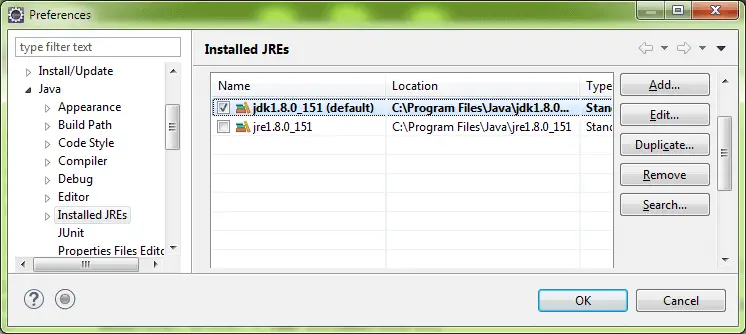
21. Right-click on the pom.xml > Run As >Maven:test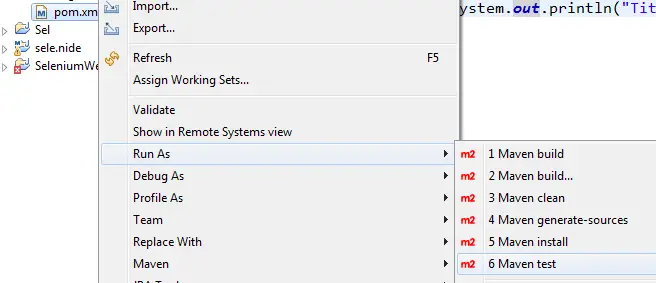
22. If the configuration is correct, then maven downloads all the dependency jars and starts executing the program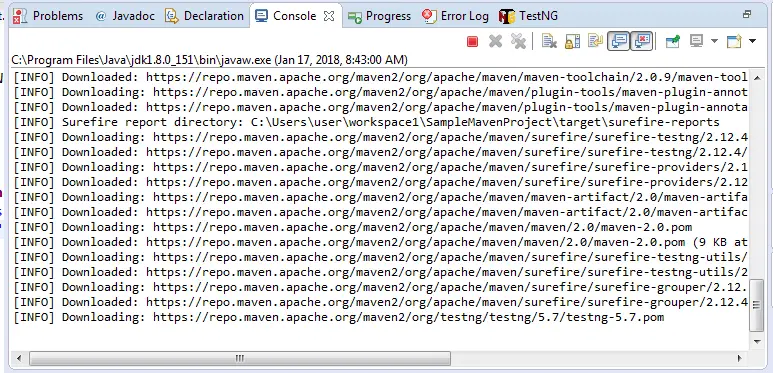
23. You see the result on the console of the Eclipse and TestNG result tab
24. Go to the folder's path in explorer; You can find the test-output folder, open the index.html file under the test-output folder.
I hope you reached still the last step :)
Recommended Readings
- Jenkins Integration with Selenium
- Cucumber with Selenium | BDD
- Parameterize Cucumber BDD with selenium
- Tags & Hooks in Cucumber with Selenium | BDD
- SonarLint / SonarQube With Selenium
- Factory Pattern in Selenium
- Featured Page Object Model in Selenium | Feature Framework
- Page Object Model in Selenium | POM Framework
I am Pavankumar, Having 8.5 years of experience currently working in Video/Live Analytics project.
- karthiQ [ admin]Reply
Hi Praveen,
We are sorry for inconvenience, we are currently working on protractor  due that we are not able to focus on webdriver part.
We would be start working on Webdriver from 19 June 2018, You can see this page updated by 25 June 2018.
We would firstly focus on API, Maven, Jenkins.
Thanks for the suggestion
