

Alerts in WebdriverIO
Alerts (aka Javascript alerts) are basically popups that take your focus away from the current browser and force you to read the alert message. You need to do some activities such as accept or Cancel the alert to resume your task on the browser.
The browser will not let you perform your task if you do not handle the alert whether you doing it manually or in automation.
There are three types of Javascript alerts present in Webpage
- Alert
- Confirmation box
- Prompt
Properties of Alert/Confirmation/Prompt with respect to WebdriverIO
- We cannot identify alerts using inspect tools
- We cannot write xpaths for alerts
- It is not a Window
- We cannot handle alerts using javaScript Executor.
- It will not allow performing any other operation on WebPage
Types of Alerts in WebdriverIO
Before learning how to handle alerts, lets understand what are the alert types.
Alert :
The alert() method displays an alert box with a message and an OK button, an alert box is often used to inform a user about a particular operation like details saved in the Database, right-click disabled, Loaded successfully such kind of messages.
Alert is formed using alert("message") in javascript, alert considers same irrespective of user operation whether he clicks OK or 'X' icon. Alert's sole purpose is to inform user, nothing more.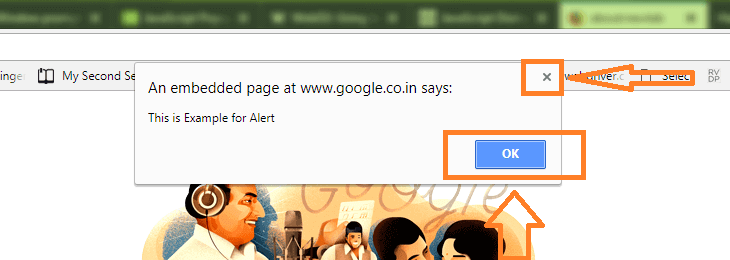
Confirmation Box :
The confirmation box is the second kind of alert, it displays a dialog with the OK and Cancel button. Confirmation box informs developer about user choice whether the user pressed OK or Cancel.
The confirm() method returns true if the user clicked "OK", and false otherwise('X' icon and 'Cancel') to developer. 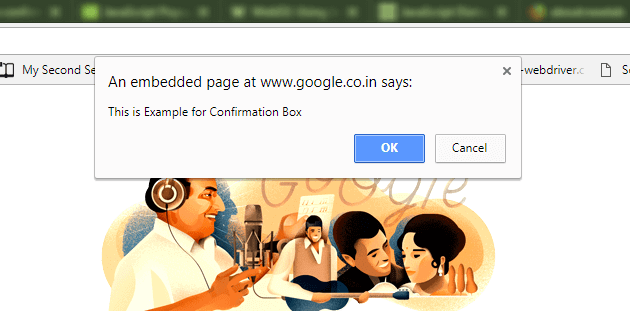
Prompt :
Prompt is used to get value from the user in text format. Prompt provides text bar for user input, Prompt is rarely used alert type.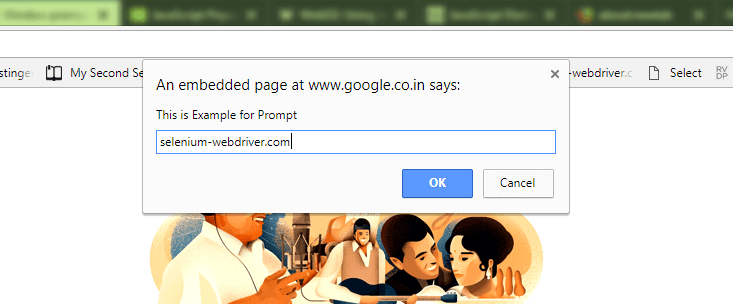
Handle Alerts in WebdriverIO
If you are from other selenium technologies, then you might think like, we need to switch to the alert to handle the alert. But WebdriverIO takes care of the switching part, so we can directly use the method to handle alerts.
Alerts functions in WebdriverIO.
- acceptAlert()
- dismissAlert()
- getAlertText()
- sendAlertText(text)
First three functions are common for all the java script Alerts but sendAlertText is only applicable for prompts.
acceptAlert() in webdriverIO
acceptAlert() function accepts the given alert/presses OK button, and brings back the focus to the web application.
browser.acceptAlert()
Complete Scenario for accepting the alert
- Open Url: https://chercher.tech/practice/popups
- Click on the Alert button, the application throws an Alert box
- We can accept the alert by using accept() non-static method from the alert api, this closes the popup.
describe('Cherchertech Home Page', () => {
	it('Get title of cherchertech Home page', () => {
		browser.url('https://chercher.tech/practice/popups')
		$("//input[@name='alert']").click()
		browser.acceptAlert()
	})
})
dismissAlert() in webdriverIO
dismissAlert() funtion closes the alert using (X) present in the alert,
Dismiss the alert using below code
browser.url('https://chercher.tech/practice/popups')
$("//input[@name='confirmation']").click()
browser.dismissAlert()
getAlertText() in webdriverIO
getAlertText() fetches the text from the alert and we can use this text for required verification
Fetch the text from the confirmation box with webdriverIO.
browser.url('https://chercher.tech/practice/popups')
$("//input[@name='confirmation']").click()
const alertText = browser.getAlertText()
console.log("Text is : " +alertText)
sendAlertText() in webdriverIO
We can Set the Text to the prompt using sendAlertText(), (with the latest release of HTML 5, sendAlertText stopped working)
browser.url('https://chercher.tech/practice/popups')
$("//input[@name='prompt']").click()
browser.sendAlertText("This is Chercher Tech")
Errors
WebdriverIO will throw an error if we try to perform any operation without closing the popup, it becomes mandatory to handle the popup. You will face the below error if you try to perform any operation without handling Javascript alerts.
There is another case, which is, if you try to handle the alert when there is no alert present then you will get below error.
Screenshot of an Alert in WebdriverIO
We cannot perform any operation on the webpage until we handle the alert.
In the below example, we are trying to take a screenshot of the browser but it throws an error. Not only screenshots, but you also cannot perform any operation until you either dismiss or accept the alert.
describe('Cherchertech Home Page', () => {
	it('Get title of cherchertech Home page', () => {
		browser.url('https://chercher.tech/practice/popups')
		$("//input[@name='prompt']").click()
		browser.saveScreenshot('screenshot.png');
	})
})
