

Get Text of an Element
getText() function in WebdriebrIO will fetch the text from the element, you can identify the in an easy way. Text is present between > and <
Gets the visible innerText of the elements, including sub-elements, without any leading or trailing whitespace.
Syntax:
$(selector).getText()Sample Html Code
<div name="elem">
    Lorem ipsum <strong>dolor</strong> sit amet<br>
	<span>invisible</span>
</div>
In above given HTML Element, if we try to use the $("#elem").getText() function it will return the self and children text content.
it('getText function', () => {
	browser.url('https://chercher.tech/practice/popups')
	const elem = $('#elem');
	console.log(elem.gletText());
	// outputs the following:
	// "Lorem ipsum dolor sit amet invisible"
	const span = $('span');
	console.log(span.getText());
	// outputs "" (empty string) since element is not interactable
});
The output of the program will be 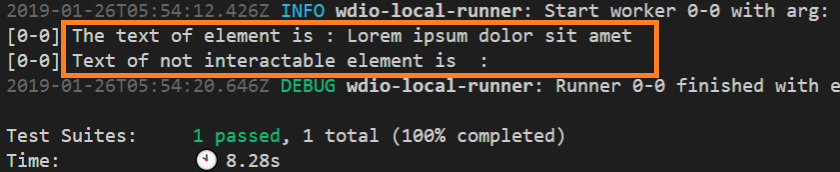
Set Text to Element
setValue function is used to Send a sequence of keystrokes/text to an element, clears value before. You cannot append value using setValue because every time it clears the field.
You can also use Unicode characters like Left arrow or Backspace. WebdriverIO will take care of translating them into Unicode characters
it('setValue function', () => {
	browser.url('https://chercher.tech/practice/popups')
	$("#textbar").setValue("sample text")
});
The output of the above program will look like the below. 
Click an Element
click() function is used to click on any element, Accepts nothing as a parameter, and return nothing. Clicking is the most common way of interacting with web elements like text elements, links, radio boxes, and many more
Syntax:
$(selector).click()
Code for clicking an element in WebdriverIO
it('Verify Alerts', () => {
	browser.url('https://chercher.tech/practice/popups')
	$("//input[@name='prompt']").click()
})
click() function generally scrolls to element and then clicks the element. However, if you have fixed-position elements (such as a fixed header or footer) that cover up the selected element after it is scrolled within the viewport, the click will be issued at the given coordinates, but will be received by your fixed (overlaying) element.
In these cases the following error is thrown:
Element is not clickable at point (x, x). Other element would receive the click: ..."addValue function
addValue() function sets/adds a value to an element found by a given selector, You can also use unicode characters like Left arrow or Back space.
When you use addValue() more than one time, then the value will be appended, this function mostly used for Textbars( also password), textareas
Syntax:
$(selector).addValue(value)
Code to set a value to the input elements
it('addValue command', () => {
	browser.url('https://chercher.tech/practice/popups')
	let input = $('#textbar')
	input.addValue('test')
	input.addValue(123)
})
The output of the program 
clearValue Command
Clear a <textarea> or text <input> element’s value. Make sure you can interact with the element before using this command. You can't clear an input element that is disabled or in readonly mode.
Syntax:
$(selector).clearValue()
Code for clearing the text from the input bar
it('addValue command', () => {
	browser.url('https://chercher.tech/practice/popups')
	let input = $('#textbar')
	input.addValue('test')
	input.clearValue()
	input.addValue(123)
})
The output of the clearValue, here test text has been cleared before entering 123 
isDisplayed Command
isDisplayed() function is used to check if an element is currently being displayed or not. This accepts nothing as a parameter but returns a boolean value(true/false).
If the element is displayed on UI then isDisplayed() function returns true otherwise false. isDisplayed() function results false even when an element is present in DOM but not UI. Syntax:
$(selector).isDisplayed()
Code to test whether an element is displayed or not.
it('Verify isDisplayed', () => {
	browser.url('https://chercher.tech/practice/popups')
	// prompt button is present on UI
	var displayed = $("//input[@name='prompt']").isDisplayed()
	console.log("Is prompt button Displayed : "+displayed)
	// hide button is not Displayed in UI
	var displayedOnUI = $("//input[@name='prompt']").isDisplayed()
	console.log("Is hide button Displayed : "+displayedOnUI)
})
isEnabled Command
isEnabled() function determines if the element currently is Enabled or not?. isEnabled() function accepts nothing as a parameter but returns boolean value(true/false). Returns true if the element is enabled otherwise false.
Syntax:
$(selector).isEnabled()it('Verify isEnabled', () => {
browser.url('https://chercher.tech/practice/popups')
// prompt button is present on UI
var enabled = $("//input[@name='prompt']").isEnabled()
console.log("Is prompt button Displayed : "+enabled)
})isSelected Command
isSelected() function determines if an element is selected or not. It returns true if the element is selected and false if it is not. It is widely used on checkboxes, radio buttons, and options in a select (dropdowns).
Syntax:
$(selector).isSelected()
Code for the isSelected() function
it('addValue command', () => {
	browser.url('https://chercher.tech/practice/popups')
	let sel = $("//option[@value='Microsoft']").isSelected()
	console.log("Is dropdown options selected : "+sel)
})
isExisting Command
isExisting() function returns true if element exists in the DOM otherwise false, Understand that we are not talking about UI but HTML
Syntax:
$(selector).isExisting()
Code for isExisting() function
it('addValue command', () => {
	browser.url('https://chercher.tech/practice/popups')
	let exist = $("//select").isExisting()
	console.log("Is dropdown exist : "+exist)
})
isFocused Command
isFocused() function returns true or false if the selected DOM-element currently has focus. This statement is an error in official docs
it('addValue command', () => {
	browser.url('https://chercher.tech/practice/popups')
	let focus = $("#textbar").isFocused()
	console.log("Is textbar focused : "+focus)
})
GetValue function
getValue() function retrieves the value of a <textarea>, <select> or <input> found by given selector. This statement is an error in official docs
it('addValue command', () => {
	browser.url('https://chercher.tech/practice/popups')
	$("//*[@id='textbar']").setValue("qwerty")
	let text = $("#textbar").getValue()
	console.log("text in textbar : "+text)
})
Get TagName
getTagName() function will fetch the tagname from the given element, In the below image input is the tagname 
it('Tagname command', () => {
	browser.url('https://chercher.tech/practice/popups')
	let tag = $("#textbar").getTagName()
	console.log("text in textbar : "+tag)
})
getElementSize
getElementSize() function fetches the width and height for an element. We can also retrieve width or height or Both
it('getElementSize command', () => {
	browser.url('https://chercher.tech/practice/popups')
	const logo = $('#textbar')
	const size = logo.getElementSize()
	console.log(size)
	const width = logo.getElementSize('width')
	console.log(width)
	const height = logo.getElementSize('height')
	console.log(height)
})
Get Property
The Get Element Property command will return the attributes of the element, this function accepts property name to return the value of it
it('getCSSProperty command', () => {
	browser.url('https://chercher.tech/practice/popups')
	var elem = $("#textbar").getTagName()
	var attr = elem.getProperty('id')
	console.log(attr) // outputs: "BODY"
})
Get Location
getLocation() function retrieves an element’s location on the page. The point (0, 0) refers to the upper-left corner of the page.
We can also fetch a specific axis like "x", "y"
it('should demonstrate the getLocation function', () => {
	browser.url('https://chercher.tech/practice/popups')
	var elem = $("#textbar").getTagName()
	const location = logo.getLocation();
	console.log(location);
	const xLocation = logo.getLocation('x')
	console.log(xLocation);
});
Get Html
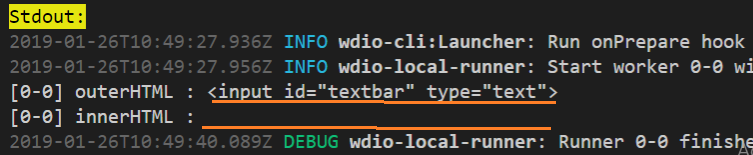
getHTML() function fetches the source code of specified DOM element by selector. If you want OuterHML then you have to pass nothing or true, but if you want HTML of the child element.
The below code did not print any output for innerHTML because there no child elements
it('get html for certain elements', () => {
	browser.url('https://chercher.tech/practice/popups')
	var outerHTML = $('#textbar').getHTML();
	console.log(outerHTML);
	var innerHTML = $('#textbar').getHTML(false);
	console.log(innerHTML);
});
Get Attribute
Get an attribute from a DOM-element based on the attribute name.
it('should demonstrate the getAttribute command', () => {
	browser.url('https://chercher.tech/practice/popups')
	const form = $('#textbar')
	const attr = form.getAttribute('method')
	console.log(attr) // outputs: "post"
})
Get CSS Property
Get a CSS property from a DOM-element selected by the given selector. The return value is formatted to be testable. Colors get parsed via rgb2hex and all other properties get parsed via CSS-value.
Note that shorthand CSS properties (e.g. background, font, border, margin, padding, list-style, outline, pause, cue) are not returned, in accordance with the DOM CSS2 specification - you should directly access the longhand properties (e.g. background-color) to access the desired values.
it('should demonstrate the getCSSProperty command', () => {
	browser.url('https://chercher.tech/practice/popups')
	const elem = $('#textbar')
	const color = elem.getCSSProperty('color')
	console.log(color)
})