

Excel Spread Sheets with python
First, let’s go over some basic definitions:
An Excel spreadsheet document is called a workbook. A single workbook is saved in a file with the .xlsx extension.
Each workbook can contain multiple sheets (also called worksheets). The sheet the user is currently viewing (or last viewed before closing Excel) is called the active sheet.
Each sheet has columns (addressed by letters starting at A) and rows (addressed by numbers starting at 1). A box at a particular column and row is called a cell.
Each cell can contain a number or text value. The grid of cells with data makes up a sheet.
OpenPyXL Module with python selenium
OpenPyXL is a library used to read and write Excel 2010 xlsx/xlsm/xltx/xltm files. This is the library we will be using in this tutorial to work with Excel documents.
The first thing we need to do in order to make use of this library is to install OpenPyXL. Python does not come with OpenPyXL, so you’ll have to install it.
pip install openpyxl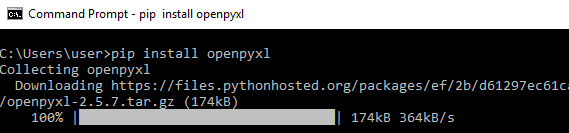
Read Excel using OpenpyXl with Python selenium
Post installing the OpenPyXl, let's start to read an excel file from the system. For example, purpose, I will be using the excel sheet data in the below image.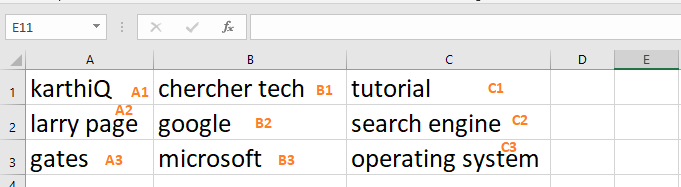
Steps to read excel using OpenPyXl :
- Import the load_workbook function from openpyxl module, load_workbook helps to load the excel file into memory
- Get the active worksheet from the excel file, and an excel file is like a tree, and the worksheet is like a leaf. So an excel file can contain n-number of sheets
- get the cell by using the column name with a Row number, for example, sheet start with A1, A1 means that Column name is A and the row number is 1
- You also get the cell using row, and column number, row, and column number starting with 1. A1 is equivalent to row=1, column=1
import unittest
from openpyxl import load_workbook
class Test(unittest.TestCase):
    def test_read_excel_file(self):
        # set file path
        filepath="excel-example.xlsx"
        # load excel-example.xlsx
        wb=load_workbook(filepath)
        # activate demo.xlsx
        sheet=wb.active
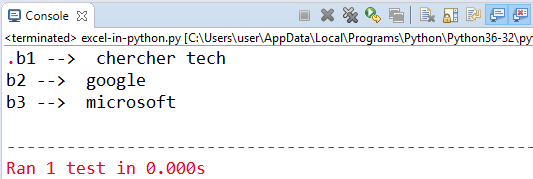
        # get b1 cell value
        b1=sheet['B1']
        print("b1 --> ", b1.value)
        # get b2 cell value
        b2=sheet['B2']
        print("b2 --> ", b2.value)
        # get b3 cell value
        b3=sheet.cell(row=3,column=2)
        print("b3 --> ", b3.value)
if __name__ == "__main__":
    unittest.main()
Get All values of a specific column
We can retrieve fetch the values present in the specific column using openpyxl in python.
- Import the load_workbook from openpyxl
- Load the excel file using load_workbook() function
- Get the sheet using the name of the sheet, careful about CASE
- Get the column which you want to iterate
- Using for loop go till the last value
- Print the values inside the loop
import unittest
from openpyxl import load_workbook, cell
class Test(unittest.TestCase):
    def test_read_excel_column_file(self):
        # set file path
        filepath="excel-example.xlsx"
        wb = load_workbook(filepath)
        sheet = wb["Sheet1"]
        row_count= sheet.max_row
        print("Total rows : ", row_count)
        for cell in sheet['C']:
            print(cell.value)
if __name__ == "__main__":
    unittest.main()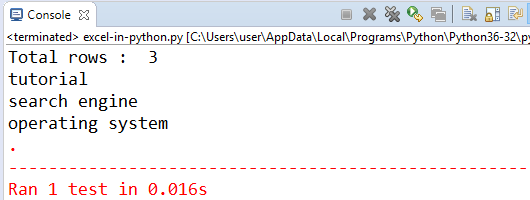
Write Excel file using openpyxl in python selenium
We can create an excel file using an openpyxl module in python.
Steps to writing excel file :
- Import the openpyxl and load_workbook
- Create an object to Workbook class and store it in a variable, this helps to create an Excel file
- create_sheet() function creates a new sheet in the above created excel file, you need to pass sheet name, and at what index you want to create the sheet, the index starts with 0
- Using sheet["A1"].value, we can set the value to the cell of the excel sheet.
- You must save the excel file to write the values to the excel and the local file system.
import unittest
from openpyxl import load_workbook, cell
import openpyxl
class Test(unittest.TestCase):
    def test_read_excel_column_file(self):
        wb = openpyxl.Workbook()
        sheet = wb.create_sheet("DummySheet", 1)
        sheet["A1"].value = "This is sample writing"
        wb.save("test-excel.xlsx")
if __name__ == "__main__":
    unittest.main()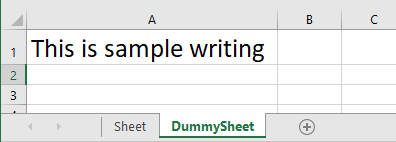
Recommended Readings
I am Pavankumar, Having 8.5 years of experience currently working in Video/Live Analytics project.
